For colour decisions in a café, choose a portable monitor with documented colour-space coverage and accuracy information for the exact model; for culling and showing previews, a simpler portable screen may be enough. In either case, plan for reflections, a stable position on the table, and a video and power connection that works with your laptop or camera.
Who needs which screen?
Photographers making colour decisions
If a café preview will influence exposure, colour or retouching, look for a documented colour space and accuracy information for the exact monitor. Consider how you will control the light around the screen and connect your laptop or camera; make final judgements within your colour-managed workflow.
Photographers culling or showing previews
For comparing frames or sharing images with a client, extra screen area and a manageable café setup may matter more than specialist colour specifications. Check how the monitor stands on a small table, what you will carry and whether your laptop can provide video and power.
Retouchers who use a pen
If you need close inspection or direct pen work away from your main display, consider a higher-resolution pen display. Check its connection, power arrangement and complete carry setup before choosing it for café use.
What should you check before buying?
Decide whether the café screen will guide edits or mainly help you select and show images. Then check visibility and connections against the place and equipment you will actually use.
| Concern |
What to check |
Who this matters to |
| Colour confidence |
Match the exact model’s stated colour space to your output, and look for documented accuracy information if the screen will guide edits. |
If I adjust an image before returning to my main display, I need more than a claim of vivid colour. Around 29% of consumers would put documented colour handling first. |
| Visibility in café light |
Check for a hood or anti-glare surface and a stand that lets you move the screen out of direct light; a brightness figure alone cannot settle glare. |
At a table near a window, reflections could make previews hard to judge even on a bright screen. For around 36% of consumers, controlling the viewing conditions would be the primary concern. |
| Video and power |
Confirm your laptop’s USB-C video capability and power output against the monitor’s requirements; check the cables needed for a camera or HDMI setup. |
I want to set up quickly without discovering that my laptop port only charges or transfers data. Connection and power simplicity would come first for around 21% of consumers. |
| Detail and pen work |
Decide whether you need closer inspection or pen input, then check the exact resolution, pen arrangement and equipment you would carry. |
If I will retouch directly at the café table, a basic second screen may not serve that task. Around 14% of consumers would prioritise detail or pen interaction. |
Mistakes to avoid
-
Assuming any USB-C port will provide picture and power
A USB-C connector alone does not establish video output or sufficient power. ASUS specifies DisplayPort Alt Mode and at least 10W host output for one-cable use with the PA148CTV.
Compare your laptop port’s documented capabilities with the exact monitor’s requirements before ordering.
If the one-cable arrangement will not work, your setup may need separate power, another cable or an adapter.
-
Reading gamut coverage as calibrated accuracy
A stated percentage of sRGB or a wider colour space describes coverage, not how accurately the exact display shows colours.
If previews will guide edits, check for exact-model accuracy or calibration documentation and use the screen within an appropriate colour-managed workflow.
-
Choosing by brightness alone
A brightness specification cannot tell you whether direct window light will reflect in the screen or whether its position will work at your table.
Check the surface or supplied hood, stand adjustment and where you can sit out of direct light.
-
Choosing a pen display for a culling-only task
Higher resolution and pen input address close inspection and direct editing, but do not automatically make image selection easier.
Decide whether you will retouch in cafés. If you will only select or show photographs, compare the carry and connection arrangements of simpler screens as well.
Relevant brands to consider
ViewSonic
The ColorPro VP16-OLED is a portable creator display to consider when café previews will inform colour decisions or require a camera connection.
- ViewSonic specifies 100% DCI-P3 coverage, Delta E < 2, a foldaway hood, Micro HDMI and a tripod-ready stand for this model.
- Its documented native resolution is 1920 × 1080; decide whether that gives you enough detail for the work you intend to do.
ASUS ProArt
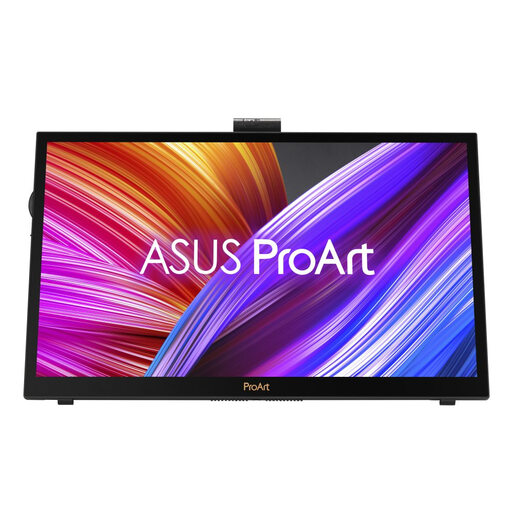
The PA148CTV addresses sRGB and Rec.709-oriented portable review, while the PA169CDV is a larger 4K option for close-detail and pen-led work.
- ASUS specifies 100% sRGB and Rec.709 coverage for the PA148CTV, and 3840 × 2160 resolution and 92% Adobe RGB coverage for the PA169CDV.
- For one-cable use, the PA148CTV requires a host USB-C port with DisplayPort Alt Mode and at least 10W output. Check the connection and power needs of whichever model you choose.
Lenovo ThinkVision
The ThinkVision M14t Gen 2 is a portable sRGB second-screen option for selecting images and viewing previews, with touch interaction if your workflow calls for it.
- Lenovo lists 2240 × 1400 resolution, 100% sRGB coverage, a stated 700 g weight and two USB-C ports for this model.
- Colour-space coverage alone is not an accuracy result; check the evidence you need before using it for colour-critical edits.
Dell
The Pro 14 Plus P1425 is a general portable IPS option to consider for image selection and showing previews.
- Dell lists 1920 × 1200 resolution, anti-glare treatment, 400 cd/m² brightness and 100% sRGB coverage for this model.
- Do not use its sRGB coverage alone as the basis for colour-critical editing decisions; check accuracy requirements separately.
Portable monitors on Joybuy
These choices span a creator-oriented 4K screen, a general portable display and a touchscreen for sRGB-oriented previews. Choose according to whether you need to edit, cull or show images, and check the connection and café viewing setup for the exact model.
 No image available
ASUS ProArt PA169CDV IPS 4K UHD
Consider this model if your café work includes close inspection or colour-sensitive review. ASUS specifies 3840 × 2160 resolution, 92% Adobe RGB coverage and 450 cd/m² typical brightness for the PA169CDV. Check how you will manage reflections, carry it and provide video and power at your table.
View on Joybuy
 No image available
ASUS ZenScreen MB166CR FHD
Consider this FHD screen for selecting photographs or gaining a larger preview rather than relying on it for colour-critical edits. Before ordering, check its colour documentation, how it will stand on your table, and whether your laptop can provide the required video and power.
View on Joybuy
 No image available
UPERFECT 14-inch 60Hz touchscreen portable monitor
Consider this model for sRGB-oriented previews when touch input or adjusting the screen angle matters to you. Its product name specifies 100% sRGB coverage, VESA mounting and a 180° adjustable stand; coverage alone does not establish colour accuracy. Check glare control and your device’s video and power compatibility for café use.
View on Joybuy
Common questions
Can one USB-C cable carry both the picture and power?
Yes, if both the monitor and source device support the necessary video and power capabilities. For example, ASUS specifies DisplayPort Alt Mode and at least 10W output from the host for one-cable operation with the PA148CTV; check your exact laptop port and chosen monitor before relying on that arrangement.
Is 100% sRGB enough for reviewing photographs in a café?
It can suit sRGB-oriented previews and image selection, but 100% sRGB coverage alone does not establish colour accuracy. If you will make editing decisions on the portable screen, check its exact-model accuracy information and whether its colour space fits your output workflow.
How can I reduce reflections while reviewing images?
Keep the display out of direct window light and adjust its angle where possible; an anti-glare surface or supplied hood may also help with the viewing setup. ViewSonic specifies a foldaway hood for the VP16-OLED, while Dell lists anti-glare treatment for the P1425, so check the feature on the exact model you intend to buy.


