Choose a larger screen with a stable position when several people need to read instructions at one station; choose a smaller display when carrying it between work areas matters more. For mixed source devices, check whether HDMI is needed alongside USB-C, then confirm the intended device can supply the video signal and power the monitor requires.
Who is the display for?
Shared-station instruction teams
If several people consult the same diagrams or checklist at one workstation, focus on a screen they can read from their working positions and a way to keep it securely placed. ASUS lists a kickstand, C-clamp and partition-hook options for its ZenScreen MB229CF.
Mixed-device workshop facilitators
If instructions move between source devices, confirm the inputs and cables for each one before choosing a monitor. ASUS lists USB-C and HDMI connections for the ZenScreen MB16AHV; a USB-C connector on a source device alone does not establish that it can send video.
Mobile task leaders
If you carry the screen between benches and usually connect one compatible laptop, weight and a straightforward setup may matter more than group viewing area. Lenovo lists the ThinkVision M15 at 860 g, with two USB-C ports and power pass-through.
What matters when choosing?
Decide where people will read the instructions and which devices will supply them before trading screen area for easier transport.
Larger shared-station screen
Consider when: several people need to consult instructions at a bench or divider. ASUS lists a 21.5-inch viewable panel and several placement options for the ZenScreen MB229CF.
Trade-off: ASUS lists the MB229CF at 2.2 kg, so carrying it regularly takes more effort than carrying a lighter travel model.
Smaller screen with mixed inputs
Consider when: the display moves between stations or connects to different sources. ASUS lists USB-C and mini-HDMI for the 15.6-inch ZenScreen MB16AHV.
Trade-off: the MB16AHV offers less viewing area than the larger shared-station route; confirm that its position works for everyone who needs to read it.
Lightweight USB-C screen
Consider when: one facilitator carries the display and normally uses a compatible USB-C laptop. Lenovo lists the ThinkVision M15 at 860 g with power pass-through.
Trade-off: its documented connections are USB-C-centred, so check for an alternative route if workshop sources need HDMI.
| Concern |
What to check |
Who this matters to |
| Shared readability and placement |
Check the reading distance, available bench or divider space, and whether the intended stand or mount is included. |
When several people follow the same diagram, I need it to remain visible from their working positions. Around 42% of consumers choosing for this shared-workspace task would put readability and secure placement first. |
| Connection certainty |
Confirm the source device’s USB-C video and power capabilities; check whether an HDMI input and the necessary cables are available. |
If different devices supply the instructions, I want to connect each one without changing the whole setup. For around 33% of consumers, reliable connection across source devices would be the primary need. |
| Moving between work areas |
Check the monitor’s weight, how it is supported in use and how it will be powered. |
Carrying a display between benches makes weight and setup effort important to me. Portability would come first for around 25% of consumers making this choice. |
Mistakes to avoid
-
Assuming any USB-C port will drive the screen
A USB-C connector does not establish video-output or power capability. ASUS specifies DisplayPort Alternate Mode for USB-C video on the ZenScreen MB229CF, while LG says devices connected to its 16MR70 must support that mode and USB Power Delivery above 7.5 W.
Check the exact source-device and monitor requirements, then confirm the cable and power arrangement you intend to use.
-
Choosing a travel screen solely for its low weight
A smaller screen may be convenient to carry but leave less room for a group to read detailed instructions. The screen also needs a stable position at the point of use.
Decide how many people must read it at once and where it can stand or mount before prioritising carry weight.
-
Treating an adjustable stand as a workstation assessment
For workers who use display screen equipment daily as part of normal work for continuous periods of an hour or more, the Health and Safety Executive says employers must assess the workstation. A stand does not replace consideration of the task, workstation and user.
Position the screen for the work being done, manage glare and cables, and arrange the assessment when those use conditions apply.
-
Overlooking the workshop environment
Power leads, moisture and the way equipment is positioned can affect whether a display is suitable for a particular work area. The Health and Safety Executive advises checking electrical equipment against the work and the way it will be used.
Check the condition and placement of the display and cables, and assess the work area before using an ordinary desk display in demanding conditions.
Relevant brands to consider
ASUS ZenScreen
The MB229CF and MB16AHV illustrate different approaches to shared viewing and moving between devices.
- ASUS lists a handle and kickstand, C-clamp and partition-hook options for the larger MB229CF.
- Inputs and placement options differ by model: check the exact ZenScreen variant rather than assuming these features apply across the range.
Lenovo ThinkVision
The ThinkVision M15 is a portable-display option for an individual moving between work areas with a compatible USB-C laptop.
- Lenovo lists the M15 at 860 g with two USB-C ports and power pass-through.
- Check the connection route if any source device requires HDMI.
Dell Pro
The Dell Pro P1425 represents a compact display format for an operator working close to the screen.
- Dell lists a 14-inch, 1920 × 1200 display with tilt adjustment and anti-glare treatment.
- Check legibility from each intended working position before choosing a 14-inch screen for group instructions.
LG +view
The 16MR70 is a 16-inch option for detailed documents used with a compatible laptop.
- LG lists a 2560 × 1600, 16:10 panel and two USB-C ports for the 16MR70.
- LG says connected devices must support DisplayPort Alternate Mode and USB Power Delivery above 7.5 W, and describes this model as laptop-only.
Joybuy products for this setup
These screens cover different ways to display workshop instructions: larger formats for a station where people gather, and smaller formats to consider when the display needs to move. Check the intended position, source device and power arrangement for the particular model.
 No image available
ASUS ZenScreen MB249C IPS USB-C
Consider it for instructions displayed at a shared station rather than choosing solely for carrying between areas.
The product name specifies an IPS screen and USB-C connection. Confirm the intended placement arrangement, actual unit weight and USB-C video compatibility before ordering.
View on Joybuy
 No image available
UPERFECT 18.4-inch 4K QLED Portable Monitor
Consider the larger format when instructions will be viewed at one shared point; establish how it will be positioned before planning the workstation around it.
The product name specifies a 3840 × 2160 display, USB-C, Mini HDMI, an integrated mount and VESA mounting compatibility. Confirm what stand or mounting hardware is included, as well as the intended device’s video and power requirements.
View on Joybuy
 No image available
ASUS ZenScreen Go MB16AHP FHD
Consider this model when a facilitator moves the instruction screen between work areas, while checking that the viewing area suits everyone who must read it.
The product name specifies FHD. Confirm the inputs, cables and USB-C video requirements against each device that will supply instructions.
View on Joybuy
 No image available
UPERFECT 16-inch 2K 144Hz QLED Portable Monitor
Consider this format when the screen may move between work areas but still needs a defined position for reading instructions.
The product name specifies a 2560 × 1600, 16:10 screen, Mini HDMI, Type-C and VESA mounting compatibility. Check the included stand or mounting hardware and confirm the source device’s Type-C video capability.
View on Joybuy
 No image available
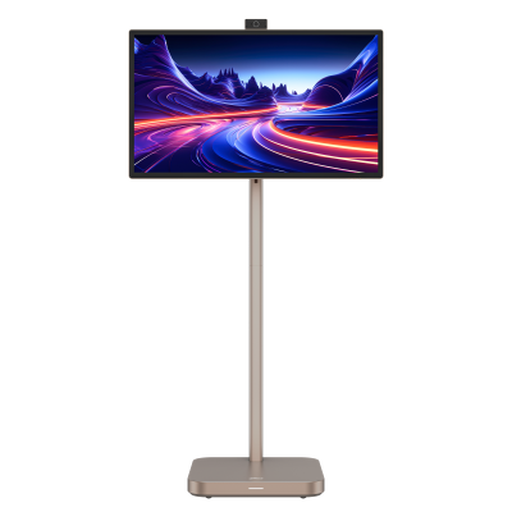
Dahua 31.5-inch 4K Explorer Portable Smart Monitor
Consider this large format for a fixed indoor instruction point, not for routinely carrying a screen between workshop areas.
The product name specifies Android 11, 8GB+128GB storage and a built-in battery. Check the intended source connection and positioning; the listing restricts use to indoors and warns against rain or moisture.
View on Joybuy
Frequently asked questions
Will one USB-C cable carry both video and power?
Only when the source device meets the particular monitor’s video and power requirements. ASUS specifies DisplayPort Alternate Mode for USB-C video on the ZenScreen MB229CF; LG says the 16MR70 requires that mode and USB Power Delivery above 7.5 W. Check the source-device documentation and the intended cable rather than relying on the connector’s shape.
When does a workshop display need a workstation assessment?
The Health and Safety Executive says employers must assess the workstation when workers use display screen equipment daily as part of normal work for continuous periods of an hour or more. The assessment considers the workstation, task and individual requirements, not just the monitor’s stand or screen.
What should I check before using a portable monitor in a workshop?
Check that the display and electrical supply suit the work area and the way the equipment will be used. The Health and Safety Executive advises checking equipment condition and suitability; assess damp or otherwise demanding conditions rather than assuming an ordinary desk display is appropriate there.


