Choose a portable SSD if you will regularly carry family photographs between home and school or need to copy a large folder within limited project-preparation time. A portable external hard drive is another option when storing a growing archive is the main priority. Whichever you choose, check capacity and compatibility first, and keep another copy of photographs you cannot replace.
Who needs an external drive?
Families making a one-off project copy
Copy the photographs selected for the school project, then check that the copied files open. The National Cyber Security Centre describes a backup as a copy kept in a separate safe location; the project drive should not become the only place the photographs exist.
Families with a growing photo library
Measure the existing library and allow room for later photographs if the drive will be used for recurring backups, not just this project. The NI Cyber Security Centre advises keeping copies on separate devices, including one offline in a different location.
People carrying files between home and school
A compact portable SSD may suit frequent carrying. Before buying, check the computer's port, the cable supplied with the exact drive and how you will open the photographs at the destination.
What matters when choosing?
Portable SSD
Consider it when: you expect to carry the drive regularly or copy large photo folders during project preparation.
Keep in mind: quoted maximum transfer speeds depend on the computer, port and cable.
Portable external hard drive
Consider it when: your main task is storing a growing family-photo archive rather than making frequent transfers.
Keep in mind: handle the drive carefully, particularly while files are being transferred, and do not rely on it as the only copy.
| Concern |
What to check |
Who this matters to |
| Capacity for later copies |
Measure the photo library and allow space for future photographs and project files. For a Mac using Time Machine, Apple recommends a backup disk with at least twice the Mac's storage capacity. |
I want to keep adding photographs without immediately reorganising the archive; around 31% of consumers would put capacity first. |
| Carrying and transferring files |
Check the computer's USB port and the supplied cable. Treat advertised transfer speeds as conditional on the connection and host device. |
When I move a project between locations, a drive that is convenient to carry and use matters most; roughly 31% of consumers would prioritise portability and transfer. |
| Setup and recovery |
Confirm that your backup method includes the photo folders and that you can open or restore copied files. Check the required disk format before using Time Machine. |
I need the photographs to be available when the project is due, not just copied somewhere; around 23% of consumers would make straightforward setup and recovery their primary concern. |
| A separate backup copy |
Plan another copy in a separate location, disconnect the removable drive after backing up and test a few photographs. |
Losing one device must not mean losing irreplaceable family photographs; for roughly 15% of consumers, keeping a separate, recoverable copy would come first. |
Mistakes to avoid
-
Treating the external drive as the only copy
A drive kept with the original computer can be exposed to the same theft, damage or malware incident. The NI Cyber Security Centre advises keeping copies on different devices, with one offline in another location.
Keep another separate copy, disconnect the removable drive when it is not backing up, and open several copied photographs before the project deadline.
If the only project copy is lost, recreating the work also takes time.
-
Choosing an SSD by its headline speed alone
Samsung and Crucial state that their quoted maximum SSD speeds depend on the host and connection. A number on a product page does not establish the speed of your computer's USB port.
Check the port, cable and supported USB mode, then weigh transfer speed against the capacity and backup routine you need.
-
Reformatting before saving existing files
Apple says a Windows-formatted disk may need to be erased and reformatted for Time Machine. Crucial also warns that reformatting its X9 erases data.
Decide whether the drive is for Time Machine, Windows backups or file exchange before copying photographs. Save any existing files elsewhere before changing the format.
Relevant brands to consider
Samsung
The portable T7 SSD range is relevant if a compact drive and conditional high-speed transfers suit the project.
- Samsung states up to 1,050MB/s sequential reads and 1,000MB/s writes for the T7 through USB 3.2 Gen 2.
- Those rates depend on host configuration. Check the exact T7 variant, capacity and supplied cables.
Crucial
The X9 is a portable SSD range for moving photographs and other files between compatible devices.
- Crucial lists X9 capacities up to 4TB and read speeds up to 1,050MB/s.
- Device compatibility can depend on formatting and host capability; reformatting erases existing files.
Seagate
Expansion Portable is an external-hard-drive range to consider for portable photo backup and archiving.
- Seagate lists 2TB and 4TB portable Expansion versions.
- Choose the exact capacity against your library size and check the current listing for the model you intend to buy.
Joybuy product choices
These portable SSDs suit a photo backup you expect to carry or use for transfers; the portable hard drive offers a capacity-focused archive option. Check the size of your own photo library and the computers you will use before choosing between them.
 No image available
Samsung Portable SSD T7 2 TB, Grey
A compact option for carrying a photo backup between locations. The listing specifies 2 TB and USB-C to USB-C and USB-C to USB-A cables.
The stated maximum read and write speeds of 1,050MB/s and 1,000MB/s depend on the computer and connection. Check that 2 TB leaves enough room for later copies.
Joybuy
 No image available
Samsung T7 Shield Portable SSD 1 TB, Blue
Consider this 1 TB SSD if you will carry the project backup and want the listed protective casing. The listing describes USB-C connectivity and includes USB-C to USB-C and USB-C to USB-A cables.
Its stated IP65 and drop-resistance claims have limits; the listing warns against submerging the drive. Check that 1 TB accommodates the photographs and future copies.
Joybuy
 No image available
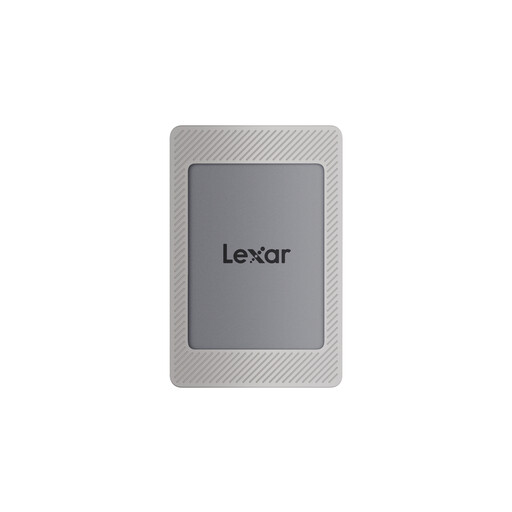
Lexar ES4 Magnetic Set 2TB Portable SSD
The 2TB capacity may suit a photo library with room needed for additions. The listing specifies USB 3.2 Gen 2 and includes USB-C and USB-A cable options.
Check the intended devices and file format before transferring photographs. The listing says first use may require formatting, which erases files already on the drive.
Joybuy
 No image available
SanDisk Portable SSD 2TB
A 2TB portable SSD to consider for carrying a photo copy between locations. Its listing states a maximum read speed of 800MB/s, subject to the connection used.
Confirm the connector, supplied cable and compatibility with your computer before buying.
Joybuy
 No image available
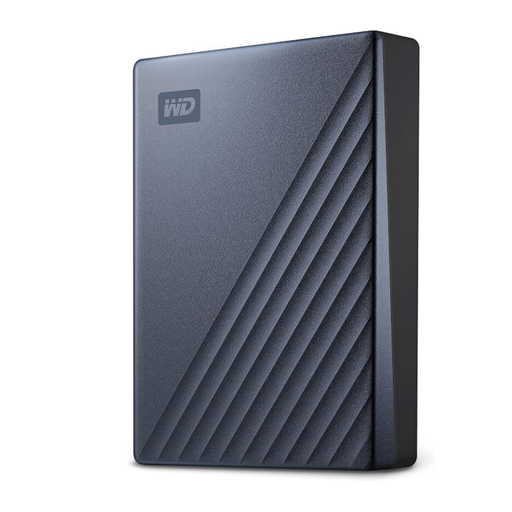
Western Digital My Passport Ultra 5TB Portable Hard Drive, Blue
This 5TB external hard drive is a capacity-focused option for a growing photo archive. The listing describes a USB-C cable and a USB-C to USB-A adapter.
The listing says macOS use requires reformatting, which calls for saving existing files first. Avoid dropping or moving the drive during transfers.
Joybuy
Frequently asked questions
Is one external drive enough for irreplaceable family photographs?
No: an external drive provides a local copy, but it should not be the only backup. The NI Cyber Security Centre recommends three copies on two different devices, with one kept offline in a different location; disconnect the removable drive when it is not being used for backup.
How can I back up photo folders on a Windows computer?
Microsoft says File History can make regular backups to an external drive or network location and restore earlier file versions. Confirm that the folders holding your family photographs are included in the backup, then try opening or restoring a few files.
Can I use one drive for Mac Time Machine and Windows files?
Possibly, but decide how the drive will be formatted before putting photographs on it. Apple says a Windows-formatted disk may need to be erased and reformatted for Time Machine, and identifies APFS or APFS Encrypted as preferred formats for a Time Machine backup disk. Save existing files elsewhere before reformatting.


