What matters when choosing?
Check how easily the drive will fit into your backup routine, whether the records need protection if the drive is lost, and how much older material you intend to keep.
| Concern |
What to check |
Who this matters to |
| Compact, regular backups |
Compare the drive's dimensions, supplied connector and your computer's USB port. Confirm that your chosen backup application can include the spreadsheet folder. |
If desk space is limited, I want a drive I can connect regularly without rearranging my workspace. Around 50% of consumers put a compact, manageable backup routine first. |
| Protecting sensitive records |
Check that the drive, operating system and backup application support the encryption method you intend to use. Keep recovery credentials separately from the drive. |
When my spreadsheets contain personal information, I need to consider who could open a lost drive. For around 30% of consumers, protecting those records is the primary concern. |
| Room for an archive |
Measure the files you plan to back up, including older versions and related documents. Compare the exact capacity variant's dimensions and file-system requirements. |
If I retain years of records alongside current spreadsheets, I need room for more than the active folder. Archive capacity comes first for around 20% of consumers. |
External drives on Joybuy
These portable SSDs and HDDs offer choices for a compact backup routine or a larger spreadsheet-related archive. Match the capacity, connection and file-system setup to your computer and the records you intend to keep.
 No image available
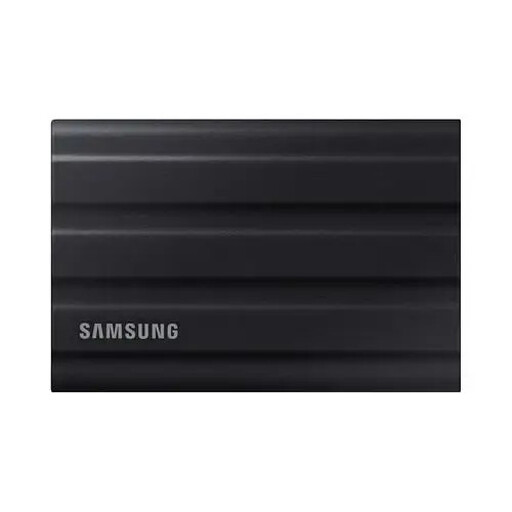
Samsung T7 Shield MU-PE1T0S 1TB Black
Consider this portable SSD for a regular backup routine when the drive may be moved between workspaces.
Samsung rates the T7 Shield at up to 1,050 MB/s read and 1,000 MB/s write, subject to compatible host equipment. Its IP65 and drop-resistance figures apply under Samsung's stated test conditions; do not treat them as permission to submerge the drive.
View on Joybuy
 No image available
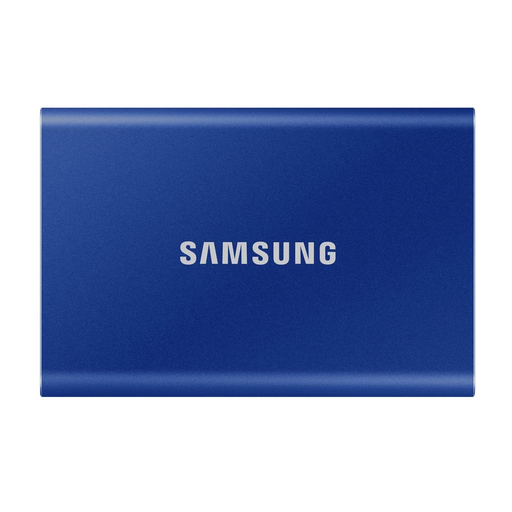
Samsung Portable SSD T7 1 TB Blue
This portable SSD is a choice for regular backups where the drive needs to take little desk space.
The product name specifies USB Type-C 3.2 Gen 2. Check the computer's port and cable, and keep this drive away from liquids and excessive moisture.
View on Joybuy
 No image available
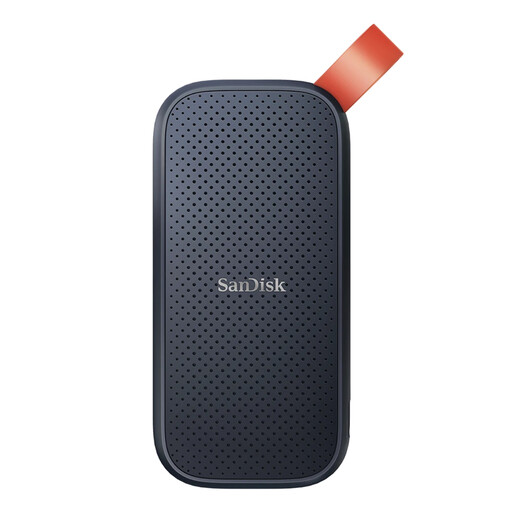
SanDisk Portable SSD 2TB
The 2TB capacity may suit a spreadsheet backup set that also contains older records and related files.
Check the connector and cable against your computer. If the records contain personal information, confirm the security options for this specific model rather than assuming it has the features of SanDisk's Extreme Portable SSD.
View on Joybuy
 No image available
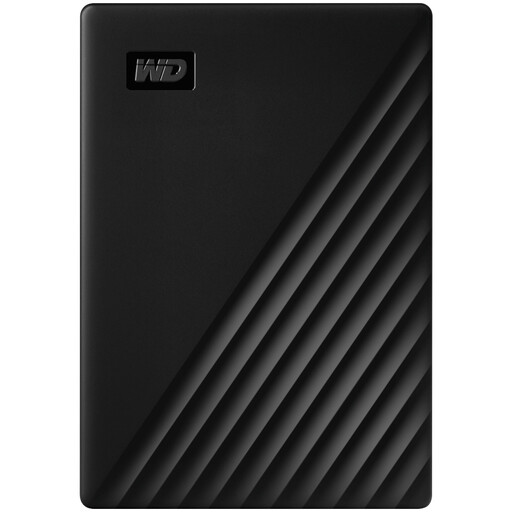
Western Digital My Passport 2TB Black
This portable HDD is a capacity-led option for keeping spreadsheets alongside a larger archive.
Check its file-system and backup-software setup for your computer, and avoid moving or jolting a mechanical drive during transfers. Test a restore before relying on a scheduled backup.
View on Joybuy
No image available
Western Digital Elements Portable 4TB Black
Consider this portable HDD when an extensive archive makes 4TB capacity more relevant than the smallest possible drive.
The product name specifies USB 3.0. Check the connection, available desk or drawer space and whether reformatting is needed for your computer. Protect the drive from drops and liquids.
View on Joybuy
Frequently asked questions
Should I choose an SSD or HDD for spreadsheet backups on a small desk?
Choose a portable SSD if a small footprint and frequent connection matter most; choose a portable HDD if you need capacity for a larger archive. Check the exact drive's dimensions, connector, file system and capacity against your computer and backup set.
How can I make regular spreadsheet backups on Windows?
Microsoft Support says File History can make regular backups to an external drive or network location. Set it up with your chosen drive, confirm that it includes the folder containing your spreadsheets, and restore a test file to check the result.
Can I use a Mac drive for both Time Machine and ordinary files?
Plan a dedicated Time Machine backup space rather than assuming ordinary files can share it without affecting the setup. Apple Support advises using a Time Machine backup disk for backups; if you also need ordinary storage, check its current guidance on a separate drive or suitable partitioning before setting up the disk.
Can I back up from a Mac to a Windows-formatted external drive?
Check its file system before relying on it for Mac backups. Apple says a Mac may be able to read an NTFS drive without being able to write to it, and Toshiba states that its cited NTFS-formatted Canvio Basics range requires reformatting for the listed macOS versions. Copy any files you need to keep before reformatting.
Should I encrypt a drive holding spreadsheet backups?
If the backups contain personal information, assess encryption as part of the drive and backup setup. The Information Commissioner's Office explains that encryption can protect personal information on backup media against unauthorised access if a device is lost or stolen. Check that you can recover an encrypted backup and keep its recovery credentials separately from the drive.


