Who needs which setup?
The useful accessory depends on what you reconnect, carry or adjust when you move between home and the workplace.
Workers reconnecting a desk setup
If your work laptop connects to a display, network cable and input devices at each location, consider whether a dock would reduce repeated connections. Check the laptop’s supported ports and display configuration before choosing one.
Workers who need a second screen in both places
A portable monitor is relevant when the extra screen needs to travel with you. For a USB-C video connection, Dell’s support guidance says the laptop port must support DisplayPort Alt Mode or Thunderbolt; a data-only or charging-only port will not provide a picture.
Workers using a laptop for long sessions
If you need to raise the laptop screen, plan for separate input devices too. The Health and Safety Executive advises using a separate keyboard and mouse when elevating a laptop on a riser, so the screen and controls can be positioned separately.
What should you check before buying?
Start with your employer’s equipment rules and the exact laptop model. Then choose the accessory around the task you repeat at both locations, rather than around the number of ports or features on a listing.
| Priority |
What to check |
Your needs |
| Employer approval |
Ask which personal peripherals, receivers, drivers and storage devices are permitted. Confirm who supports work equipment and how work data must be handled; Acas advises employers and workers to agree equipment and information-security arrangements. |
I need an accessory I can use with my work laptop without conflicting with IT support or rules for work data. |
| Video connections |
Check the exact laptop port for Thunderbolt or USB-C DisplayPort Alt Mode, then check its supported external-display arrangement. Dell says USB-C ports limited to data or charging do not provide video to a USB-C monitor. |
A second screen matters to me, but I need to know whether my laptop can drive it before choosing a monitor or dock. |
| Desk reconnection |
List the displays, network connection, input devices and power connection used at each desk. Match the dock’s connections to that list and confirm the laptop and employer support the intended setup. |
I reconnect several desk devices whenever I change location and want fewer individual connections to make. |
| Screen portability |
Check the monitor’s inputs against the laptop’s video outputs. For the intended connection, also check its cable and power requirements before relying on a one-cable setup. |
I need to carry a second screen between home and the workplace rather than leave one at each desk. |
| Working posture |
Consider screen height alongside keyboard and mouse position. The Health and Safety Executive advises separate input devices when a laptop is raised on a riser; use your employer’s display screen equipment process for individual setup needs. |
For longer laptop sessions, I want to raise the screen without having to type on a keyboard raised with it. |
| Call accessories |
Check whether an external camera, headset or wireless receiver is allowed on the work device. Confirm the connection and any required software with your employer’s IT team. |
I move between locations for video calls and need call equipment that works with the laptop I actually use for work. |
Which brands offer relevant examples?
These manufacturers illustrate different connection requirements and managed-workplace options; a brand name alone does not establish compatibility with a particular laptop.
Lenovo
Lenovo’s ThinkPad Hybrid USB-C with USB-A Dock is an example to investigate for a workplace using both USB-C and USB-A laptops.
- Lenovo describes USB-C and USB-A host support for this dock.
- Lenovo says its USB-C and Thunderbolt docks require the relevant USB-C Alt Mode or Thunderbolt support on the laptop. Confirm the exact host, display arrangement and employer support.
Dell
Dell’s USB-C monitor support guidance is useful when checking whether a work laptop can connect to a portable display.
- Dell identifies DisplayPort Alt Mode or Thunderbolt as the host-port requirement for USB-C video in its guidance.
- A port used only for data or charging will not supply USB-C video; check the particular laptop and monitor connection.
Microsoft Surface
Microsoft’s Surface Thunderbolt 4 Dock is a managed-dock example for organisations using compatible Surface devices.
- Microsoft describes support for two 4K monitors at up to 60 Hz for the dock in its supported setup.
- Check the exact Surface model, connections and employer configuration rather than applying those capabilities to every laptop.
Joybuy accessories for different work setups
These options cover a travelling second screen, desk reconnection and work-call accessories. Choose by the task you need to support, then check each item against your work laptop and employer’s rules.
 No image available
ASUS ZenScreen MB166CR FHD
A portable FHD screen to consider if you need an additional display in both work locations. For the intended USB-C video connection, check the laptop’s DisplayPort Alt Mode support and obtain employer approval.
View on Joybuy
 No image available
UPERFECT 14-inch 60 Hz touchscreen portable monitor
A portable second-screen option when touch input is relevant to your work. The product title specifies 100% sRGB, VESA compatibility and a 180° adjustable stand. Check laptop video support and whether your intended connection needs separate power.
View on Joybuy
 No image available
Targus USB-C Universal Dual HDMI 4K Docking Station, 100W Power Delivery Pass-Thru
A dock to consider when you repeatedly reconnect desk displays and peripherals. Its title identifies dual HDMI and 100W Power Delivery pass-through. Confirm the laptop’s supported display arrangement and host connection, employer approval, and the power adapter needed for your setup.
View on Joybuy
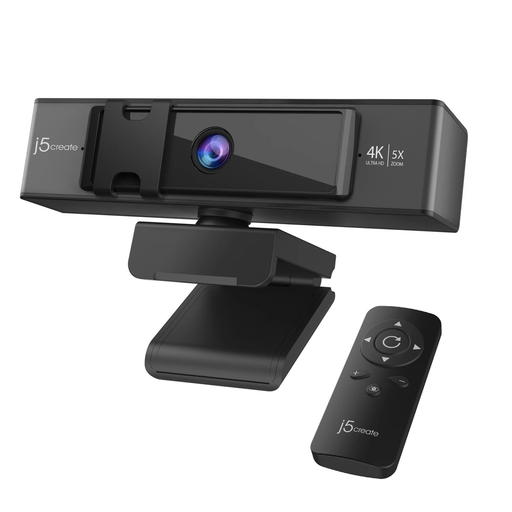 No image available
j5create JVCU435 USB 4K Ultra HD Webcam
A separate camera option for calls at either desk. The product title specifies 5× digital zoom and a remote control; check whether your employer permits an external camera on the work device.
View on Joybuy
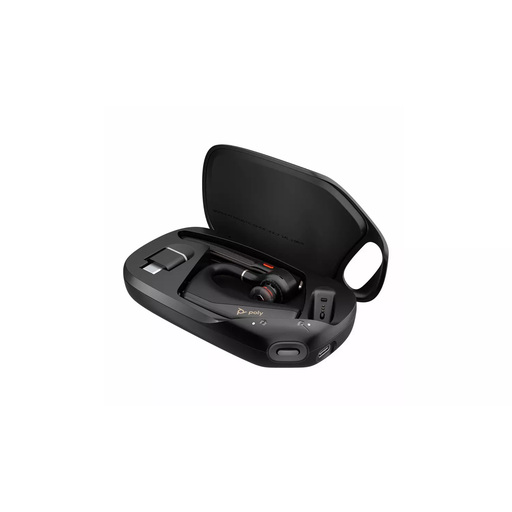 No image available
HP Poly Voyager Legend 50-M UC Bluetooth Headset, Black
A headset option if calls are part of your routine in both locations. Confirm Bluetooth compatibility with the work laptop and your employer’s rules for wireless peripherals before choosing it.
View on Joybuy
Questions about hybrid-work accessories
Should I check with my employer before buying an accessory for a work laptop?
Yes, check which accessories your employer permits and supports before relying on one for work. Acas advises agreeing what equipment is needed, who provides it and the rules for information security; this is particularly important if an accessory needs a driver, receiver or access to work data.
Will any USB-C laptop port run a portable monitor?
No. Dell says USB-C video requires DisplayPort Alt Mode or Thunderbolt; a port limited to data or charging will not show an image through that connection. Check the exact laptop port and the monitor’s intended input before buying.
Does display screen equipment guidance matter when I work at home and in the office?
It can. The Health and Safety Executive says display screen equipment regulations can apply to workers who routinely split their time between home and the workplace in Great Britain. Northern Ireland’s Health and Safety Executive also says its regulations can apply to workers who routinely split their time this way; use your employer’s assessment process for your particular setup.
Is a laptop riser enough on its own for prolonged work?
A riser raises the attached keyboard as well as the screen. For prolonged laptop use, the Health and Safety Executive advises a separate keyboard and mouse so the screen can be elevated while the input devices remain separately positioned; a separate display is another setup to consider.
Can I use a personal laptop or USB drive instead of a work-approved setup?
Do not assume it is an acceptable workaround. The Information Commissioner’s Office advises keeping organisational and personal data separate when personal devices are used for work. Follow your employer’s approved device, access and storage arrangements rather than moving work data to personal storage to get around an accessory problem.


