Relevant brand ranges
These brand examples illustrate features to check on particular ranges; the features do not apply to every drive carrying the same brand.
Western Digital
Its My Passport USB-C portable HDD range is relevant to local photo and laptop-file backups.
- Western Digital lists a 6 TB My Passport USB-C model with password protection and Acronis backup software.
- Check the exact My Passport variant before relying on its capacity, connection or included software.
Seagate
Its One Touch pages cover both portable SSD storage and HDDs, serving different transfer and backup needs.
- Seagate states that its One Touch SSD range reaches up to 2 TB and claims transfer rates of up to 1,030 MB/s; its One Touch HDD page describes password protection and AES-256 hardware encryption.
- Those claims concern the named ranges. Check the exact model’s capacity, connection and security features.
Samsung
Its BAR Plus and DUO Plus flash-drive ranges are relevant to carrying files between devices.
- Samsung lists USB Type-C and Type-A connections for the DUO Plus. For a displayed 512 GB BAR Plus model, Samsung claims up to 400 MB/s sequential read speed.
- That BAR Plus read figure does not establish its write speed or the performance of another capacity or model.
Joybuy storage options
These options include portable SSDs for regular file transfers, a portable HDD for a larger local archive, and a USB flash drive for carrying selected files. Choose the storage role first, then check the capacity and connections of the individual model.
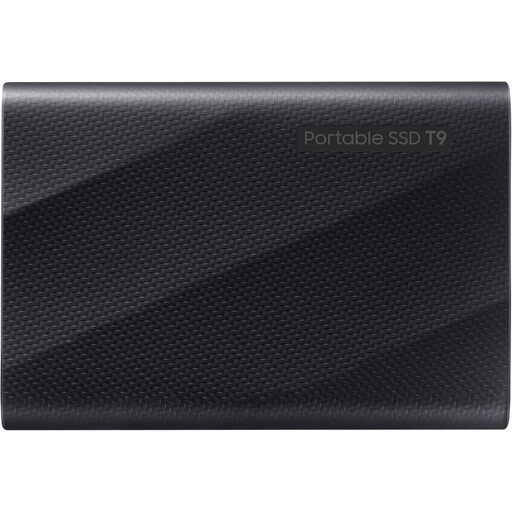 Image unavailable
Samsung MU-PG4T0B 4 TB portable SSD, black
Consider this capacity for large photo or video folders that you also need to carry. The product name specifies USB Type-C and USB 3.2 Gen 2x2; check that your computer supports the connection you intend to use. Keep another copy of important files.
View on Joybuy
 Image unavailable
Samsung Portable SSD T7 2 TB, grey
For carrying and transferring photo or video folders, compare the stated 2 TB capacity with the size of your files. The product name specifies USB Type-C and USB 3.2 Gen 2. Check your computer’s connection before choosing it for frequent transfers.
View on Joybuy
 Image unavailable
Samsung MU-PE1T0S 1 TB portable SSD, black
This is an SSD option for files you need to carry or transfer regularly; check whether 1 TB accommodates those files. Its product name specifies USB Type-C and USB 3.2 Gen 2. A portable working drive still needs a separate backup.
View on Joybuy
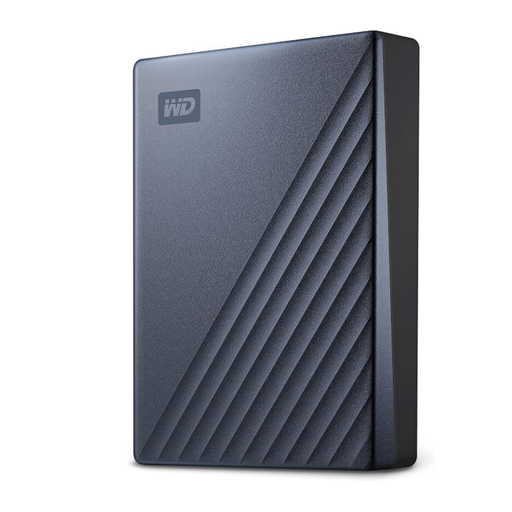 Image unavailable
Western Digital My Passport Ultra 5 TB, blue
This portable HDD is an option for a larger local photo archive or laptop-file copy that will mostly stay in a protected place. Check your computer’s connection and, if you use a Mac, its formatting requirements before moving files onto the drive.
View on Joybuy
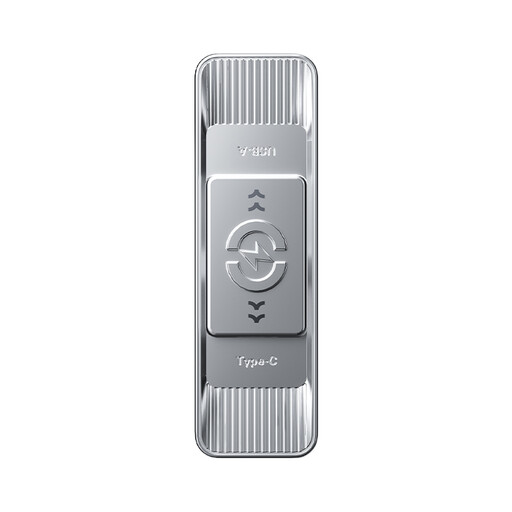 Image unavailable
MOVESPEED YSUSP05-512GSR 512 GB USB flash drive
Use this flash-drive option for moving selected files, while keeping important originals or another backup elsewhere. Its product name specifies a dual interface with USB 3.2 Gen 1 and Type-C and lists a 570 MB/s read figure; check the ports on the devices you will connect.
View on Joybuy
Questions about backups and compatibility
Can one external drive be the only copy of my photos?
Keep another copy in a separate safe location rather than relying on one external drive. The NCSC defines a backup as a copy stored separately and advises disconnecting a backup device when it is not in use because malware can affect connected storage.
Should I choose an HDD or SSD for a large photo library?
Consider an HDD for a largely stationary archive where capacity is the main concern, or an SSD if you frequently transfer large folders or carry the drive. Which? describes HDDs as suited to long-term file backup and SSDs as generally faster; Kingston Technology notes that SSDs are more resistant to knocks than mechanical HDDs.
Does a USB-C port mean I need a USB-C drive?
Not necessarily: check the drive’s connector, the supplied cable or adapter, and the ports on your computer. USB-C identifies the connector, while transfer performance depends on the USB modes supported by the devices and connection you use.
When should I encrypt an external drive?
Consider encryption when the drive contains sensitive files and could be lost or stolen. NCSC guidance recommends disk encryption where removable media faces a physical theft risk, but it does not protect data on an unlocked running system. Keep recovery credentials securely and maintain a separate backup.
What should I check before using a drive with a Mac or another computer?
Check the exact model’s operating-system compatibility, connection and formatting requirements before copying files. Requirements vary by model: Seagate says its Backup Plus portable HDD may need reformatting for Time Machine. Copy existing files elsewhere before reformatting, as that process can erase them.


