What matters when choosing?
Decide how portraits will be reviewed or delivered, then size the laptop for your files and working arrangements. Screen size, desk lighting and protection of client files can change which configuration is practical in a shared office.
Compact macOS laptop
Consider it when: Your editing workflow already uses macOS and you move between desks; Apple lists a 14.2-inch Liquid Retina XDR MacBook Pro configuration.
Allow for: A smaller built-in workspace than a 16-inch laptop, and choose the memory and SSD configuration for the work you plan to do.
Windows creator laptop
Consider it when: You want a Windows workflow and a documented colour-focused display; reviewed ASUS ProArt P16 H7606 and Lenovo Yoga Pro 9i Gen 10 configurations illustrate different 16-inch options.
Allow for: Display specifications that depend on the exact configuration, and check the panel finish against reflections at your desk.
Windows mobile workstation
Consider it when: Portrait work sits alongside managed business deployment or other demanding professional workflows; HP positions different ZBook tiers for different workloads.
Allow for: Configuration-level checks of the screen, graphics and business requirements; the workstation label alone does not establish suitability for colour-critical portraits.
| Concern |
What to check |
Who this matters to |
| Reliable portrait colour |
Check the exact panel’s documented gamut and finish, then plan the profiles and output checks needed for delivery. Adobe notes that devices reproduce colour differently. |
If my portraits move from my laptop to client screens or print, I need a way to judge skin tones consistently. Around 37% of consumers put reliable colour first. |
| Editing capacity |
Compare memory and usable SSD space with your files and scratch-storage plans. Adobe recommends 16GB or more memory and a fast internal SSD for Photoshop. |
Large RAW files, layers and several open applications make working capacity my main concern. For around 27% of consumers, that editing load takes priority. |
| Shared-desk comfort |
Compare the exact screen size and panel finish with how often you move desks and the lighting where you edit. |
I change desks or work near reflections, so the laptop must fit the space in which I can actually assess an image. This is the primary concern for around 18% of consumers. |
| Client-file protection |
Confirm storage-encryption support, individual sign-in and fit with the organisation’s backup and access procedures. The UK Information Commissioner’s Office advises encryption for laptops storing personal information. |
Client portraits stay on a laptop used in a shared workplace, so protecting access to those files comes first. Around 18% of consumers prioritise this need. |
Joybuy laptops to consider
These laptops offer different screen sizes, memory and storage configurations for portrait editing. Their names and listed specifications are starting points: assess the exact display for colour-sensitive delivery and arrange suitable security before storing client files.
 No image available
ASUS ProArt P16 H7606WW-SE006W, RTX 5080, 64GB/2TB
Consider this 16-inch Windows laptop if your portrait workflow involves large layered files or several creative applications.
- 4K OLED touchscreen; 64GB RAM and 2TB SSD.
- AMD Ryzen AI 9 HX 370 and NVIDIA GeForce RTX 5080 16GB.
- For colour-critical delivery, confirm the exact display’s gamut. Check encryption support before storing client portraits.
View on Joybuy
 No image available
Lenovo Legion Pro 7 16IAX10H, 83F5000UUK, 64GB/2TB
This 16-inch configuration is worth comparing if memory and local project storage are priorities for layered work.
- 64GB RAM, 2TB SSD and NVIDIA GeForce RTX 5090.
- Check the exact panel’s colour gamut before choosing it for colour-critical portraits.
- Assess its size for regular desk changes, and confirm encryption support before storing client files.
View on Joybuy
 No image available
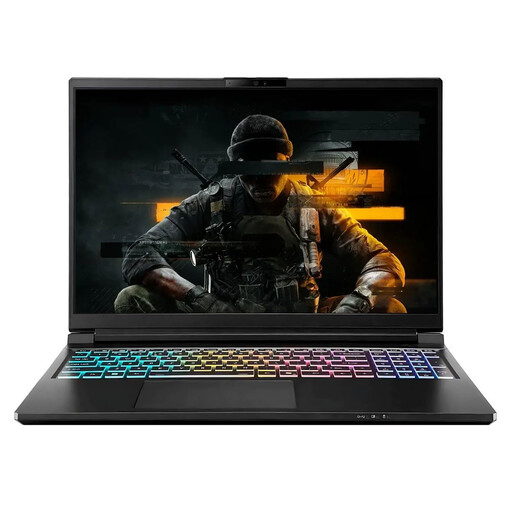
Stormforce Exobook 16-inch QHD+, Ultra 9, 32GB/4TB
Consider this configuration if substantial local storage matters and an anti-glare screen suits your shared-office desk.
- 32GB memory and a 4TB SSD.
- Confirm the supplied GPU configuration and the exact panel’s colour gamut before ordering.
- Check encryption support before keeping client portraits on the laptop.
View on Joybuy
 No image available
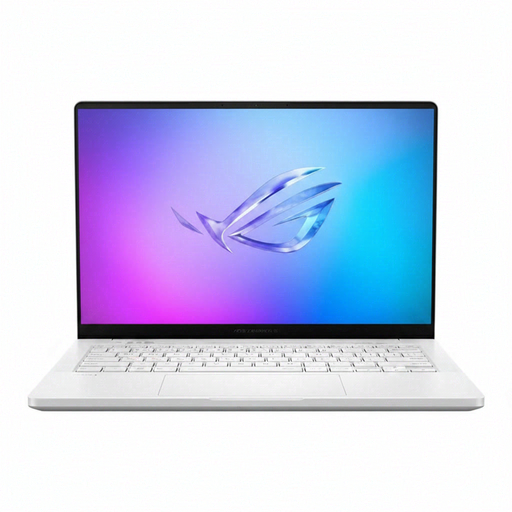
ASUS ROG Zephyrus G14 GA403WR-QS088W, 32GB/2TB
A 14-inch screen makes this a configuration to assess if you edit at different desks but still need local storage for projects.
- WQXGA+ display, 32GB memory, 2TB SSD and NVIDIA GeForce RTX 5070 Ti.
- Check the panel’s gamut and finish for your colour workflow and office lighting.
- Confirm the weight and encryption arrangements against your portability and client-file requirements.
View on Joybuy
 No image available
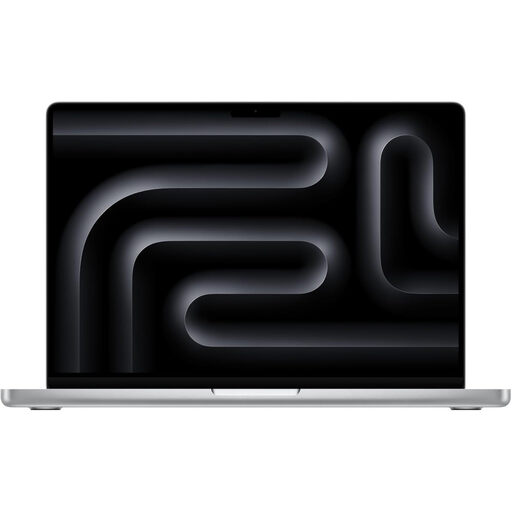
Apple MacBook Pro 14.2-inch M5 Pro, 24GB/2TB, Silver
Consider this compact option if your portrait workflow already uses macOS and you move between desks.
- 14.2-inch display, 24GB unified memory and a 2TB SSD.
- M5 Pro with a 15-core CPU and 16-core GPU.
- Check the exact display’s gamut for colour-sensitive delivery and confirm the security arrangements needed for client files.
View on Joybuy
Common questions
Is 16GB of memory enough for portrait retouching?
Adobe lists 16GB or more as its recommended memory level for Photoshop, so it is a useful baseline rather than a promise for every workload. If you routinely keep large layered files and several creative applications open, assess the memory configuration against that heavier use.
Does a wide-gamut laptop screen guarantee accurate portrait colour?
No. Adobe explains that devices reproduce colour differently, so check the exact screen specification and use an appropriate profile-based workflow for the intended screen or print output.
Do I need an external monitor to retouch portraits?
Not necessarily: assess whether the laptop’s exact display and your colour workflow meet the delivery requirements. A monitor is worth considering if a fixed shared-office desk gives you room for more workspace or a controlled review setup; check that monitor’s display specification and connection compatibility separately.
Should I choose a mobile workstation for Photoshop portraits?
A mobile workstation is most relevant when portrait retouching shares a device with managed business deployment or other demanding professional workflows. For portrait work alone, compare the exact screen, memory, storage and organisational requirements before choosing a workstation configuration.
How should a shared office protect client portrait files?
If the files contain personal information, arrange storage encryption and access controls before keeping them on the laptop. The UK Information Commissioner’s Office advises enabling encryption on laptops storing personal information; the organisation should also apply its own sign-in, backup and recovery procedures.


