Colour-conscious portrait editors
If you adjust skin tones or prepare portraits for print, inspect the panel specification and any colour-accuracy claim for the exact laptop configuration you intend to buy.


For regular portrait retouching in Photoshop, start with a laptop that meets Adobe’s recommended 16GB or more of memory and has enough internal SSD space for the application and your working files. Choose the screen size and operating system around your coursework and desk space, then check the exact display specification; a larger machine with dedicated graphics makes more sense if your wider creative workload calls for it.
If you adjust skin tones or prepare portraits for print, inspect the panel specification and any colour-accuracy claim for the exact laptop configuration you intend to buy.
If one laptop needs to handle coursework and regular portrait edits in a small room, weigh screen workspace against the space the laptop takes up and the connections your accessories require.
If you keep a substantial local photo library, work through large batches or use other demanding creative applications, memory and storage capacity may matter more to you than a compact format.
Check that your course applications run on the operating system you choose, then compare the exact laptop configurations for memory, working storage, display and room fit.
| Concern | What to check | Who this matters to |
|---|---|---|
| Judging portrait colour | Check the exact panel’s stated gamut and any colour-accuracy claim; resolution or an OLED label alone does not establish either. | When adjusting skin tones or preparing files for print, I want to know what the screen specification actually says about colour. Around 31% of consumers put colour judgement first. |
| Editing and working space | Compare memory with Adobe’s recommended 16GB or more for current Photoshop, and check usable SSD space and whether memory can be upgraded. | I need to retouch while keeping coursework applications and working files on the laptop. Editing and working space come first for around 31% of consumers. |
| Desk fit and connections | Compare screen size and physical dimensions, then check ports against the card reader, display or storage you plan to connect. | A screen must leave room for editing tools without making the laptop awkward to place or carry; around 23% of consumers prioritise desk fit and connections. |
| Capacity and ongoing needs | Allow for the photo library and backup you need, any required adapters and the software plan for which you qualify. | If my files will grow during the course, I want a storage plan I can keep using. Around 15% of consumers make capacity and ongoing needs their primary concern. |
Adobe lists 8GB as the minimum for current desktop Photoshop but recommends 16GB or more. The minimum is a different buying target from Adobe’s recommended configuration for regular work.
Check the memory in the exact laptop variant and whether it can be upgraded later.
ASUS says ProArt P16 display specifications vary by model and configuration. A family name or panel type cannot establish the gamut of the particular laptop on sale.
Keep the precise model specification to hand when comparing its panel, stated gamut and any calibration claim.
Adobe recommends 100GB of available space for Photoshop, a fast internal SSD for installation and a separate internal drive for scratch disks. Your operating system, applications and photos also occupy storage.
Work out how much space will remain for current files and keep your backup plan separate from working storage.
GOV.UK advises taking electrical products and batteries marked with the crossed-out wheelie-bin symbol to an appropriate recycling collection point rather than putting them in household rubbish.
Arrange suitable collection and remove or securely erase personal data before handing over the device.
A compact macOS option for students considering a MacBook Air for coursework and portrait edits.
A Windows creator-laptop option illustrated by a specific 14.5-inch Yoga Pro 7i configuration.
A larger creator-laptop option through the ProArt P16 family for workloads extending beyond routine portrait edits.
These Windows laptops cover different screen sizes and memory and storage configurations for portrait editing. Compare each exact display specification with your intended colour work, and weigh a larger screen and dedicated graphics against the space available in your room.
 No image available
Consider this configuration if you want a Windows laptop for regular retouching and a 15.6-inch working screen.
Its listed specifications include a Ryzen 7 170, 16GB RAM, 1TB SSD, FHD 144Hz display and GeForce RTX 5050. Check whether the stated 100% sRGB gamut suits your intended output and whether the panel has the colour-accuracy specification you need.
 No image available
Consider this larger configuration if portrait editing sits alongside demanding creative applications or a substantial local photo library.
It lists a 16-inch 4K OLED touchscreen, Ryzen AI 9 HX 370, 64GB RAM, 2TB SSD and GeForce RTX 5080 16GB. Check the exact panel gamut and any colour-accuracy claim before relying on it for colour-critical work.
 No image available
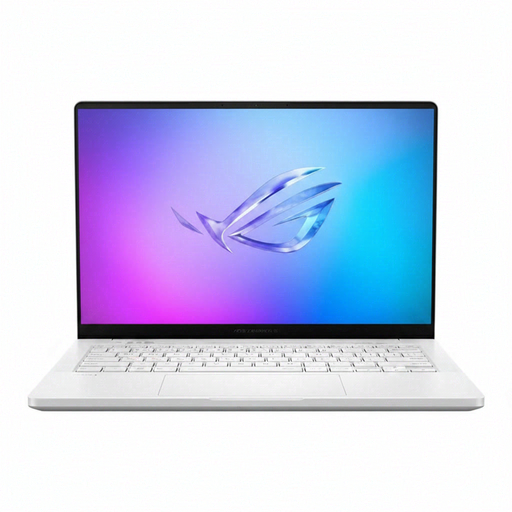
This 14-inch option is worth comparing if desk space matters but your other applications also call for dedicated graphics.
It lists a WQXGA+ display, 32GB RAM, 2TB SSD and GeForce RTX 5070 Ti. Confirm the precise panel’s colour gamut and any colour-accuracy claim for your portrait work.
 No image available
Compare this model if you need a larger working screen and substantial capacity for creative applications beyond portrait retouching.
It lists a 16-inch WQXGA OLED display, Core Ultra 9, 64GB RAM, 2TB SSD and GeForce RTX 5090. Check the panel’s colour specification and whether the 16-inch size fits your desk and carrying needs.
 No image available
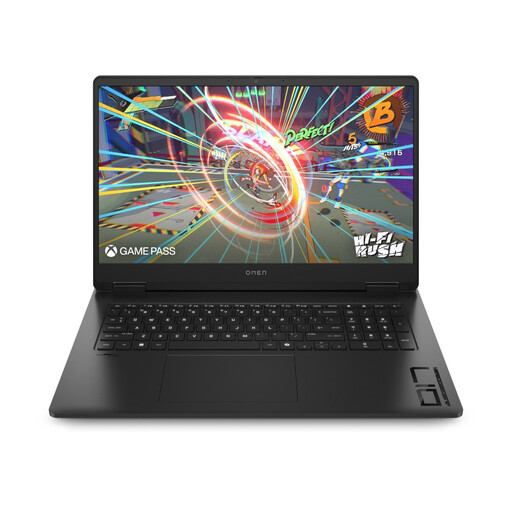
Consider this model only if a 17.3-inch screen fits your student-room desk and how often you carry the laptop.
It lists a Full HD 144Hz display, Ryzen AI 7 350, 16GB RAM, 1TB SSD and GeForce RTX 5060. Check the exact display gamut and any colour-accuracy claim before choosing it for colour-critical portraits.
Adobe lists 8GB as the minimum for current desktop Photoshop, but recommends 16GB or more. For a new laptop intended for regular retouching alongside coursework, compare models at or above that recommended memory level.
Adobe recommends 100GB of available space, a fast internal SSD for installation and a separate internal drive for scratch disks. Check what remains after the operating system, applications and your photo library occupy space; the advertised SSD capacity is not all free working space.
Adobe’s UK education information says discounts are available to eligible students and teachers. Confirm your eligibility and the current plan terms before building the discount into your software plans.
No, if it is marked with the crossed-out wheelie-bin symbol: GOV.UK advises taking such electrical products and batteries to an appropriate recycling collection point. Remove or securely erase personal data before handing over the laptop.