Portrait editors working beside a window
You need to judge skin tones while daylight falls near your workspace, without reflections making the laptop screen difficult to read.


For portrait retouching beside a bright window, check the exact screen’s brightness and surface treatment before choosing on processor specifications alone. Colour management matters just as much for final skin-tone decisions: whether you favour a macOS laptop, a colour-focused ProArt model or a portable Windows configuration, confirm the display variant, calibrate and profile it, and check that your editing software fits.
You need to judge skin tones while daylight falls near your workspace, without reflections making the laptop screen difficult to read.
You need a repeatable colour workflow, not just an appealing display specification. Adobe’s Lightroom Classic guidance includes monitor calibration and colour profiles in that workflow.
You want a portable setup for work away from a fixed desk, while still checking screen finish, memory and compatibility with your editing applications and external display.
Start with whether you can see and assess the image in your window-side workspace. Then check the colour workflow and the configuration needed to run your editing tools.
| Concern | What to check | Who this matters to |
|---|---|---|
| Screen visibility in daylight | Check brightness and screen finish for the exact configuration; confirm that an optional anti-reflection treatment is actually selected. | If I edit beside a bright window, I need to see shadow detail and skin tones without reflections getting in the way. Around 42% of consumers put screen visibility first. |
| Dependable colour decisions | Check the exact model’s stated gamut, then plan for calibration and the correct display profile. Adobe includes both in its Lightroom Classic colour-management guidance. | For client delivery or print, I want skin tones I can judge consistently rather than relying on a gamut label alone; roughly 33% of consumers make colour control their primary concern. |
| Editing software and portability | Compare the operating system, memory, storage, graphics and ports with your applications, plug-ins and accessories. | When I edit away from a desk, I need a laptop I can carry that also runs my existing workflow. Software fit and portability come first for about 25% of consumers. |
A wide-gamut claim does not replace a maintained colour workflow. Adobe’s Lightroom Classic guidance covers monitor calibration and colour profiles.
Use the display specification to narrow your choices, then calibrate the laptop and use the appropriate profile before finalising colour-critical edits.
Allow time for calibration; colour-critical work may also call for a display calibrator.
Lenovo lists materially different ThinkPad X1 Carbon Gen 13 configurations, including a 500-nit anti-glare IPS option with 100% sRGB and a 500-nit OLED option with 100% DCI-P3. Neither description identifies every configuration in the family.
Check the exact part number and its panel, brightness, gamut, memory and ports before ordering.
A brightness figure does not tell you where reflections will fall in your workspace or whether the display is ready for colour-critical decisions.
Compare the exact model’s screen treatment as well as its brightness, keep direct reflections off the screen where possible, and make final colour judgements with a calibrated display.
A laptop family name does not establish whether your editing application, plug-ins or external-display setup will work with the configuration you choose.
Check current application requirements against the operating system, memory, storage, graphics and ports, then confirm any adapters your own setup needs.
MacBook Pro offers a macOS route for editors considering a Liquid Retina XDR display with an optional nano-texture finish.
ProArt is ASUS’s creator-oriented laptop family for buyers considering colour-focused OLED display specifications.
ThinkPad X1 Carbon Gen 13 provides a Windows route worth considering when portability and a specified anti-glare display matter.
These laptops offer different Windows and macOS configurations to assess for portrait editing. For a bright-window setup, compare the exact screen and your colour-management needs rather than assuming that a product-family display claim applies to every model.
 No image available
Consider this configuration if its screen and software fit your portrait-editing setup; assess the display in the light where you will use it.
The listed variant has a 15.6-inch 144Hz FHD screen, 16GB RAM and a 1TB SSD. Calibrate and profile the display before colour-critical delivery.
 No image available
This is a ProArt option to assess if you want a larger OLED workspace for portrait editing, provided its exact screen suits your window-side position.
The listed configuration has a touchscreen, AMD Ryzen AI 9 HX 370, NVIDIA GeForce RTX 5080 16GB, 64GB RAM, a 2TB SSD and Windows 11 Home. Check its brightness and surface treatment, and calibrate it for colour-critical work.
 No image available
This smaller-screen Windows option may fit a compact editing setup if its display remains usable beside your window.
Its listed 2.8K touchscreen runs at 120Hz; the configuration includes an Intel Core i9, RTX 3050, 16GB RAM, a 1TB SSD and Windows 11 Home. Check brightness and screen finish on the exact model before relying on it for daylight editing.
 No image available
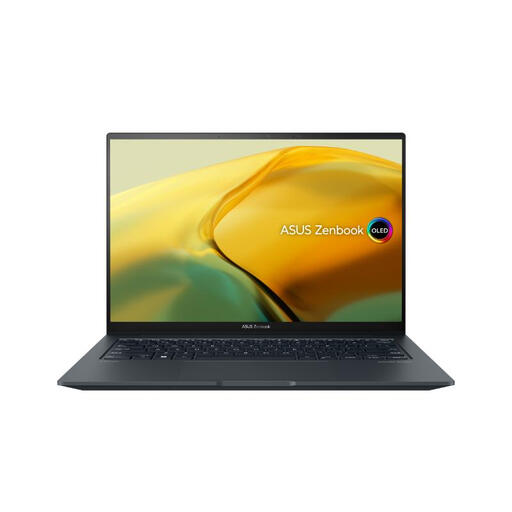
Consider this 14-inch option for a mobile setup only after checking that your editing applications and colour requirements fit the exact configuration.
The named variant has 16GB RAM and a 512GB SSD. Before colour-critical portrait work, check whether its display coverage meets your needs and calibrate the screen.
 No image available
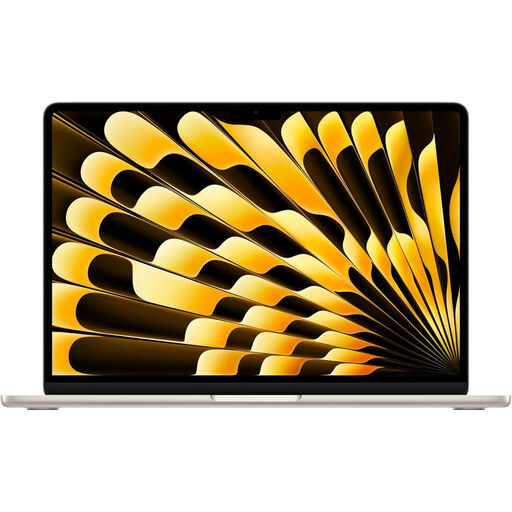
This MacBook Air is a macOS option if your portrait-editing applications and plug-ins are compatible; assess its own display for your bright-window workspace.
The named configuration has an M5 chip with a 10-core CPU and 10-core GPU, 16GB memory and a 512GB SSD. Do not assume it has the MacBook Pro’s optional nano-texture display.
For colour-critical portrait work, plan to calibrate the display and use the appropriate profile. Adobe’s Lightroom Classic colour-management guidance covers both steps; an advertised gamut or factory-calibration claim does not replace maintaining your own workflow.
A 500-nit specification alone cannot settle that question because reflections, direct light and screen position differ between workspaces. Lenovo lists a 500-nit anti-glare ThinkPad X1 Carbon Gen 13 configuration, but you should assess the exact laptop’s screen treatment and how it looks where you edit.
Neither panel label decides the choice on its own. Compare brightness, surface treatment and gamut on the exact OLED or IPS configuration, then calibrate the display you use for final colour decisions.
Check the product and seller information for the laptop you intend to buy. GOV.UK states that the Electrical Equipment (Safety) Regulations 2016 set requirements for electrical equipment before it is placed on the Great Britain market; for delivery to Northern Ireland, check the separate requirements applicable there.