Small-desk poster editor
You need room for the laptop alongside notes or input devices, and may use a monitor when the built-in screen feels cramped for poster layout. Portability also matters if you move between workspaces.


For a small desk, start with a 13–14-inch laptop and decide whether you can use an external monitor when a poster needs more room for detailed review. Choose the operating system around your required software and collaborators’ workflow; a larger or convertible laptop offers a larger built-in canvas, but takes up more desk space.
You need room for the laptop alongside notes or input devices, and may use a monitor when the built-in screen feels cramped for poster layout. Portability also matters if you move between workspaces.
You review type, figures, colour and alignment on the laptop itself. The exact screen size, resolution, brightness and colour specification may matter more to you than the smallest chassis.
Your laptop must fit the software, licence, templates and file-sharing workflow used by your research group or supervisor. Confirm those requirements before settling on an operating system.
Decide how much desk space the laptop can occupy, then check your required software and whether poster review will happen mainly on the built-in screen or an external monitor.
Consider it when: Desk space and portability come first, and you can connect a monitor for detailed layout work.
Trade-off: A 13–14-inch built-in screen leaves less room for the poster, source material and editing controls at once.
Consider it when: You mainly work at one desk and will use the larger built-in screen or touch input for poster review.
Trade-off: A 16-inch laptop needs more working area; check its full dimensions against your desk before choosing it.
| Concern | What to check | Who this matters to |
|---|---|---|
| Desk space and portability | Compare chassis width and depth, not just screen diagonal; leave room for your other desk essentials. | If my desk also holds notes and a mouse, I need a laptop I can position without crowding my work. Around 36% of consumers put desk space and portability first. |
| Software and collaboration | Confirm the exact poster editor, plug-ins, licence and shared-file workflow on your chosen operating system. | When my research group relies on particular apps and files, I need to know I can use them before choosing a laptop design. Roughly 29% of consumers make workflow compatibility their primary concern. |
| Poster viewing and proofing | Compare the exact panel’s size, resolution and stated colour and brightness specifications. | I review small labels and figure placement on the laptop itself, so the built-in canvas matters more than the smallest footprint. About 21% of consumers prioritise on-device visual proofing. |
| Monitor and peripherals | Match display connections and built-in ports to your monitor, storage and other equipment; check adapter needs. | If I move between a monitor and presentation equipment, I want the connections planned before I order. Approximately 14% of consumers put connectivity first. |
A larger screen gives you more built-in viewing area, but the laptop may leave too little space for papers or a mouse. A compact screen can have the opposite problem when you need to inspect a large poster.
Measure your usable desk width and depth, compare full chassis dimensions, and decide whether a monitor will be available for final layout review.
Microsoft distinguishes a one-time Office purchase from Microsoft 365 subscriptions, which include different services and update arrangements. Neither choice establishes that your institution’s full workflow is covered.
Check your university or employer entitlement, the software included with the exact laptop, and any collaboration features your group requires.
Access to the required software may involve a separate licence or subscription.
Port layouts differ: Apple lists two Thunderbolt 4/USB-C ports for the current MacBook Air, while HP lists HDMI 2.1, USB-A, MicroSD and Thunderbolt 4/USB4 for the Spectre x360 16 line. Check the exact configuration you intend to buy.
List the monitor, projector, storage devices and input devices you will use, then match each connection to the laptop or an appropriate adapter.
Your setup may also need a display cable, card reader, adapter or dock.
Discovering that a required app or monitor setup does not work can interrupt poster preparation even when an online cancellation option applies.
Confirm software and connection requirements before ordering, and keep the product description and seller terms for reference.
These product lines illustrate different ways to balance desk space and poster-editing needs; specifications depend on the exact configuration.
MacBook Air is a compact macOS option if your required applications and research workflow run on macOS.
ThinkPad X1 Carbon is a compact Windows option for buyers who want a 14-inch display.
XPS 13 is another compact Windows line to assess when a large built-in poster canvas is not the priority.
Spectre x360 16 is a larger 2-in-1 option if you will use its screen size or touch format and have room for it.
These laptops offer different compact-screen, display and operating-system choices for poster editing at a small desk. Check your required software and monitor setup against the particular model before choosing.
 No image available
The 14-inch format is worth considering when desk space matters. Confirm that your poster applications and institutional workflow run on this Snapdragon-based Windows configuration, and check whether its display suits your proofing needs.
 No image available
The 13-inch format suits a compact macOS setup if your required software works on it. Confirm the memory before ordering: the title identifies 24GB, while the accompanying description identifies 16GB. Check the exact monitor connection and any adapter needs as well.
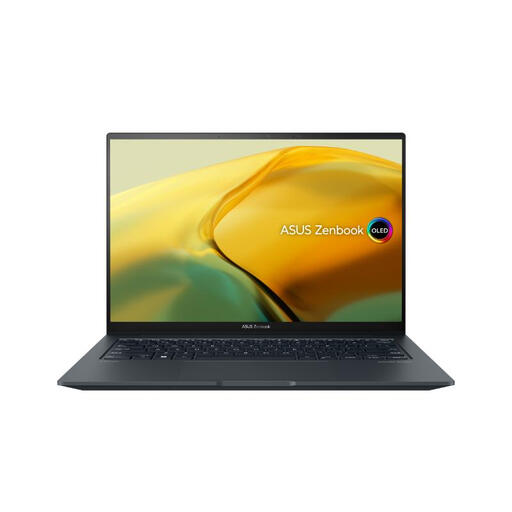 No image available
This 14.5-inch Windows laptop gives you a larger built-in screen than the 13-inch options, provided it fits your desk. Confirm its brightness and colour specification for your proofing work, along with its ports and external-monitor connections.
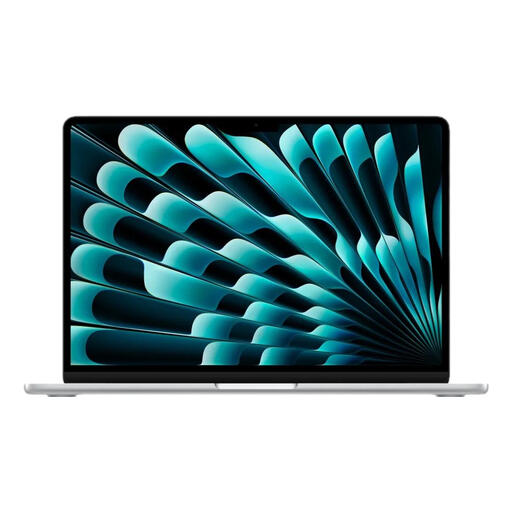 No image available
The 13-inch format is an option for a space-conscious macOS workflow. Check the exact display specification for poster proofing and confirm that its ports and external-display support fit your monitor setup.
 No image available
This 14-inch ChromeOS model is a compact option only if your poster editor and institutional workflow work on ChromeOS. Confirm compatibility before treating its screen or connections as reasons to choose it.
Choose a 13–14-inch model if desk space and portability are decisive, especially if you can use an external monitor for detailed poster review. Consider a 16-inch model if you need more room on the laptop itself, but compare its full dimensions with your available desk space.
No: Microsoft says Office Home 2024 includes PowerPoint for one PC or Mac. Before choosing Windows or macOS, confirm the version, institutional licence, plug-ins and file-sharing workflow your collaborators require.
Yes, if the exact laptop supports your intended monitor setup. Apple lists support for up to two external displays on its current MacBook Air specification; for any model, check the required cable or dock, display settings and available ports.
For UK online orders, GOV.UK says customers generally have 14 days after receiving an item to notify the seller that they wish to cancel, then another 14 days to return it; applicable conditions and exceptions matter, while remedies for faulty or misdescribed goods are separate. For an old laptop, check available electrical-equipment collection or take-back options.