People drafting slides alongside source material
Keep the deck on one display and research, images or notes on the other. Matching screen dimensions and enough readable workspace matter when moving material between them.


For drafting slides alongside research and notes, two similarly sized QHD desktop monitors offer separate working spaces; if you mainly rehearse with private notes, a laptop screen and one external display may be sufficient. Before choosing either arrangement, check how many independent displays your computer can drive and whether its ports support your planned connections. In PowerPoint, use an extended desktop rather than duplicated screens for Presenter View.
Keep the deck on one display and research, images or notes on the other. Matching screen dimensions and enough readable workspace matter when moving material between them.
If you connect and disconnect a work laptop frequently, a hub monitor or a suitable dock may reduce the connections you handle. Check the laptop's external-display limit and video capabilities before choosing that arrangement.
Microsoft Support describes using PowerPoint Presenter View with speaker notes on one screen and the presentation on another. An extended-display setup matters more here than whether the screens are daisy chained.
Decide whether you need two full-size editing screens or a laptop-plus-display rehearsal setup, then confirm that your computer supports the connections you intend to use.
Choose when: You want separate, similarly sized spaces for editing slides and keeping reference material visible.
Allow for: Two supported display connections, either independently through the computer or dock, or through a compatible display chain.
Choose when: Your main two-screen task is rehearsing with private notes and an audience-facing presentation.
Allow for: Less full-size desktop space for arranging slides and research while editing.
| Concern | What to check | Who this matters to |
|---|---|---|
| Two independent displays | Check your exact computer or dock's external-display limit and outputs. For a chain, confirm the host, monitor ports and required video protocol. | If I need slides and source material on separate screens, I must be able to extend the desktop rather than show the same image twice. Around 50% of consumers put that compatibility first. |
| Readable, aligned workspace | Compare native resolution, physical size and stand adjustment across the pair. Dell United Kingdom Support advises that similar display characteristics generally make transitions smoother. | When I move text and layouts between screens, I want enough space to read both and position them comfortably. Around 30% of consumers place balanced editing space first. |
| Convenient laptop docking | Check the monitor's actual hub and video ports, then confirm that the laptop supports the proposed USB-C, DisplayPort or Thunderbolt path. | If I reconnect my laptop often, I want fewer desk connections to manage, provided both displays still work independently. Around 20% of consumers make easier docking their primary concern. |
A USB-C connector alone does not establish its video capabilities. Apple Support says the number of external displays a Mac can use depends on its model and the chosen resolution and refresh rate.
Check the exact computer's display specification and whether its port supports the video connection your monitor or dock requires.
Dell United Kingdom Support states that HDMI does not support its described monitor daisy-chain method.
Confirm a compatible DisplayPort, USB-C DisplayPort Alt Mode or Thunderbolt path for the complete chain, or use separate supported outputs for the monitors.
Dell United Kingdom Support notes that similar sizes, resolutions and refresh rates generally make movement between screens smoother; a mixed pair can still serve different purposes.
Compare the screens' dimensions, native resolutions and stand adjustments if you intend to use them side by side.
Duplicated screens do not provide the usual separation between private speaker notes and the audience-facing presentation described by Microsoft Support.
With both displays attached, select Extend, identify which screen shows the presentation and rehearse Presenter View before presenting.
Dell's U2724DE is a Thunderbolt hub option, while its U2724D is a separate QHD monitor option for a two-screen desk.
The ThinkVision P27h-30 is a QHD USB-C docking monitor to consider when a compatible desk setup calls for a display connection and peripheral ports.
The E27u G5 is a QHD USB-C desk-monitor candidate when the computer or dock supplies the display connections needed for the planned setup.
These QHD monitors are choices for adding separately connected desktop screen space while preparing slides. For a two-monitor arrangement, check your computer or dock's display support and confirm what is included with each product.
 No image available
Consider this QHD screen for a slide-editing desk where the computer or dock can drive your intended displays.
Its product name specifies an IPS panel and 100 Hz refresh rate. If you want laptop video through one USB-C connection, confirm the exact model's capabilities before choosing that layout.
 No image available
This is a QHD-format option for a separately connected slide-editing screen.
The product name specifies 2560 × 1440 resolution and 240 Hz. Check the intended monitor connections and bundle contents if you need a two-screen desk.
 No image available
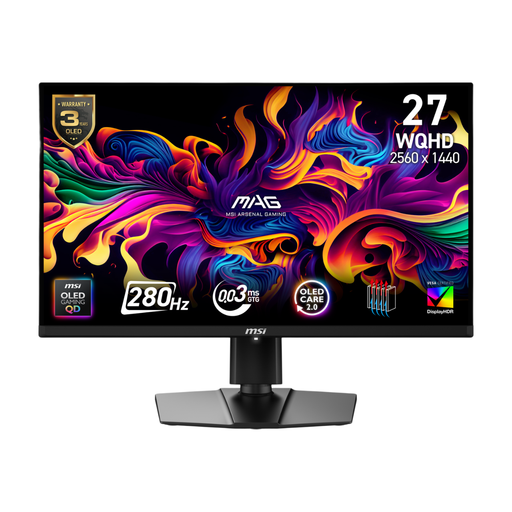
Consider it as a separate screen for slides or reference material once the computer's two-display capability is confirmed.
The product name specifies a QD-OLED panel and 280 Hz. If your plan relies on USB-C video, a hub or daisy chaining, confirm the exact connection features rather than relying on the connector name.
 No image available
This 27-inch QHD monitor can serve as a separate display for slide work with a suitable computer or dock.
The product name specifies 2560 × 1440 resolution and 220 Hz. Check the stand's adjustment range if lining up two screens or using portrait orientation matters; its listed box contents include one monitor.
 No image available
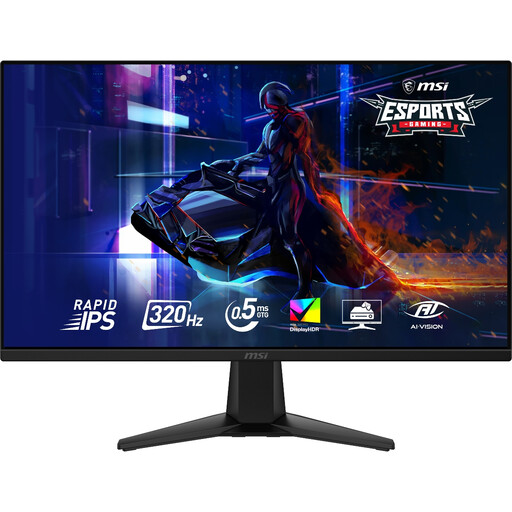
Consider this as an additional desktop screen for slide editing if your computer supports the planned display arrangement.
The product name specifies 2560 × 1440 resolution and 320 Hz. Confirm the stand range if height alignment or portrait positioning is important, and check bundle contents if purchasing for two screens.
It can in a compatible setup, but the USB-C connector alone is not enough. Dell United Kingdom Support says its described daisy-chain arrangement requires a suitable DisplayPort, USB-C DisplayPort Alt Mode or Thunderbolt path; check the exact computer, dock and monitor connections before buying.
Use an extended desktop and select PowerPoint Presenter View, then check which display shows the presentation. Microsoft Support describes Presenter View as showing speaker notes on one monitor while the audience-facing display shows the presentation without those notes.
Check your exact Mac model before buying two external monitors or a dock. Apple Support says its supported number of simultaneous external displays varies by model and by the displays' resolution and refresh rate.