First-time fixed-space gamers
If you are setting up a permanent desk or gaming space, settle on a display target and the equipment you need alongside the tower before comparing graphics cards.


Choose a prebuilt gaming desktop if you want a defined system assembled for you and one seller to contact about faults. Choose a professionally configured desktop if selecting the case, graphics card and room for later upgrades matters more than minimising the decisions you make before ordering. In either case, decide which monitor and games the PC must serve, then check the exact configuration, what is included and the applicable support terms.
If you are setting up a permanent desk or gaming space, settle on a display target and the equipment you need alongside the tower before comparing graphics cards.
An assembled system may suit you if you would rather contact its seller about a fault than assemble and diagnose individual parts yourself. Check how that seller handles collection and repairs.
If you expect to add storage or memory, or change the graphics card later, examine the actual case, power supply, connections and warranty conditions. A desktop label alone does not establish an upgrade path.
Choose it when: You want an assembled PC with a defined specification and a seller contact for system-level support.
Trade-off: The listed parts and space for expansion may leave less room to tailor the system; check the exact build rather than assuming all prebuilts are alike.
Choose it when: You want to specify major parts and have the seller assemble the PC for your display and upgrade plans.
Trade-off: You must make more component choices and review the finished specification and support terms before ordering.
| Priority | What to check | Your needs |
|---|---|---|
| Display and games | Note the monitor’s native resolution and refresh rate, the games and settings you intend to use, and the PC’s display outputs. Box.co.uk’s UK graphics-card guide distinguishes the demands of 1080p 60Hz from 1440p 165Hz and high-refresh 4K. | I want the PC and monitor to suit the games I plan to play, rather than choosing a graphics card by its name alone. |
| Assembly and support | Confirm who assembles and tests the system, what the final specification includes, and whom to contact about a fault. For a configured system, review the completed parts list even if the seller checks component compatibility. | I would rather have an assembled computer and a clear support contact than build and troubleshoot one from separate parts. |
| Future upgrades | Check graphics-card clearance, power-supply capacity and connectors, spare memory slots and storage connections for the exact tower. Also check whether an intended change affects its warranty terms. | Adding storage or changing parts later matters to me, so I need to know whether this particular case and configuration allow it. |
| Complete setup | Check whether a monitor, operating system, keyboard, mouse and required network connection are included. For a bundle, confirm the monitor’s resolution, refresh rate and connection to the PC. | If I do not already have a display and peripherals, I want to know precisely what will arrive and what I must arrange separately. |
| Space and portability | Compare tower dimensions with the intended location and leave room for connections. If you need to use the computer in several places, consider a laptop against that requirement rather than treating it as another fixed desktop. | My setup has a permanent place at home—or portability matters enough that a desktop may not fit how I use the computer. |
| Warranty cover | Compare parts, labour, collection or return arrangements and exclusions for the chosen system. PCSpecialist and Chillblast publish examples in which these elements do not all run for the same period. | I want to understand what happens if the PC needs attention, not rely on the headline length of a warranty. |
Resolution, refresh rate, games and visual settings affect the graphics-performance target. Box.co.uk’s UK guide treats these as starting points for matching a card to a display.
Write down the intended display and games, then check the exact PC’s graphics card, outputs and the monitor’s inputs before ordering.
PCSpecialist’s and Chillblast’s published terms illustrate how parts, labour and collection arrangements can differ over the life of a warranty.
Read the terms for the selected system, including exclusions, transport arrangements and the route for requesting support.
A component-compatibility check does not establish that your selected PC fits your monitor, available space or later upgrade plans.
Set those requirements first, then review the final itemised build and its connections before placing the order.
These builders illustrate different ways to buy an assembled gaming desktop; check the terms and configuration of any particular system.
PCSpecialist offers configurable gaming desktops alongside assembled systems.
Chillblast offers prebuilt PCs and configurable systems that it says are assembled and tested by its technicians.
AWD-IT lists prebuilt and configurable gaming desktops, including desktop-and-monitor combinations.
These options are prebuilt desktops, including one desktop-and-monitor bundle. They can help you compare complete setups with tower-only purchases; they do not represent the professionally configured route.
 No image available
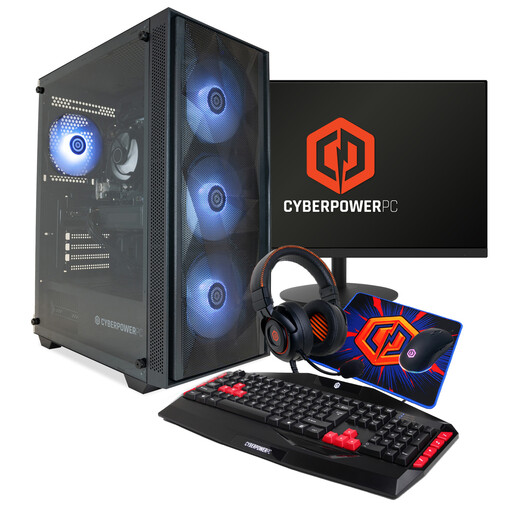
For a first setup that also needs a monitor and basic peripherals, this bundle lists a monitor, keyboard, mouse, headset and mousepad. The tower has an AMD Ryzen 5 7500F, NVIDIA GeForce RTX 5060 8GB, 16GB DDR5, 1TB NVMe SSD and Windows 11 Home. Confirm the supplied monitor’s resolution, refresh rate and connections against your intended use.
 No image available
This tower-only option suits a setup with an existing monitor and peripherals, or one where you will choose them separately. It lists an AMD Ryzen 7 9800X3D, NVIDIA GeForce RTX 5080 16GB, 32GB DDR5, 2TB NVMe SSD and Windows 11 Home. Check the monitor match and the case and power-supply details if later upgrades matter.
 No image available
For a tower-only setup, this model gives you a specified graphics card to assess against your chosen display. It lists an Intel Core Ultra 7 265KF, NVIDIA GeForce RTX 5070 12GB, 32GB DDR5, 1TB NVMe SSD and Windows 11 Home, with HDMI and DisplayPort outputs. The monitor and basic peripherals are not included; check expansion details if you plan to change components.
 No image available
This prebuilt tower lists 32GB RAM, a 2TB SSD, RTX5080 and Windows 11; a monitor and peripherals are not included. Its stated size is approximately 31.7 × 54.2 × 57.9cm and its weight approximately 22kg, so check the intended location. Confirm the graphics-card outputs for your monitor, as the listing’s HDMI descriptions differ, and review the stated collect, repair and return guarantee.
 No image available
This prebuilt option lists an AMD Ryzen 7 5700X, 32GB DDR4, 2TB SSD, RTX5070 and Windows 11 Home. Compare that configuration with your intended games and monitor. Confirm the tower dimensions, included peripherals, warranty terms and upgrade clearances before choosing it for a fixed space or future changes.
Start with the monitor’s native resolution, refresh rate and inputs, plus the games and settings you expect to use. Box.co.uk’s UK guide explains why a 1080p 60Hz display and a high-refresh 1440p or 4K display call for different graphics-performance targets; then check the exact PC’s outputs.
No: upgrade options depend on the particular build, not just whether it was sold prebuilt or configured. Check case and graphics-card clearance, power-supply capacity and connectors, and available memory slots and storage connections before relying on a future upgrade.
Compare parts and labour periods, collection or return arrangements, exclusions and the support contact for the exact system. PCSpecialist publishes three-year options with differing parts and collection periods; Chillblast describes three years of parts, labour and collection and return followed by two years of return-to-base labour cover. Read the applicable terms rather than comparing headline years alone.