Mono checklist teams
Studios that mainly print repeatable black-and-white A4 equipment checks need reliable shared access and suitable paper handling, without paying for document functions they will not use.


For mainly black-and-white A4 checklists, start by considering a shared-network mono printer with automatic two-sided printing and a tray that fits the studio’s refill routine. Choose a multifunction model if completed forms regularly need scanning or copying, and consider colour when it carries information staff need from the printed checklist. Check the exact model’s connection options, paper handling and document functions before buying.
The deciding question is what happens to a checklist after it is printed: is it simply used on paper, scanned back into records, or read using essential colour cues?
Studios that mainly print repeatable black-and-white A4 equipment checks need reliable shared access and suitable paper handling, without paying for document functions they will not use.
When completed inspection sheets must be scanned, copied or processed in batches, a multifunction printer becomes relevant. An automatic document feeder (ADF) may help with batches, but its presence and scanning functions vary by model.
Colour output matters when printed status fields, diagrams or visual instructions would lose useful meaning in black and white. The actual checklist template should determine whether that need justifies a colour model.
Start with the checklist itself, then decide whether completed paperwork needs digitising and whether colour changes how staff use the printed page.
| Concern | What to check | Who this matters to |
|---|---|---|
| Routine mono printing | Check A4 support, automatic rather than manual two-sided printing, tray capacity and a connection the studio can share. | If I mostly print text checklists, I want staff to collect pages without frequent paper refills or manual page turning. Around 40% of consumers put this straightforward mono-printing need first. |
| Completed records | Confirm copy and scan functions, whether an ADF is included, and whether two-sided forms need two-sided scanning. | When signed checks must become digital records, printing blank forms is only part of my job. Scanning or copying is the primary concern for around 30% of consumers. |
| Colour-dependent documents | Open the checklist template to confirm that colour is necessary, then compare paper handling and consumables for the exact models. | If a status colour or diagram changes how staff interpret an instruction, I need that distinction on paper. Around 30% of consumers prioritise colour for this reason. |
Colour can be useful for status fields and diagrams, but it adds a consumable decision if the studio prints only text checklists.
Open the templates staff actually use. Compare mono options first if colour does not change how someone acts on the document.
A print-only device cannot scan a signed inspection sheet or copy a completed fault report.
Trace the form from printing through completion and storage. If staff routinely digitise sheets, check the multifunction model’s scanning options and whether its ADF suits the batch size.
A connection that works for one workstation may not fit the studio’s network administration or document-access practices.
Ask who will administer the printer, whether Ethernet or Wi-Fi is appropriate, and how access and device updates will be managed.
Even a shared printer with the right document functions can interrupt checks if its tray does not fit the printing routine.
Estimate the busiest week of checklist printing and agree who will replenish paper and consumables. Check the exact model’s standard tray capacity rather than assuming an optional capacity is included.
These brands have documented models relevant to different checklist workflows; features on one model should not be assumed across a range.
Brother UK documents print-only mono, mono multifunction, colour LED multifunction and refillable-ink options relevant to small shared workspaces.
Canon’s i-SENSYS LBP246dw is a networked mono option to consider when paper capacity and printer controls matter.
Epson’s EcoTank range provides a refillable-ink route when colour documents are part of the studio’s work.
HP lists business-oriented mono and colour LaserJet Pro models for teams.
These options span straightforward mono checklist printing and multifunction choices for studios that also handle completed forms or colour documents. Match each model to the checklist template and the studio’s network before deciding.
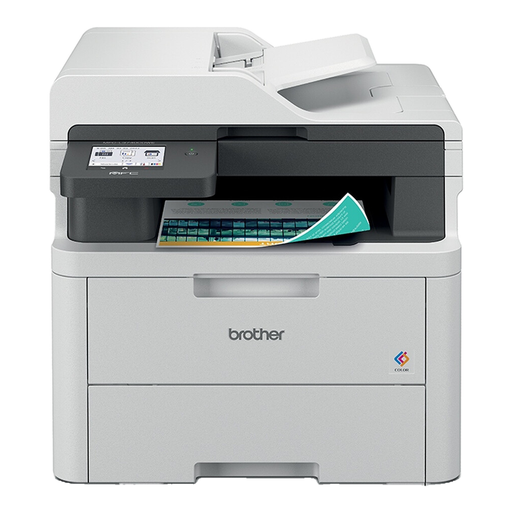 No image available
Consider this model when colour checklists and batches of completed forms both matter.
Brother UK lists a 50-sheet ADF, a 250-sheet paper input, automatic two-sided printing, Ethernet and Wi-Fi for the MFC-L3740CDWE. If staff scan two-sided completed forms, confirm the scanning workflow separately.
 No image available
For a studio considering an ink-based multifunction route, compare this model with the actual checklist templates and the routine for handling completed forms.
The product name identifies A4, Wi-Fi, scanning and copying. Check the included ink arrangement and the exact scanning requirements before choosing it.
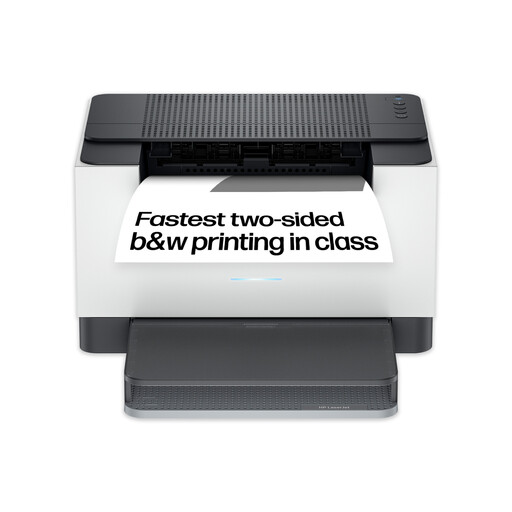 No image available
This is a mono option to assess when the studio chiefly prints black-and-white checklists.
Its product name specifies two-sided printing and a 150-sheet input tray. Confirm that its wireless connection fits the studio network; if completed forms need scanning or copying, confirm those functions on the exact model before buying.
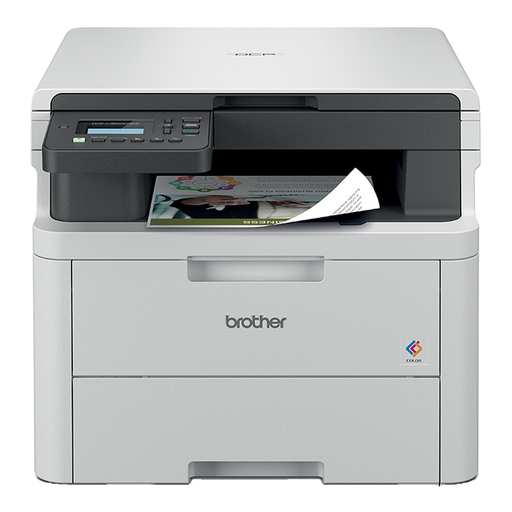 No image available
Consider this colour model if the printed checklists genuinely rely on colour coding or diagrams.
If staff also need to scan completed sheets, check whether its document-handling arrangement suits occasional pages or the size of their batches. Confirm the connection method required by the studio.
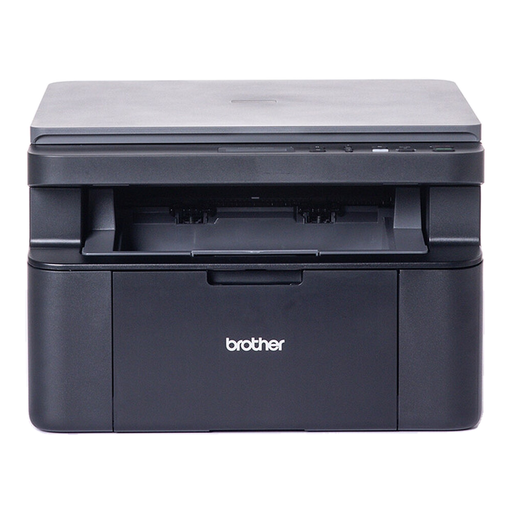 No image available
This mono model is worth checking when black-and-white forms are the priority and occasional document processing is part of the workflow.
Allow for manual rather than automatic two-sided printing. If the studio scans batches of completed forms, check whether its document handling and paper-refill routine are suitable.
A mono printer can be enough if the studio mainly prints black-and-white A4 checklists and does not need colour on the page. If staff also scan or copy completed forms, check a multifunction model rather than assuming a print-only printer can handle the whole workflow.
Consider one when completed checks must be scanned, copied or stored digitally. For batches, check whether the exact model has an ADF and whether staff need to scan both sides of a sheet; duplex printing alone does not answer that question.
Confirm that the printer supports the connection the studio permits and that someone can manage user access and device updates. Ask the person responsible for the network whether Ethernet, Wi-Fi or guest access fits the way staff will print.
Arrange an appropriate electrical-equipment collection route rather than putting a printer in ordinary waste. UK guidance on waste electrical and electronic equipment addresses recovery, reuse and recycling; ask the studio’s waste contractor, retailer or local authority which service accepts its equipment.