Colour-caption makers
If your captions combine headings with diagrams, logos or images, check colour-printing options and the paper the printer accepts before concentrating on document speed.


Choose a colour printer that can print, scan and copy, but check that the exact model supports the paper you plan to use for the captions. A refillable ink-tank model is worth considering for repeated drafts and later schoolwork; a simpler all-in-one may suit occasional printing when extensive paper handling is unnecessary.
If your captions combine headings with diagrams, logos or images, check colour-printing options and the paper the printer accepts before concentrating on document speed.
If you expect several drafts, handouts or later school projects, a refillable printer and practical paper handling may matter beyond this one display.
If you mainly need to print captions and scan or copy individual pages, check that the printer works with the computer or mobile device you will use. A document feeder may be unnecessary.
Start with the size and type of paper for the captions, then consider how often you will print and whether the project involves scanning more than one original at a time.
| Concern | What to check | Who this matters to |
|---|---|---|
| Colour and caption paper | Check the exact model’s supported paper size, weight, type and feed path against your chosen stock. | If my display uses coloured headings or graphics, I need captions that print on the paper I intend to mount. Around 40% of consumers put colour and media suitability first. |
| Repeat printing | Check the refill system, paper capacity and whether you need automatic two-sided printing for supporting sheets. | Several drafts and later schoolwork make it important to keep printing without frequent ink changes. For around 30% of consumers, repeat printing is the primary concern. |
| Setup and scanning | Confirm compatibility with your computer or phone, then choose a flatbed or automatic document feeder to match the originals you will scan. | If I am printing from a family device and scanning individual sketches, I want a straightforward print-and-scan workflow. Setup and scanning come first for around 30% of consumers. |
Paper support depends on the exact model and medium. Canon UK distinguishes plain-paper limits from Canon specialty-paper limits for the PIXMA G3560, while Epson United Kingdom cautions that third-party media may not be compatible with models in its comparison.
Choose your caption stock first, check its size and weight against the selected printer’s guidance, and test one sheet before printing the whole project.
A failed print can waste card, ink and project time.
Manufacturer page-yield figures are test ratings; a colour-heavy caption layout need not use ink like the pages in those tests.
Allow for drafts and reprints when planning how much ink you need, and check which refill bottles fit the exact model.
An automatic document feeder helps scan or copy a stack of originals, while automatic duplexing is for two-sided output. Neither establishes that a printer accepts your caption card.
Check the intended media first. Add a document feeder if you regularly handle several originals, or automatic duplexing if you need two-sided supporting sheets.
Brother’s DCP-T780DW illustrates a refillable print, scan and copy option for repeated project work.
The PIXMA G3570 is a MegaTank print, scan and copy model to consider for captions with text and graphics.
The EcoTank ET-2850 is a refillable print, scan and copy option for project sheets and later home use.
The Smart Tank 5105 is a refillable wireless print, copy and scan option for home projects.
These all-in-one models cover repeated school printing and occasional home projects. Before choosing one for display captions, match your intended paper and devices to the exact model.
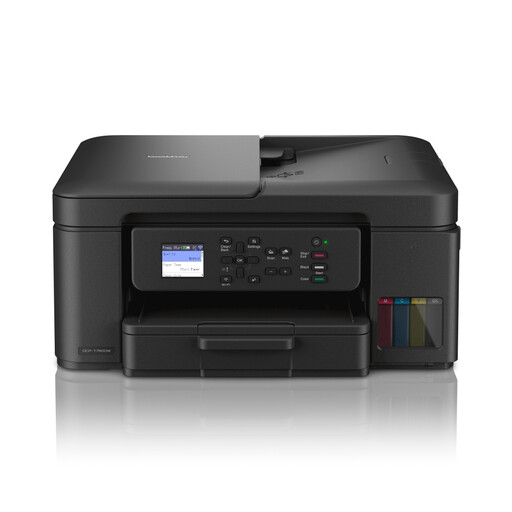 Image unavailable
Consider this model for repeated colour drafts and projects involving several originals to scan or copy.
Brother UK specifies a 150-sheet tray, manual feed slot, 20-sheet automatic document feeder and automatic two-sided printing for the DCP-T780DW.
Check its guidance against the weight, size and coating of your intended caption stock.
 Image unavailable
Consider this model if you expect to print further school materials and want to scan or copy project originals.
The product name identifies A4 printing, Wi-Fi, scanning and copying.
Check the ET-5150’s media guidance for your caption paper before choosing it.
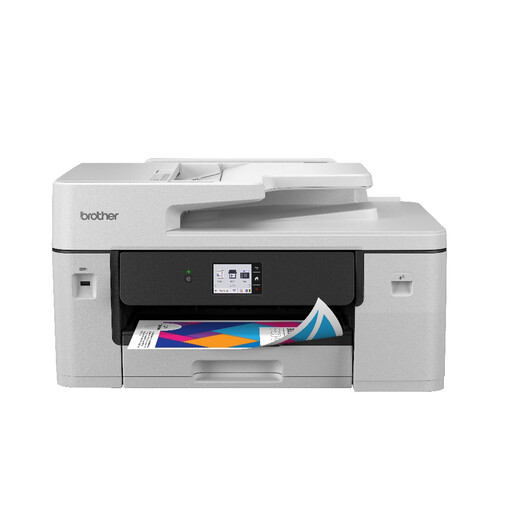 Image unavailable
Consider this model if the project involves colour captions alongside other printing, scanning or copying tasks.
Confirm the size and type of your intended caption stock against the MFC-J6760DW’s paper guidance.
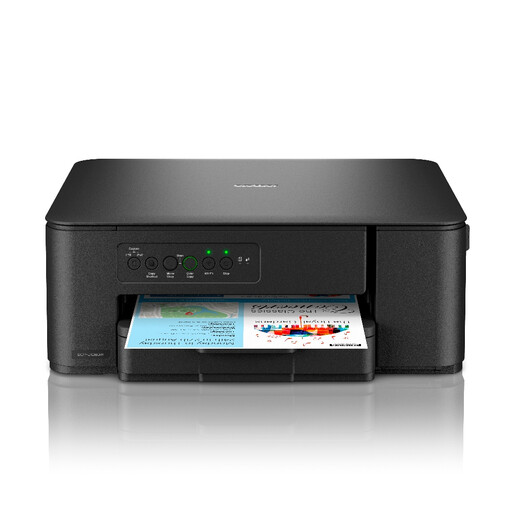 Image unavailable
Consider this model for occasional home project printing where wireless use matters.
Confirm the exact model suffix and its print, scan, copy and paper specifications before choosing it for captions.
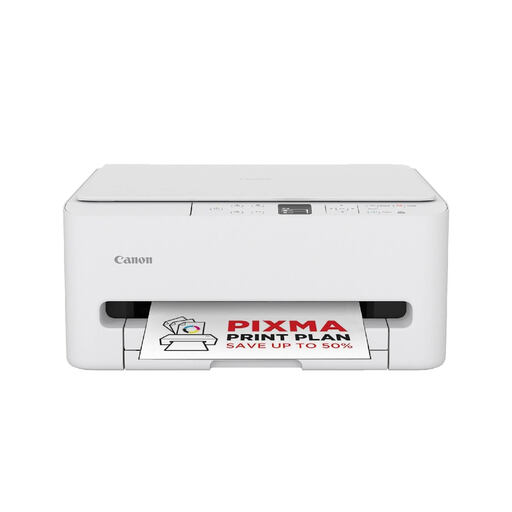 Image unavailable
Consider this model for occasional colour captions when you also need a home print, copy and scan workflow.
Check that the TS6550i supports the size and type of paper chosen for the display.
Only if the exact printer supports that card’s size, weight and type through the intended feed path. Check the model’s media guidance and select the matching print setting; Epson United Kingdom cautions that third-party media may not be compatible with models in its comparison.
It is more relevant if you expect to print drafts or use the printer for later schoolwork. If the display is likely to be its main task, focus on supported caption paper and the print, scan and copy functions you will actually use; rated ink yields do not tell you how many graphics-heavy captions you will print.
Not for printing individual caption sheets. A flatbed handles individual sketches or source pages; an automatic document feeder is useful when you need to scan or copy several originals in sequence. Brother UK specifies a 20-sheet feeder for the DCP-T780DW.
Check compatibility for the named printer and the device you will use. Canon UK lists Chrome compatibility for the PIXMA G3570 series, while HP United Kingdom lists phone and tablet printing for the Smart Tank 5105; those specifications do not establish compatibility for every printer in either range.