PS5 game switchers
If you want several PS5 games installed and ready to launch, the key decision is whether an internal M.2 SSD meets PlayStation’s compatibility and fit requirements.


Choose a compatible internal M.2 SSD if you want to launch PS5 games from the added storage. USB extended storage can hold PS5 games for transfer back before play, or run compatible PS4 games; for saves, captures or an occasional shortage, check the separate file-management options before buying a game drive. PlayStation’s UK guidance distinguishes these uses.
If you want several PS5 games installed and ready to launch, the key decision is whether an internal M.2 SSD meets PlayStation’s compatibility and fit requirements.
If you are happy to transfer PS5 games back before playing, or mainly want to play PS4 games from an external drive, USB extended storage may suit the way you use your library.
If the shortage is mainly about clips, screenshots or game progress, check the separate USB and cloud options for the particular file type before choosing game storage.
Decide whether the extra space needs to launch installed games or instead hold an archive, captures or saves; PlayStation’s UK guidance treats these as different storage routes.
| Concern | What to check when buying | Who this matters to |
|---|---|---|
| Launch PS5 games from added storage | For an internal drive, check PCI-Express Gen4x4, M.2 NVMe with Key M, a supported form factor, 250 GB–8 TB capacity and the complete cooled dimensions. PlayStation recommends sequential reads of at least 5,500 MB/s. | If I want added PS5 games ready to launch without transferring them first, internal-drive compatibility and installation are central. Around 42% of consumers prioritise having PS5 games ready to play. |
| Archive games or play PS4 games from USB | Check the drive and port against PlayStation’s USB extended-storage requirements, including SuperSpeed USB 5 Gbps or later and 250 GB–8 TB capacity. PS5 games must be moved back before play. | If I can keep PS5 games in an archive and transfer them when needed, or want to play compatible PS4 games from USB, this route may fit. Around 25% of consumers prioritise game archiving or PS4 play from USB. |
| Keep captures or saved data | Identify whether you need to handle PS5 saves, PS4 saves, screenshots or video clips. Check PlayStation’s FAT/exFAT guidance for ordinary USB storage, or the subscription requirements for cloud saves. | If my main concern is keeping clips, screenshots or game progress rather than adding installed-game space, I should check the file-specific options. Around 17% of consumers prioritise captures or saved data. |
| Free space without another drive | Check what is using space in Settings > Storage and whether you are comfortable reinstalling or redownloading a removed game before playing it again. | If I only run short of space occasionally and do not need every game installed, deleting and reinstalling may be enough. Around 16% of consumers prioritise freeing space without another drive. |
USB extended storage can store PS5 games, but PlayStation says those games must be moved to console storage or a compatible M.2 SSD before they can be played. Compatible PS4 games can run directly from USB extended storage.
Choose the storage route according to whether you need to launch PS5 games from the added space or can transfer them back first.
PlayStation’s fit requirements apply to the SSD and its heat-dissipation assembly together. A drive that fits on paper without its cooling component may not fit once assembled.
Check the exact model and complete cooled assembly against PlayStation’s dimensions before buying.
A separate cooling component may be needed if the selected SSD is not supplied with a suitable heatsink.
Formatting a drive as USB extended storage erases its existing data, and that format is different from ordinary USB storage for applicable files.
Copy anything you want to keep elsewhere first, then format the drive for the storage use you actually need.
The T500 is an internal M.2 option; the 2 TB heatsink variant is presented for PS5 installation.
The 990 PRO with Heatsink is an internal option, while the T7 Shield is a separate portable USB SSD line.
The Game Drive External PS5 SSD and Game Drive PS5 M.2 NVMe SSD are separate products for different storage routes.
The officially licensed SN850P is an internal PS5 M.2 line for buyers considering a pre-fitted heatsink.
The product list includes portable USB storage options and one internal M.2 SSD. USB extended storage can archive PS5 games but cannot launch them; check each product’s exact fit and requirements before buying.
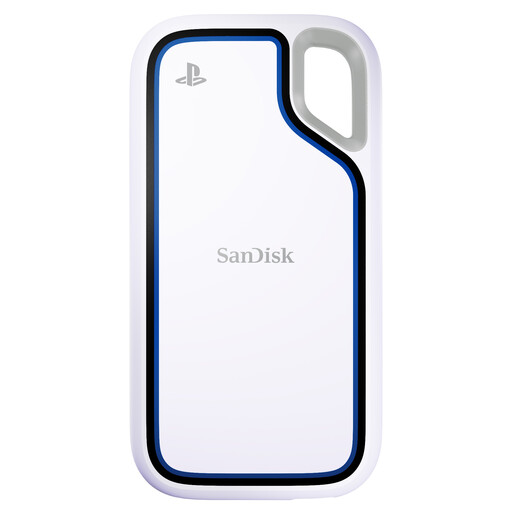 No image available
A portable USB option for archiving PS5 games; move a PS5 game to console storage or a compatible M.2 SSD before playing it.
1TB; USB 3.2 Gen 2; up to 1000 MB/s read. The listing describes USB-C and USB-A cables.
No image available
A portable USB option for archiving PS5 games; PS5 games on USB extended storage need to be moved back before play.
2TB; USB 3.2 Gen 2; up to 1000 MB/s read. The listing describes USB-C and USB-A cables.
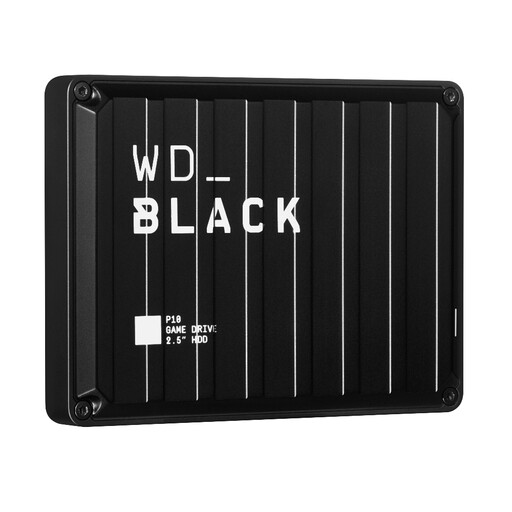 No image available
The listing describes this external drive for archiving PS5 games and playing compatible PS4 games from USB. PS5 games must be moved back before play.
4TB; USB 3.0 / USB 3.2 Gen 1. Check the exact drive and connection against PlayStation’s USB extended-storage requirements.
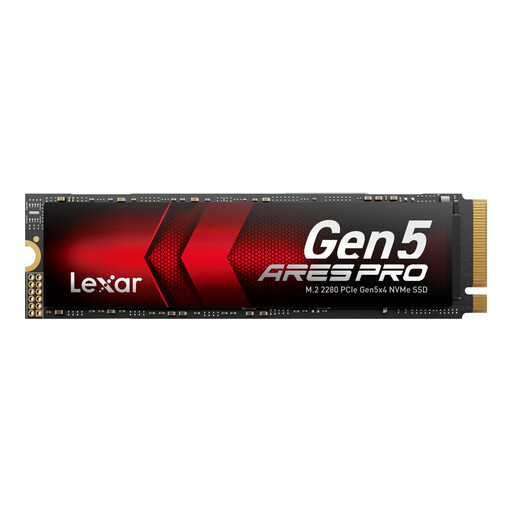 No image available
This is listed as an internal M.2 SSD. Before treating it as a PS5 expansion option, check its exact interface and complete cooled dimensions against PlayStation’s requirements.
4TB; PCIe 5.0 x4; M.2 2280; graphene heat-dissipation patch; up to 14,000 MB/s read.
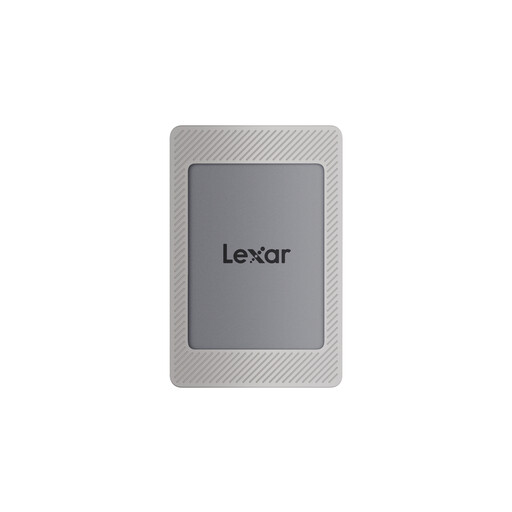 No image available
A portable USB storage option; PS5 games stored on USB extended storage must be transferred back to console storage or a compatible M.2 SSD before play.
2TB; USB 3.2 Gen 2; up to 1050 MB/s read and 1000 MB/s write. The listing describes USB-C to USB-C and USB-A to USB-C cables.
No. PlayStation says PS5 games stored on USB extended storage must be copied to console storage or a compatible M.2 SSD before playing; compatible PS4 games can run directly from USB extended storage.
Update the console system software first, then check that the exact SSD is a supported PCI-Express Gen4x4 M.2 NVMe drive with Key M, a supported form factor and 250 GB–8 TB capacity. PlayStation also specifies cooling and limits for the complete assembly: 25 mm width and 11.25 mm thickness, with no more than 8.0 mm above and 2.45 mm below the board. Its 5,500 MB/s sequential-read figure is a recommendation.
No. PlayStation warns that formatting a drive as USB extended storage erases its existing data. Copy files you want to keep elsewhere first, and use the console’s safe-removal procedure when disconnecting the drive.
Not in the same formatting mode. PlayStation distinguishes USB extended game storage from an ordinary FAT- or exFAT-formatted USB drive for applicable file transfers, including captures and PS4 saved data. An extended-storage drive also cannot be used for console backup data.
No. PlayStation Plus cloud storage is for saved data, not installed games or captures. PlayStation states limits of up to 100 GB of PS5 saved data and 100 GB of PS4 saved data; check your subscription and sync settings before relying on it.