For a desk shared between turn-based strategy games and office work, a 27-inch QHD IPS monitor is a practical starting point, particularly if its stand adjusts to your workspace. Consider 27-inch 4K IPS when dense maps and document detail take priority and your PC can run games at the settings you want. OLED puts contrast first, but long-lived toolbars and game interfaces make panel care an important part of that choice.
Who is this monitor for?
Strategy players who work at the same desk
Maps, tooltips, documents and browser windows all need to remain readable. Compare QHD and 4K at your preferred text size, then check whether the supplied stand or a compatible mount lets you position the screen around your desk and lighting.
Detail-first map and text readers
If you spend long sessions reading dense interfaces or keeping reference material open, a 27-inch 4K IPS screen is worth considering. BenQ specifies 163 pixels per inch for its 27-inch EX2710U; check your preferred display scaling and whether your PC can run games at the resolution you choose.
Contrast-first evening gamers
OLED may appeal if dark-scene contrast matters more to you than an office-first screen. ASUS support guidance cautions that prolonged static, high-contrast images can cause image persistence or burn-in, so persistent game interfaces and work windows need consideration.
What matters when choosing?
Choose the panel route according to what you spend most time looking at, then check the exact monitor’s stand and connection limits before settling on a model.
27-inch QHD IPS
Consider it when: One screen must accommodate strategy-game interfaces, office windows and occasional faster games.
Trade-off: QHD has lower pixel density than 4K at the same size; stand adjustment and maximum refresh rate also vary by model and input.
27-inch 4K IPS
Consider it when: Dense maps, small interface elements and office documents are your main reasons for changing monitors.
Trade-off: Running games at 4K asks more of the PC than QHD at comparable settings; a monitor’s refresh specification does not establish the frame rate your PC will deliver.
OLED
Consider it when: Contrast and fast pixel response take priority, including for games beyond turn-based strategy.
Trade-off: ASUS warns that prolonged static, high-contrast images can cause OLED image persistence or burn-in. Check the chosen model’s care features and warranty for an office-heavy setup.
| Concern |
What to check |
Who this matters to |
| Readable maps and text |
Compare native resolution at 27 inches and try your preferred text scaling; check your PC’s intended gaming resolution. |
If map labels, tooltips and work documents are what I read most, I want them legible without giving up useful screen space. Roughly 31% of consumers would put readable interfaces first. |
| Desk and screen position |
Check the supplied stand’s adjustments, desk footprint and VESA pattern if you plan to use an arm. |
When I use the same desk for long work sessions and games, I need to position the screen around my seating and lighting. Around 31% of consumers would make workstation fit their primary concern. |
| Smooth movement |
Check native versus overclocked refresh rates and the maximum resolution and refresh combination for each input. |
I enjoy smoother camera movement and play other games too, but do not want a headline refresh figure I cannot use with my PC. Approximately 23% of consumers would prioritise this balance. |
| OLED contrast |
Read the exact OLED model’s panel-care instructions and warranty, particularly for persistent windows and game interfaces. |
For evening play, I value dark-scene contrast enough to manage static content during office use. Roughly 15% of consumers would make that their leading concern. |
Buying pitfalls
-
Assuming the highest refresh rate works through every input
LG specifies that the 200Hz overclocked mode on its 27GS85Q-B requires DisplayPort 1.4 support from both the graphics card and cable. Acer lists different QHD refresh maxima for DisplayPort and HDMI on its XV272U V3.
Match the exact monitor’s input specifications to your PC output and cable before relying on a particular resolution and refresh combination.
Changing the connection may require a suitable cable or adapter; an unsupported graphics output may also limit the mode you can use.
-
Taking VESA mounting to mean the stand adjusts
ASUS specifies VESA 100 × 100 mm mounting for the VG27AQ3A, but no height adjustment on its supplied stand. Acer specifies 120 mm of height adjustment for the XV272U V3.
Check the mechanical specifications if you need height adjustment without adding equipment. If you plan to use an arm, check both mount compatibility and your desk.
An arm or riser may be an additional purchase if the supplied stand cannot reach the position you need.
-
Choosing OLED without considering fixed interfaces
ASUS support guidance says prolonged static, high-contrast images can cause OLED image persistence or burn-in. Strategy-game interfaces and office toolbars can remain in place for long periods.
Compare OLED with IPS for your usual screen time. If you choose OLED, follow the exact model’s panel-care instructions and check its warranty terms.
-
Expecting an eye-comfort label to fix the whole desk setup
The Health and Safety Executive links poorly designed display-screen workstations and environments with discomfort, fatigue and eye strain. Its guidance covers screen and lighting adjustment, breaks and changes of activity.
Position the screen to manage reflections, arrange the lighting and take appropriate breaks rather than relying on a single monitor feature.
Relevant brands to consider
These model lines illustrate different routes; the specifications and limitations below apply to the named models, not every monitor from each brand.
LG UltraGear
LG’s 27GS85Q-B illustrates a 27-inch QHD Nano IPS route for a shared gaming and work desk.
- LG specifies a 180Hz native refresh rate for the 27GS85Q-B.
- Its 200Hz overclocked mode requires a DisplayPort 1.4-capable graphics card and cable.
BenQ MOBIUZ
The EX2710U illustrates the 27-inch 4K IPS route when fine detail and physical screen adjustment matter.
- BenQ lists 3840 × 2160 resolution, 163 pixels per inch, 144Hz refresh and 100 mm height adjustment for this model.
- Check whether your PC can run your chosen games at the 4K settings you intend to use.
ASUS TUF Gaming
The VG27AQ3A is a 27-inch QHD Fast IPS example for consumers weighing elevated refresh against stand adjustment.
- ASUS specifies 180Hz refresh and VESA 100 × 100 mm mounting for the VG27AQ3A.
- Its supplied stand has no height adjustment.
Acer Nitro
The XV272U V3 illustrates a QHD IPS option where the supplied stand’s adjustment range is a consideration.
- Acer specifies 120 mm height adjustment, alongside tilt, swivel, pivot and VESA 100 × 100 mm mounting.
- Acer lists QHD at up to 180Hz through DisplayPort but up to 144Hz through HDMI on this model.
ASUS ROG OLED
ASUS’s OLED guidance is relevant when contrast-first gaming shares a screen with persistent office windows or game interfaces.
- ASUS describes protective functions, including pixel shift and pixel cleaning, for supported OLED monitors.
- ASUS warns that prolonged static, high-contrast images can cause image persistence or burn-in; check the features and warranty of the exact model.
Joybuy monitor choices
These monitors cover detail-focused 4K IPS, QHD IPS and QHD OLED choices for a desk used for strategy games and office work. Compare each model’s stated configuration with your PC, workspace and likely time spent displaying static content.
 No image available
LG UltraGear G8 27G850A, 27-inch 4K Nano IPS
Consider this for detailed maps and office material if your PC supports the resolution and mode you intend to use.
The listed dual-mode monitor specifies 240Hz and 480Hz modes, DisplayPort 2.1 and HDMI 2.1. Confirm the resolution and connection requirements for each mode before buying.
View on Joybuy
 No image available
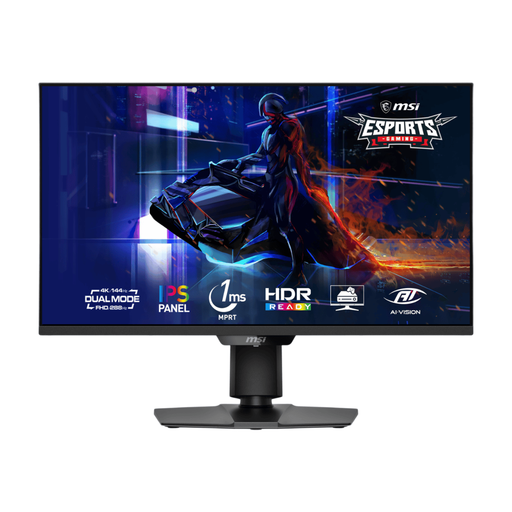
MSI MAG 275UPD E14, 27-inch 4K gaming monitor
This is a 4K option to consider when map and document detail matter and your PC can run games at your chosen settings.
The listed dual modes are UHD at 144Hz and FHD at 288Hz. Check which mode you expect to use most often.
View on Joybuy
 No image available
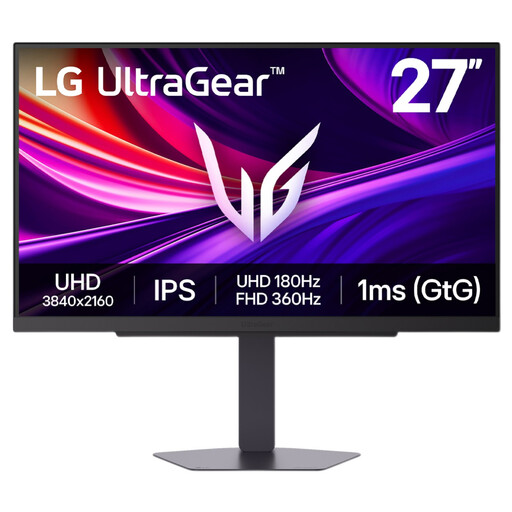
LG UltraGear 27G810A-B, 27-inch 4K IPS
Consider its 4K panel if fine interface and document detail take priority, while checking what your PC can deliver in games.
The listed model has dual modes and a maximum stated refresh rate of 360Hz. Confirm which resolution and connection support the mode you want.
View on Joybuy
 No image available
Samsung Odyssey G6 S27DG612, 27-inch QHD OLED
This is a contrast-first option if you are prepared to manage persistent office windows and strategy-game interfaces.
The listed QHD OLED monitor specifies 240Hz. Prolonged static, high-contrast content can cause OLED image persistence or burn-in; check this model’s panel-care instructions and warranty.
View on Joybuy
 No image available
HKC G27H2DPro, 27-inch QHD Fast IPS
Consider this QHD option if elevated refresh matters, but assess reflections where you plan to place the screen.
The listed resolution is 2560 × 1440 with a 220Hz refresh specification. Its glossy finish may matter near bright light; check the supplied stand’s adjustments and the refresh limit of the input you will use.
View on Joybuy
Common questions
Should I choose 27-inch QHD or 4K for strategy games and office work?
Choose QHD as a starting point when you want one screen for gaming and work without the graphics demand of playing at 4K; consider 4K when dense maps and document detail matter more and your PC can run your chosen settings. BenQ specifies 163 pixels per inch for its 27-inch 4K EX2710U, but check your preferred text scaling as well as the panel resolution.
Do turn-based strategy games require 240Hz?
No particular refresh rate is required by the purchasing scenario. If you also value smoother camera movement or play other genres, compare the monitor’s supported modes with the frame rates your PC can deliver; check whether a quoted maximum is overclocked or limited to a particular input.
Can I use OLED for both strategy games and office software?
Yes, but account for the time that fixed interfaces will remain on screen. ASUS support guidance warns that prolonged static, high-contrast images can cause OLED image persistence or burn-in; follow the chosen model’s care instructions and read its warranty terms.
What should I check for a comfortable home-office setup?
Check whether the supplied stand or a compatible arm lets you position the screen around your desk and lighting. The Health and Safety Executive advises display-screen users to manage reflections and glare through screen and lighting adjustments, alongside breaks and changes of activity.


