
24/7 Customer Support

Free returns

Same-day & Next-day Delivery

Quality Guaranteed

Unlock Your Welcome Offers: FREE Delivery | Up to 80% OFF | Free 30-day JoyPlus trial
Download the APP
QHD monitors offer a useful balance between sharpness, performance and price for UK users. Also called 1440p monitors, WQHD monitors or, in retail listings, 2K monitors, they provide more detail than Full HD without placing the same graphics demand as 4K.
However, choosing the right model involves more than comparing screen size and refresh rate. A monitor advertised as “gaming-ready” may have limited connectivity, while an impressive HDR label may not translate into meaningful performance. Before buying, check the specifications that affect everyday use, compatibility and long-term value.
A 165Hz or 240Hz gaming monitor can display motion more frequently than a 60Hz screen, but your computer must produce enough frames to benefit. A mid-range PC may be better matched with a 144Hz or 165Hz display, while esports players with a suitable graphics card may value 240Hz.
Also check how the refresh rate is achieved. Some monitors support their highest rate only through DisplayPort, while HDMI may be limited depending on the version and connected device. This matters when switching between a PC, PlayStation or Xbox.
“HDR support” can describe anything from basic signal compatibility to a display with high peak brightness, local dimming and certified contrast performance. Look for objective information such as brightness, panel technology and certification. OLED models can produce very deep blacks, whereas VA panels typically provide a high stated contrast ratio at a lower cost.
HDR is most useful when your games, films or operating system support it. It should not be the sole reason to choose a monitor.
A 34-inch ultrawide monitor occupies considerably more desk width than a 27-inch 16:9 screen. Curved gaming monitors may also require careful positioning so that the viewing distance suits the curvature.
Check whether the stand offers height, tilt, swivel and pivot adjustment. If not, confirm that the monitor is VESA mountable, commonly 100 × 100 mm, before buying a monitor arm. For laptop users, a USB-C monitor with power delivery can reduce cable clutter, but verify the wattage and whether the port supports video through DisplayPort Alt Mode.
Standard QHD uses 2560 × 1440 pixels in a 16:9 format. This is suitable for 27-inch and 31.5-inch screens, offering a sharper desktop image and more workspace than Full HD. UWQHD uses 3440 × 1440 pixels in a 21:9 format and is commonly found on 34-inch ultrawide monitors.
At 27 inches, QHD provides a relatively high pixel density for text and games. A 31.5-inch screen gives a larger image but slightly lower pixel density. For an ultrawide display, check whether your graphics card can handle the additional horizontal pixels.
For colour-sensitive work, look for measured or stated gamut coverage such as 100% sRGB, factory calibration, Calman verification or a Delta E specification. These features support a more predictable workflow but do not remove the need for calibration when colour accuracy is critical.
Refresh rate is measured in hertz. A 75Hz display suits office productivity, streaming and casual gaming. 165Hz gaming monitors, 180Hz models and 240Hz screens are aimed at smoother gameplay, provided the connected system can output the required frame rate.
Response-time figures should be read carefully because manufacturers may quote different modes, such as GtG or MPRT. Adaptive-sync technologies, including FreeSync monitors and G-SYNC compatible monitors, can help match the display refresh rate to the graphics card and reduce tearing. Confirm which inputs support the feature and whether it works with your GPU.
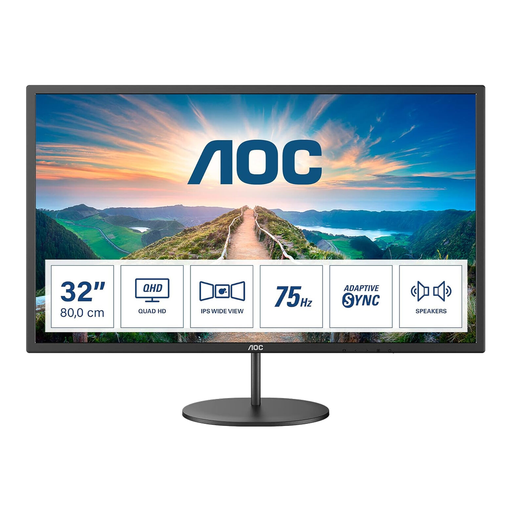
Why This Fits Their Persona: Its 31.5-inch 2560 × 1440 IPS display suits a first desktop upgrade for home working, streaming and casual gaming.
The specification lists 75Hz, AdaptiveSync, HDMI and DisplayPort, rather than presenting gaming features without connection details.
IPS viewing angles, integrated 2 × 2W speakers, matt coating and 100 × 100 mm VESA support.
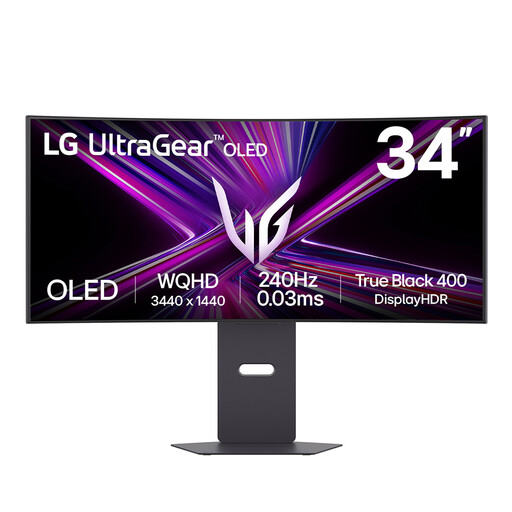
Why This Fits Their Persona: The 34-inch 21:9 OLED screen is designed for users who want high-speed gaming alongside an immersive ultrawide viewing area.
It specifies HDMI 2.1, DisplayPort 1.4, USB-C with 65W power delivery and support for both G-SYNC Compatible and FreeSync Premium Pro.
3440 × 1440 resolution, 240Hz refresh rate, 0.03ms GtG response time and VESA DisplayHDR True Black 400 certification.
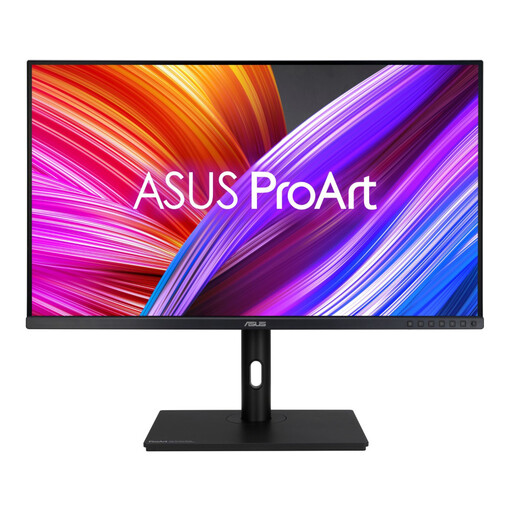
Why This Fits Their Persona: Photographers, video editors and designers can use its large QHD workspace for timelines, palettes and multi-window editing.
Its stated colour specifications include 100% sRGB, 100% Rec.709, factory calibration and Calman Verified status.
31.5-inch IPS panel, 75Hz refresh rate, four USB 3.2 hub ports and a stand with height, swivel, tilt and pivot adjustment.
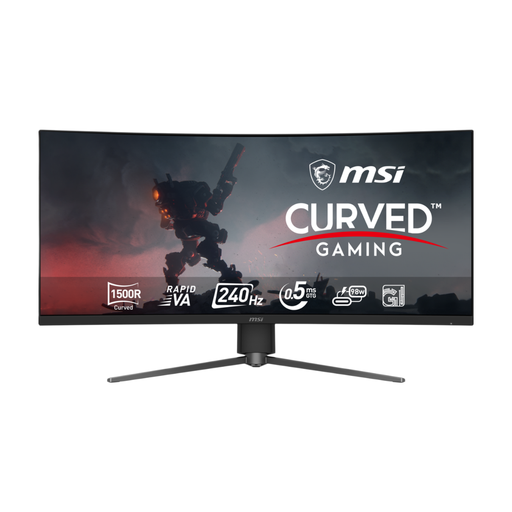
Why This Fits Their Persona: It suits users who combine fast-paced gaming with multitasking, spreadsheets, editing timelines or wide browser layouts.
The listing states which ports support UWQHD at 240Hz, including DisplayPort 1.4a, HDMI 2.1 and USB-C.
34-inch 3440 × 1440 Rapid VA panel, 240Hz refresh rate, 0.5ms stated GtG response time and 98W USB-C power delivery.
We have compiled a complete, real-time list of products that fully satisfy these strict selection criteria and UK safety regulations.
Yes. The 2560 × 1440 resolution provides more workspace for documents, browser windows and spreadsheets than Full HD. IPS monitors with matt coatings, ergonomic stands and USB hubs are particularly practical for home-office use.
It can be worthwhile if your PC can maintain suitable frame rates. QHD offers finer image detail, while refresh rate and adaptive sync help improve motion. Check your graphics card and the games you play before paying for a high-refresh display.
Running costs depend on screen size, brightness, refresh rate, HDR mode and daily usage. Larger ultrawide and OLED displays may have different consumption patterns from smaller IPS models. Compare the manufacturer’s typical power figures and switch the monitor off rather than leaving it in standby when it will not be used for extended periods.