Map and spreadsheet planners
If you spend long sessions reading route overlays, timetables and documents, prioritise legible text, usable screen space and a position that works at your desk over the highest advertised refresh rate.


For a single screen used for railway-management games and office work, a 27-inch QHD IPS monitor is a practical starting point: it offers more pixels than Full HD without asking the PC to render as many as 4K. Choose 4K if fine map and document detail matters most and your PC can run games at the settings you want. Consider OLED chiefly if contrast and faster-paced games are also priorities, while checking the exact model’s panel-care guidance and how its resolution suits your work.
If you spend long sessions reading route overlays, timetables and documents, prioritise legible text, usable screen space and a position that works at your desk over the highest advertised refresh rate.
If the same monitor handles office tasks and evening railway games, weigh QHD detail against your PC’s capabilities, then check screen finish, reflections and stand or mounting options.
If you also play fast-paced or visually dramatic games, OLED contrast and high-refresh specifications may matter more to you. Check whether the model’s resolution and panel-care guidance suit long sessions with static maps and documents.
Start with the detail you need for maps and documents and the resolution your PC can handle. Then assess desk positioning, room lighting and whether your other games make high-refresh or OLED features worthwhile.
| Concern | What to check | Who this matters to |
|---|---|---|
| Map and document readability | Compare QHD and 4K at your intended screen size, viewing distance and text-scaling setting. | If I spend hours following routes and reading small interface text, fine detail is my main priority. Around 33% of consumers put map and document readability first. |
| PC performance and smooth play | Check the PC’s graphics output, the connection and the resolution and refresh mode you intend to use. | I want a sharper screen without choosing a mode my PC struggles to run in games. For around 33% of consumers, that balance is the primary concern. |
| Desk fit and reflections | Check stand adjustment or VESA mounting, desk depth, screen finish and nearby windows or lamps. | A screen I use for work as well as play needs to sit comfortably without distracting reflections. Desk fit and lighting come first for around 20% of consumers. |
| Contrast and other games | Compare panel type and resolution, then read the exact OLED model’s care guidance and warranty terms. | I play other genres too, so dark-scene contrast and fast-response specifications influence my choice. Around 14% of consumers chiefly prioritise that mixed-genre experience. |
A 180Hz or 240Hz specification does not, by itself, make maps easier to read or improve the position of a screen on your desk.
Choose a suitable resolution and desk setup first, then check which refresh mode your PC and games can use.
A monitor’s advertised resolution and refresh combination may not be available through every PC output, dock or cable.
Check the computer’s documented output modes alongside the exact monitor’s inputs before buying.
If your existing connection cannot support the mode you want, using it may require a different cable, dock or graphics output.
The UK Health and Safety Executive’s display-screen guidance includes arranging screens and lighting to avoid reflections and glare. A monitor also needs to fit where you can position it comfortably.
Measure the available desk space, note window and lamp positions, and check stand adjustment and VESA dimensions for the exact model.
A monitor arm or a change to the desk layout may be needed if the supplied stand cannot provide the position you need.
OLED contrast and response specifications do not settle whether a QHD or 4K workspace, a particular screen finish, or long periods of static content will suit you.
Compare the exact OLED model with an IPS alternative for your main tasks, and read its panel-care guidance and warranty terms.
The TUF Gaming VG27AQ3A illustrates a flat 27-inch QHD Fast IPS option for a shared gaming and office desk.
The EX2710U illustrates a 27-inch 4K IPS option for buyers who put map and document detail first.
The 27GS95QE-B illustrates a 27-inch QHD OLED option for buyers who also value contrast and high-refresh gaming.
The AW2725Q illustrates a 26.7-inch 4K QD-OLED option for combining fine desktop detail with OLED gaming specifications.
These choices span QHD and 4K screens for railway games and desk work, including a larger 4K OLED model. The 60Hz ASUS is a detail-led option rather than a high-refresh gaming choice.
 No image available
Consider this for a QHD work-and-play setup if OLED gaming features matter alongside railway maps.
The product name specifies a 27-inch QHD OLED display, 240Hz and a 0.03ms response-time rating.
For long sessions with static interfaces, check this model’s panel-care guidance and warranty terms before buying.
 No image available
Consider this if 4K detail for maps and office documents is a priority and your PC can drive the mode you choose.
The product name specifies a 27-inch 4K UHD Nano IPS display with a dual-mode feature and a 1ms GTG response-time rating.
Confirm the exact supported 4K and Full HD refresh modes, as well as your PC output and cable compatibility, before buying.
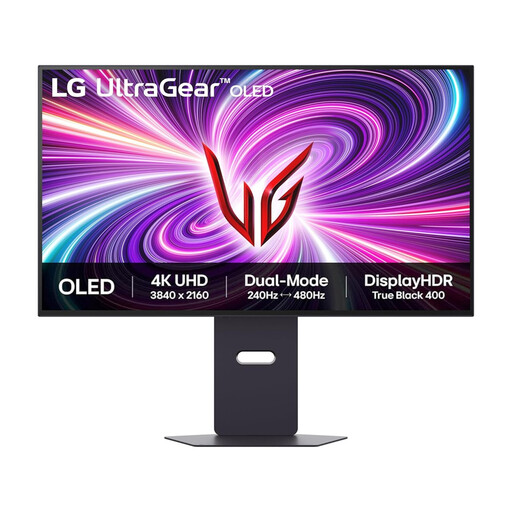 No image available
Consider this larger screen if you want 4K detail and OLED for gaming as well as desk work.
The product name specifies 4K at 240Hz and a Full HD 480Hz mode, with a 0.03ms response-time rating.
Check desk space, viewing distance, PC connection capability and the model’s guidance for prolonged static desktop use.
 No image available
Consider this if QHD is your preferred balance for railway interfaces and you also want a high-refresh gaming monitor.
The product name specifies a 27-inch 2560 × 1440 Fast IPS display and 220Hz.
Check the screen finish against your room lighting and confirm the stand or mounting adjustments your desk requires.
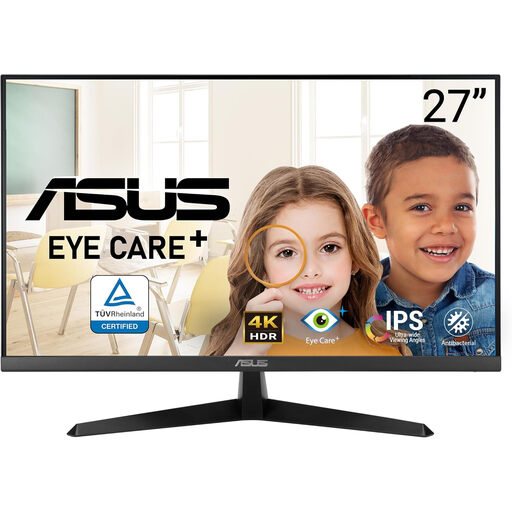 No image available
Consider this for detail-led maps and office documents if a 60Hz display meets your gaming needs.
The product name specifies 4K UHD resolution and 60Hz.
Check its screen finish and positioning options for your desk, and confirm that your PC can output 4K through the connection you plan to use.
No: a 27-inch QHD monitor can offer more pixels than Full HD without the same rendering demand as 4K. Choose 4K if fine map and document detail is your priority and your PC runs your games acceptably at that resolution.
It is generally a secondary consideration for slower, menu-heavy play. Higher refresh capability may matter more if you also play fast-paced games; check that your PC can use the monitor’s intended mode.
Check screen position, available desk space, stand adjustment or suitable VESA mounting, and reflections from windows and lamps. The UK Health and Safety Executive’s display-screen guidance includes arranging screens and lighting to avoid reflections and glare in work-related use.
Yes, but choose the exact model for the resolution and screen finish you need rather than assuming OLED is preferable for office work. Read its panel-care guidance and warranty terms if static interfaces will remain on screen for long periods.
Not necessarily: the PC’s graphics output, cable and monitor input must all support the resolution and refresh mode you select. Check the documented connection capabilities of your own computer and the exact monitor before buying.