Slide-deck multitaskers
If slides, speaker notes, research and messages share your screen, look at usable workspace and readable text before features aimed chiefly at gaming. A 27-inch QHD display is one route to consider.


Choose a 27-inch QHD monitor if your slide work centres on editing, notes and reference windows; consider 27-inch 4K when inspecting fine image detail matters more. For a laptop-led desk, check that both devices support USB-C video and that the monitor can supply enough charging power. For regular sessions, screen-position adjustment also deserves attention.
If slides, speaker notes, research and messages share your screen, look at usable workspace and readable text before features aimed chiefly at gaming. A 27-inch QHD display is one route to consider.
If your laptop moves on and off the desk, a monitor connection that carries video and can charge that particular laptop may simplify your cable setup. Confirm both devices’ USB-C capabilities rather than relying on the connector alone.
If your decks contain detailed screenshots, images or brand assets, consider whether a 27-inch 4K display and stated colour coverage serve your workflow. Resolution and coverage figures alone do not establish calibrated colour output.
Start with the work you do most often: arranging slides and reference windows, connecting a laptop, positioning the screen for regular use, or inspecting detailed visual assets. Then check the specific monitor and computer together.
| Concern | What to check | Who this matters to |
|---|---|---|
| Workspace and text | Compare 27-inch QHD and 4K at your usual viewing distance, with your preferred interface scaling. | I keep slides, notes and reference material open together, but still need menus and text to be comfortable to read; around 36% of consumers put usable workspace and text clarity first. |
| Laptop connection | Confirm USB-C video support on the laptop and monitor, plus the monitor’s power-delivery rating and the laptop’s charging needs. | I reconnect a laptop at my desk and want fewer separate cables without losing display or charging functions; roughly 29% of consumers prioritise that connection. |
| Screen positioning | Check stand height and tilt adjustment; for an arm, check VESA mounting, weight capacity and desk-clamp fit. | During regular slide-editing sessions, I need to position the screen for my workstation rather than work around a fixed stand; about 21% of consumers place adjustment first. |
| Visual detail and colour | Check native resolution and stated colour coverage, then decide whether your workflow calls for calibration. | My decks include detailed images or colour-sensitive assets that I need to inspect closely; approximately 14% of consumers make that visual work their primary concern. |
A USB-C socket alone does not establish that a laptop can send video through it or receive enough power from the monitor. BenQ specifies 65W power delivery for the GW2790QT, but whether that suits your laptop depends on the laptop.
Check video-output support on both devices, the monitor’s stated power delivery and your laptop’s charging requirements before relying on one cable.
A 27-inch 4K screen offers more native pixels than a 27-inch QHD screen, which can matter for detailed images. Slide-editing controls and text still need to be comfortable at your viewing distance.
Compare your presentation software at the scaling settings you would actually use, rather than choosing by pixel count alone.
Panel specifications do not tell you whether the screen can sit at a suitable height. The Health and Safety Executive includes home workers in its display screen equipment guidance and identifies poor workstation design as a possible contributor to discomfort.
Check the included stand’s adjustment range. If you intend to use an arm, confirm mounting compatibility, monitor weight and space for its desk clamp.
A separate arm or riser may be needed if the included stand cannot reach the position you need.
You may need to transport a monitor safely if you decide to return it. For most UK online purchases, GOV.UK says consumers who want to cancel must tell the seller within 14 days of receiving the item.
Keep the box and protective inserts while you check the panel, connections, stand and scaling, and read the seller’s return instructions.
The UltraSharp U2724D is a 27-inch QHD example for slide editing where connection options and screen adjustment are priorities.
The GW2790QT is a 27-inch QHD option to examine if a laptop connection and an adjustable stand matter to your desk setup.
The UltraFine 27UP85ZK-W is relevant when detailed images and stated colour coverage are important to presentation work.
These monitors include QHD and 4K options for home-office slide editing, alongside a curved model whose resolution and laptop-connection details warrant checking. Compare each listing against your preferred scaling, screen position and computer connections.
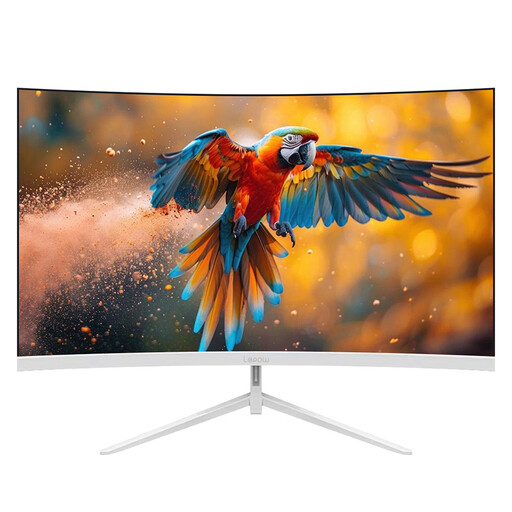 No image available
If you are considering a curved screen for slide editing, compare its shape and text presentation at your normal viewing distance. The product name states a 180Hz refresh rate; confirm the native resolution and USB-C video and charging functions before choosing it for a laptop desk.
 No image available
Consider this WQHD model if your main task is arranging slides alongside notes and reference windows. If laptop charging is part of your plan, check the USB-C power-delivery rating against your laptop’s requirements; also check the stand’s adjustment range for your desk.
 No image available
This 4K OLED model is an option to assess when decks contain detailed visual assets. Check how your editing software looks at your preferred scaling; the listing advises against prolonged static images at high brightness because of burn-in risk, which matters for workflows with persistent menus or toolbars. Verify USB-C video and charging capabilities if you use a laptop.
 No image available
Consider this 27-inch 4K model if examining detailed screenshots or other high-resolution slide assets is a priority. Check text and toolbar scaling in your usual software, plus the USB-C video and charging requirements of your laptop if you want a single-cable connection.
 No image available
This 4K model is worth comparing if your slides include detailed graphics, but check whether its resolution and scaling suit everyday text editing. If you need a one-cable laptop setup or peripheral hub, confirm those connections on the exact product before relying on them.
Choose 27-inch QHD when editing slides alongside notes and reference windows is your main concern; consider 27-inch 4K when you regularly inspect fine image detail. Dell UK lists the U2724D at 2560 × 1440, while LG UK lists the 27UP85ZK-W at 3840 × 2160. Check the text and toolbar scaling you prefer before deciding.
Yes, if both devices support USB-C video and the monitor supplies power that meets the laptop’s needs. BenQ UK states that the GW2790QT transfers data and supplies up to 65W through USB-C; check your laptop’s video-output and charging specifications before relying on that arrangement.
Start by checking whether you can set the screen at a suitable height and angle; swivel or pivot may matter if you reposition the screen or work with portrait material. The Health and Safety Executive’s display screen equipment guidance covers home workers, so consider the monitor as part of your whole workstation rather than judging its panel alone.
For most UK online purchases, GOV.UK says you must tell the seller within 14 days of receiving the item if you want to cancel. Check the seller’s return instructions and keep the packaging while you assess whether the monitor suits your setup.
Home workers are covered by the Health and Safety Executive’s display screen equipment guidance. The HSE says employers must carry out a workstation assessment where workers use display screen equipment daily as part of normal work, continuously for an hour or more; that condition should not be assumed to apply to every occasional home user.