Document and record researchers
If you compare a family tree, archive images, browser records and notes, prioritise enough room for the windows you use together and legible text over gaming-focused features.


Choose two matching 27-inch QHD monitors if your main task is keeping a family tree, records and notes visible together; consider 27-inch 4K monitors when examining fine detail in scans matters more. Before choosing either pair—or relying on USB-C or daisy-chaining—check that your computer and connection plan support two external displays. For long sessions, leave room to position and adjust both screens comfortably.
If you compare a family tree, archive images, browser records and notes, prioritise enough room for the windows you use together and legible text over gaming-focused features.
If you want a tidy connection to two monitors, check your laptop’s external-display support, ports, cables and any dock before choosing USB-C charging or daisy-chaining. Apple Support advises checking the supported display count and ports for the specific Mac.
If you spend extended periods transcribing or comparing scans, consider how both screens can be positioned. The Health and Safety Executive advises placing the top of a screen around eye level and the screen about an arm’s length away.
Decide whether your priority is space for several document windows or finer detail in scans, then check your computer’s two-display support before settling on monitors and cables.
| Concern | What to check | Who this matters to |
|---|---|---|
| Room for records and notes | Compare matching 27-inch QHD screens for document windows with 27-inch 4K screens if fine detail in scans takes priority. | I want my tree, records and notes visible without constantly swapping windows. Roughly 33% of consumers would put that shared workspace first. |
| Two-display connections | Check your exact computer’s external-display limit, video ports and the cables or dock needed for an extended desktop. | My laptop connection has to run two separate screens, not just charge through USB-C or mirror one display. Around 27% of consumers would make connection certainty their primary concern. |
| Positioning for long sessions | Check stand height and angle adjustment against your desk depth; the Health and Safety Executive advises an eye-level screen top and roughly arm’s-length viewing distance. | When I transcribe for a long stretch, I need to place both displays without sustained twisting. Approximately 27% of consumers would prioritise screen positioning. |
| Desk and accessory needs | Allow space for both stands and check which cables, adapters, dock or mounting hardware your connection plan requires. | I need the pair to fit my desk without overlooking the equipment needed to connect it. Roughly 13% of consumers would put those practical setup needs first. |
A monitor’s charging or video connection does not establish how many external displays the computer can drive. Apple Support says a Mac’s supported display count depends on its specific ports and technical specifications.
Check the exact computer model first, then plan the monitor connections and cables around its supported display arrangement.
That plan may call for a compatible dock, adapter or additional cable.
Even adjustable stands need enough depth and width for sensible placement. The Health and Safety Executive advises keeping the screen and keyboard central and positioning the screen about an arm’s length away.
Measure the usable desk area and compare stand footprints and adjustment options before ordering a pair.
A riser, monitor arm or different desk arrangement may be needed to position both screens.
BenQ lists DisplayPort-out MST for the GW2790QT, but that monitor feature alone cannot establish whether a particular computer and operating system support the intended two-display arrangement.
Check the entire path—computer, graphics output, operating system, monitors and cables—or use two direct connections or a documented compatible dock.
Monitor features do not replace appropriate screen placement and breaks. The Health and Safety Executive identifies workstation setup and use as considerations for display-screen workers.
Position the displays for the tasks you do most, adjust them to the room and take breaks or change activity during extended sessions.
Dell UK lists the UltraSharp U2724D as a 27-inch QHD IPS Black monitor with an adjustable stand.
BenQ UK lists the GW2790QT as a 27-inch QHD IPS monitor with USB-C connectivity and an adjustable stand.
LG UK lists the UltraFine 27UP850K-W as a 27-inch 4K IPS monitor for a setup where viewing detail in archive images takes priority.
These individual QHD and 4K monitors are relevant to a two-screen research desk. Each choice still needs a compatible second display and a connection plan that your computer supports.
 Image unavailable
Consider this 4K option if inspecting detail in digitised records is your priority.
The product name specifies a Nano Glossy IPS display and a height-adjustable stand. Check your computer’s support for two external displays and the connections required for a second monitor.
 Image unavailable
Consider this 4K model when scans and notes are part of your two-screen research setup.
Its product name specifies USB-C with 65 W power delivery and Google TV. Check that your computer supports the intended USB-C video connection and two external displays.
 Image unavailable
This QHD model is relevant if your priority is keeping document windows visible across a matching pair.
The product name specifies a 100 Hz IPS display. If USB-C is important to your setup, confirm its availability for the exact variant before choosing your cables.
 Image unavailable
Consider this model if fine detail in archive images is more important to you than a QHD document layout.
The product name specifies HDMI, DisplayPort, built-in speakers and a 60 Hz refresh rate. Check that your computer and chosen second screen have a compatible connection arrangement.
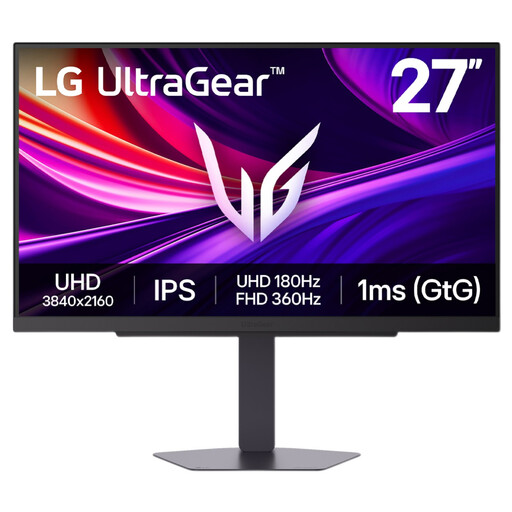 Image unavailable
This 4K model is an option for viewing detailed records alongside a separately chosen second screen.
The product name identifies it as a Dual Mode gaming monitor. Check the stand’s adjustment range and your computer’s two-display connection plan before buying it for a research desk.
Check the exact laptop model before buying two monitors: its supported external-display count and ports determine the connection options. Apple Support advises checking a Mac’s specific display support; for a Windows setup, Microsoft Support explains how to arrange displays after connecting them. Confirm that your planned arrangement extends rather than merely mirrors the desktop.
Choose matching QHD monitors when keeping several document windows visible is your main aim; consider 4K when examining fine detail in digitised records, maps or photographs matters more. Dell UK and BenQ UK specify 2560 × 1440 for the U2724D and GW2790QT respectively, while LG UK specifies 3840 × 2160 for the 27UP850K-W.
Put the main screen directly in front of you and arrange the second to limit sustained twisting. The Health and Safety Executive advises keeping the top of a screen around eye level, placing it about an arm’s length away and keeping the screen and keyboard central.
One cable can carry video and charging only when the laptop supports the required USB-C video connection and the monitor’s power delivery suits it. BenQ UK specifies 65 W USB-C power delivery for the GW2790QT, while LG UK specifies USB-C display, data and up to 90 W charging for the 27UP850K-W. Connecting a second screen may still require another cable, adapter or compatible dock.
The Health and Safety Executive says the display-screen-equipment regulations apply to workers who use such equipment daily for continuous periods of an hour or more. They concern the work setup rather than requiring a particular monitor model; HSE also states that employers must arrange an eye test if a display-screen-equipment user asks for one.