What matters when choosing?
Decide how much schedule information must remain visible, confirm the computer's two-display connection method, and measure the desk before settling on a pair.
| Concern |
What to check |
Who this matters to |
| Visible schedule space |
Compare each monitor's native resolution; check how schedule text looks at a comfortable display scale. |
If I keep a detailed schedule open while checking spreadsheets and browser tools, I want enough room to see the information without constant window switching. Around 42% of consumers put visible workspace first. |
| Independent laptop displays |
Check the laptop or dock's supported external-display count and the video capabilities of the planned ports and cables. |
When I connect my work laptop, I need the second monitor to extend the desktop rather than repeat the first screen. For around 33% of consumers, a working two-display connection is the primary concern. |
| Desk fit and positioning |
Measure the space for both screens and check stand adjustment or compatible mounting. |
During long scheduling sessions, I need the main screen in front of me and both displays positioned without crowding the desk. Comfortable placement comes first for around 25% of consumers. |
Relevant brands and models
These model specifications illustrate different ways to build a scheduling desk; confirm the connection method against your own computer before choosing a pair.
Dell
Dell's UltraSharp U2724DE is a 27-inch QHD Thunderbolt hub monitor for a laptop-centred desk.
- Dell lists 2560 × 1440 at 120Hz, 90W power delivery, digital daisy-chain capability and height, tilt, swivel and pivot adjustment for this model.
- Its daisy-chain specification does not establish that a particular laptop and cable arrangement can run two independent displays.
BenQ
BenQ's GW2790QT combines a 27-inch QHD panel with USB-C connectivity and an adjustable office-workstation stand.
- BenQ lists 65W USB-C power delivery, DisplayPort-out MST, 110 mm of height adjustment and 100 × 100 mm VESA mounting.
- Using its daisy-chain connection for a second screen still depends on the host computer and the complete connection chain.
LG
LG's 27BA850-B is a 27-inch Full HD business monitor with connections and conferencing hardware for a laptop desk.
- LG lists USB-C power delivery up to 90W, Ethernet, a webcam, microphone, speakers and an adjustable stand for this model.
- Its 1920 × 1080 resolution provides less native workspace than 27-inch QHD alternatives when schedules are densely packed.
Joybuy monitors to consider
These monitors offer resolution options for viewing delivery schedules alongside other work. The laptop's ability to drive two displays, the connection method and the space needed for a pair still need checking for your desk.
 No image available
ASUS ProArt PA278CV IPS WQHD monitor
Consider this WQHD model when you want room for detailed schedules alongside other windows. Its title identifies an IPS panel; check the exact USB-C charging requirements and your laptop's support for two independent displays before planning a laptop connection.
View on Joybuy
 No image available
ASUS ProArt PA328QV IPS WQHD monitor
This WQHD model is worth considering for a schedule-heavy desk if a pair will fit the available space. Check the exact screen dimensions and whether the regional variant has the USB-C connection you need; also confirm that your computer supports two independent displays.
View on Joybuy
 No image available
Samsung Odyssey G6 S27DG612 27-inch QHD OLED monitor
The 27-inch QHD specification is relevant when detailed scheduling windows need more native workspace than Full HD at the same size. The title also lists OLED, 240Hz and 0.03ms; check the connections required for two independent screens rather than treating those gaming specifications as a dual-display feature.
View on Joybuy
 No image available
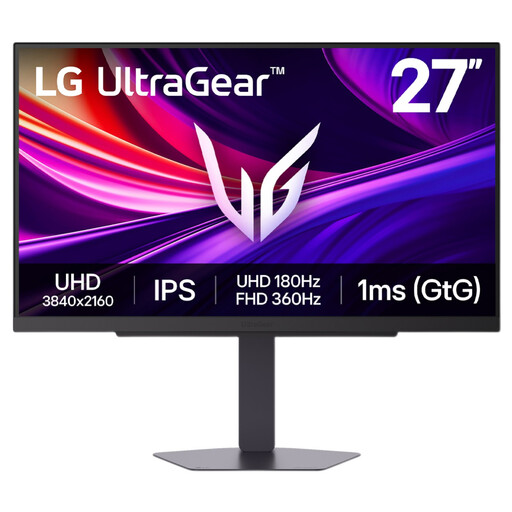
LG UltraGear 27G810A-B 27-inch IPS 4K UHD dual-mode monitor
Consider its 4K UHD mode if your schedule layout calls for that resolution and your computer can drive the intended two-screen setup. The stated modes pair 4K with 180Hz and Full HD with 360Hz, so check which mode you plan to use rather than assuming both resolutions apply at the same refresh rate.
View on Joybuy
 No image available
HKC G27H2DPro 27-inch QHD Fast IPS monitor
Its stated 2560 × 1440 resolution makes this 27-inch model relevant to dense scheduling layouts. The title also lists 220Hz; check the stand or mounting arrangement and your computer's two-display connection method before choosing a pair.
View on Joybuy
Common questions
How can I tell whether my laptop will run two external monitors independently?
Check the laptop or dock maker's supported number of external displays and the resolution and refresh-rate combinations for the ports you intend to use. In Windows, identify and arrange connected displays in Settings under System and Display. Microsoft notes that a basic splitter duplicates a signal instead of extending it to two independent screens.
Do both monitors need to be the same size and resolution?
Matching size and resolution can make two scheduling screens easier to align and use at consistent display settings, but a mixed pair can still be considered if it suits your work. Set each display to its recommended native resolution where possible; Microsoft notes that text may look less sharp at a lower resolution.
How should I position two screens for long scheduling sessions?
Put the main screen directly in front of you and keep the second close enough for comfortable viewing. The Health and Safety Executive advises placing the top of the screen around eye level and the display about an arm's length away; check stand adjustment or compatible mounts if the supplied stands cannot achieve the layout.
What should I set up after connecting both monitors in Windows?
Use Settings under System and Display to identify the monitors and arrange their on-screen positions to match the desk. Then check the resolution and scaling of each display, and test whether windows and the pointer move between the screens as intended.
Is there a UK workplace rule for staff using these screens regularly?
The Health and Safety Executive says the Display Screen Equipment Regulations apply to workers who use display screen equipment daily for continuous periods of an hour or more. That condition concerns screen-based work; it does not prescribe a particular monitor model or require a two-monitor setup.


