Start with quiet clicking, scrolling you can control when checking individual results, and a shape that fits your hand and desk setup. A simple silent mouse can suit review work on one computer; a mouse with more scrolling controls is worth considering for long result sheets, while multi-device switching matters chiefly if you regularly change computers. For sustained desk work, assess the mouse as part of the wider workstation rather than relying on its shape alone.
Who is this for?
Quiet shared-office reviewers
If you check results beside colleagues, the sounds made by clicks and scrolling may shape your choice. Dell describes quiet clicking, scrolling and gliding for its MS355; Logitech describes reduced click noise for the Signature M650 for Business. Check which sounds a particular model's claim covers.
Detail-heavy data checkers
If you alternate between individual values, charts and long reports, look for scrolling that supports both careful movement and quicker travel through a document. Logitech specifies these two scrolling behaviours for the Signature M650 for Business.
Regular display-screen users
If mouse use is a sustained part of your working day, consider hand fit alongside the desk arrangement. The Health and Safety Executive advises keeping the mouse in line with the elbow and includes mouse use in its wider display screen equipment workstation guidance.
What matters when choosing?
For checking results in a shared office, decide which need takes priority: avoiding disruption nearby, navigating detailed material or fitting the mouse into a comfortable workstation. Then check the connection against your assigned computer and workplace rules.
| Concern | What to check | Who this matters to |
|---|
| Quiet operation |
Whether the quietness claim covers clicks, scrolling or both; whether Bluetooth pairing or a receiver is permitted. |
When colleagues work close by, I want to review results without adding distracting mouse sounds. Around 36% of consumers would make quiet operation their primary concern. |
| Controlled navigation |
Whether the wheel offers careful line-by-line movement and faster travel through long material; whether any extra buttons suit your software. |
Moving between individual values and lengthy reports, I need to slow down for detail without labouring through every page. For around 36% of consumers, navigation would be the deciding need. |
| Hand fit and desk setup |
Size and handedness options, and whether the mouse can sit in line with your elbow at the workstation. |
For daily desk work, I need a mouse that fits my hand without an awkward reach. Fit and workstation arrangement would come first for around 28% of consumers. |
Buying pitfalls
-
Choosing by DPI alone
Dots per inch (DPI) describes pointer sensitivity, not how accurately you interpret an experiment result. A high setting may be less useful to this task than scrolling you can control.
Check whether the available sensitivity and wheel behaviour suit both individual values and longer documents.
-
Assuming all silent mice quieten the same sounds
Manufacturers describe different parts of mouse operation. Dell says its MS355 clicks, scrolls and glides silently, whereas Logitech's Silent Touch claim for the M650 for Business concerns click noise.
Read the exact claim for the model you are considering; do not assume it includes the wheel or movement across your desk surface.
-
Overlooking hand fit and the workstation
Quiet buttons and extra controls do not establish that a mouse fits your hand or that its position suits your desk. The Health and Safety Executive treats the mouse as one part of a wider display screen equipment assessment.
Check the appropriate size and handedness option, keep the mouse in line with your elbow, and use your employer's workstation assessment process where it applies.
-
Adding device switching without a use for it
Switching between connected computers helps only if your work actually moves between them; it also means managing their connections.
Identify the assigned devices you need to use and check that each permits the mouse's Bluetooth or receiver connection.
Brands to consider for these mouse features
Logitech
Logitech's stated specifications offer two different approaches here: the sized Signature M650 for Business with Silent Touch and SmartWheel scrolling, and the larger MX Master 3S with Quiet Clicks and MagSpeed scrolling.
- The M650 for Business has size and handedness variants, five buttons, and Bluetooth Low Energy or Logi Bolt connection options, according to Logitech.
- Check personal fit and permitted connections. If MX Master 3S button customisation matters, confirm that workplace policy permits Logi Options+ installation on the computer you use.
Dell
Dell presents the Pro Compact Silent Mouse MS355 as a compact option with quiet operation, Bluetooth or RF-dongle connection and a symmetrical shape.
- Dell specifies three buttons, adjustable 600–4020 DPI tracking and a 67 g weight for the MS355.
- Its three-button layout offers fewer physical shortcuts than the five- and six-button models discussed here; decide whether your result-checking workflow needs them.
Lenovo
Lenovo describes the 600 Bluetooth Silent Mouse as switching between up to two devices, while the 700 Multi-Device Wireless Silent Mouse is specified for up to three connections using a receiver and Bluetooth.
- The stated connection options give regular multi-computer users a choice between two-device and three-device models.
- Confirm the exact model, part number and current availability before choosing a Lenovo 700; the discussed version is GY51S61901.
Joybuy product choices
These mice cover several ways to check results near colleagues: a mouse with additional scrolling controls, simpler office options and a model described for multi-device use. Compare the exact connection, quietness claim and hand fit for your own workstation.
 No image available
Logitech MX Master 3S Ergonomic Black mouse
Consider this model if you regularly move through long result sheets and want quiet clicks. Logitech specifies MagSpeed scrolling and an 8,000 DPI sensor for the MX Master 3S; check that its larger shape fits your hand and that your workplace permits any software you need for customisation.
View on Joybuy
 No image available
HOFOTEK M311 2.4G+BT Silent Office Mouse, white-grey
Consider this mouse if connection flexibility matters at your desk. Its named variant has 2.4G+BT connectivity, adjustable DPI and a 1xAA battery requirement; check its wheel behaviour and hand fit if you spend long periods reviewing detailed results.
View on Joybuy
 No image available
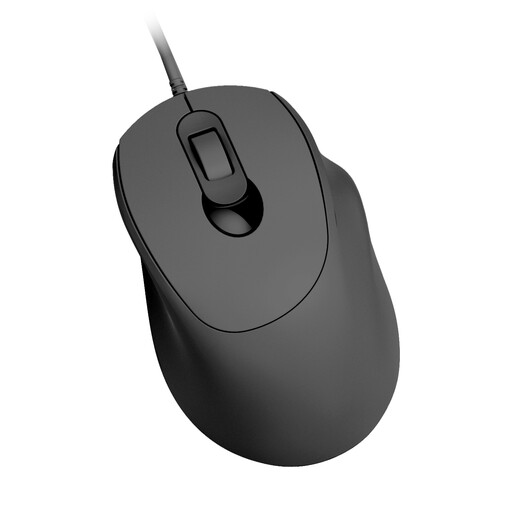
Rexsun V2 Wired Silent-Click Mouse, black
Consider a wired mouse for one computer if a cable suits your desk and a suitable USB port is available. This V2 variant lists four buttons and selectable 1000/1200/1600 DPI settings; check the wheel behaviour if you need distinct careful and rapid scrolling.
View on Joybuy
 No image available
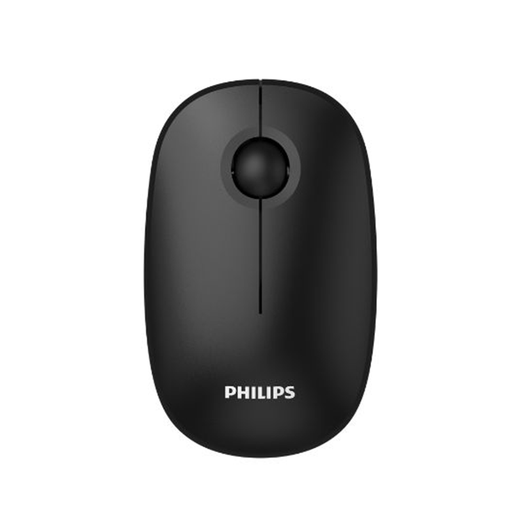
Philips 3000 Series SPK7378B/00 Wireless Mouse, EU Version, black
Consider this quiet-click option for a straightforward receiver-based computer setup. The named variant specifies a 2.4GHz USB receiver and 1600 DPI; confirm that receiver use is permitted and that the wheel suits the documents you review.
View on Joybuy
 No image available
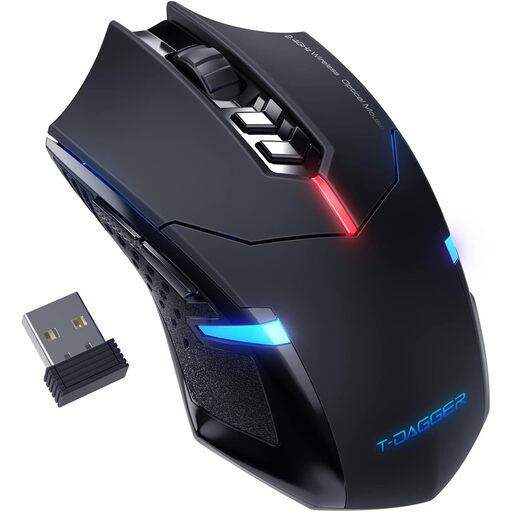
ET Wireless Gaming Mouse with LED backlighting
For result checking, assess its quiet-click suitability and navigation controls rather than choosing it for its gaming label. The name specifies a cordless USB connection and five adjustable DPI levels; check wheel noise, workplace-computer compatibility and whether any side-button limitations affect your intended use.
View on Joybuy
Common questions
Should I choose Bluetooth or a USB receiver for an office computer?
Choose the connection your assigned computer and workplace policy permit. Dell specifies both Bluetooth and an RF dongle for the MS355, while Logitech specifies Bluetooth Low Energy and a Logi Bolt receiver for the M650 for Business; check pairing permissions and available ports before buying.
Does higher DPI make experiment results easier to check?
Higher DPI changes pointer sensitivity; it does not make data interpretation more accurate. If you alternate between individual values and long reports, check scrolling control and a comfortable pointer setting rather than relying on the largest DPI figure.
Can an office mouse work directly on a glass table?
Check the claim for the exact model and surface. Logitech says the MX Master 3S tracks on glass at least 4 mm thick; that condition does not establish how other mice will track on glass.
Does UK display screen equipment guidance require a particular mouse?
The Health and Safety Executive guidance cited here does not prescribe a particular mouse model. For workers using display screen equipment daily for continuous periods of an hour or more, HSE says employers must assess the workstation; its posture advice includes keeping the mouse in line with the elbow.
What should I do with an old computer mouse?
Check your local authority's or workplace's collection route for waste electrical equipment. Coventry City Council lists a computer mouse among electrical items handled through its recycling arrangements; the collection option you can use depends on your local or workplace process.


