Shared-room lesson planners
If you prepare documents near a roommate or other students, an explicit quiet-click specification is more useful than the word “wireless” alone. Button noise is only one part of the room's overall sound.


For lesson planning near other people, choose a mouse with an explicit quiet-click claim and a shape that fits your hand. Check its connection against your laptop before buying; compact or multi-device features matter most if you regularly move between workspaces or devices, while a travel-sized mouse may be less comfortable for a long desk session.
If you prepare documents near a roommate or other students, an explicit quiet-click specification is more useful than the word “wireless” alone. Button noise is only one part of the room's overall sound.
If planning means extended work on documents, slides and research, consider hand size, handedness and where the mouse sits on your desk. The Health and Safety Executive advises positioning a mouse in line with your elbow.
If you move between rooms or use more than one compatible device, a compact shape and suitable wireless connection may be useful. Check that a smaller mouse still feels workable for the time you spend at a desk.
For lesson planning in a student room, start with the noise and hand-fit needs that affect your daily work, then match the connection and portability to your laptop and workspace.
| Concern | What to check | Who this matters to |
|---|---|---|
| Quiet shared-room work | Look for a quiet- or silent-click claim for the exact model; check whether it covers buttons only. | If I prepare plans beside a flatmate, I want to reduce distracting clicks without assuming the whole workstation will be silent. Around 31% of consumers put quieter buttons first. |
| Fit for longer sessions | Check the maker's hand-size and handedness guidance, and whether the mouse can sit in line with your elbow. | During long sessions with documents and slides, I want a shape I can use without reaching awkwardly. Around 31% of consumers prioritise hand fit and desk position. |
| Laptop connection | Match Bluetooth or receiver requirements to your laptop's capabilities and ports; confirm whether a receiver is included. | When ports are scarce or I change devices, I need a connection that works with my setup. Roughly 23% of consumers put connection flexibility first. |
| Moving between workspaces | Check the size, power arrangement and any stated surface-tracking capability of the exact model. | If I carry my mouse between rooms, bag space and the surfaces I use matter more to me than a larger grip. Around 15% of consumers prioritise portability. |
Wireless describes how a mouse connects, not how its buttons sound. A shared-room setup calls for an explicit noise-related claim for the model you intend to buy.
Check which sounds the claim covers: quiet buttons do not establish quiet scrolling, keyboard use or movement on the desk.
A compact shape is easier to carry, but size and handedness still matter during prolonged planning. Logitech, for example, distinguishes small-to-medium, large and left-handed variants within its Signature M650 range.
Use the maker's sizing guidance where available, and consider whether your desk lets you keep the mouse near your elbow, as the Health and Safety Executive advises.
A wireless mouse may connect by Bluetooth, a USB receiver or both. These options are not interchangeable if your laptop lacks the required connection.
Confirm the exact model's connection methods and package contents against your laptop before ordering.
If a mouse uses a USB-A receiver and your laptop has no USB-A port, you may also need a USB-C adapter.
Mouse shape alone cannot correct a position that makes you reach or twist during extended laptop work.
Arrange the desk, chair and display alongside the mouse. For prolonged laptop use, consider separate input devices so the screen can be positioned more comfortably.
Its Signature M650 range offers fit choices for conventional desk work, while MX Anywhere 3S is a compact option for switching between compatible devices.
The compact MS355 is a quiet-mouse option for office-style work with Bluetooth or RF-dongle connectivity.
The 280 Silent Wireless Mouse is relevant when reduced button noise matters and a 2.4 GHz USB-receiver connection suits your laptop.
These mice offer quiet-button claims for planning near other people. Compare their stated connections with your laptop, then check the shape against your needs for longer sessions; a quiet-click claim does not cover every workstation sound.
 No image available
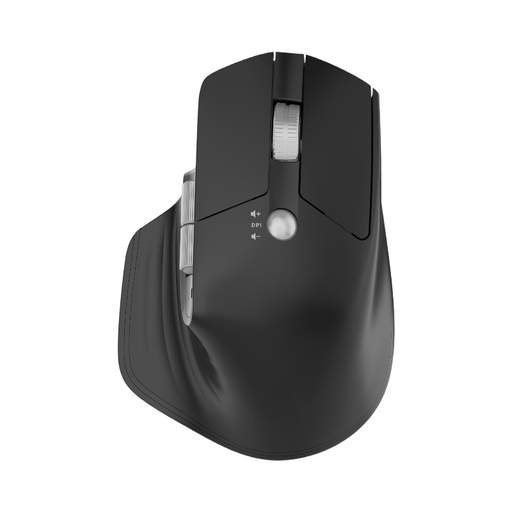
For planning near others, its stated quiet clicks address button noise, not every sound at the desk.
The title lists 2.4G and Bluetooth connections, adjustable DPI and a 1xAA battery arrangement. Check connection compatibility and hand fit for longer sessions.
 No image available
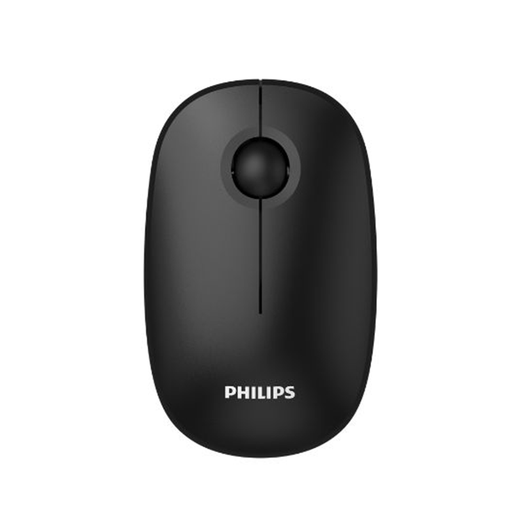
Its stated silent clicks suit a shared-room planning setup, provided the shape works for your hand.
The title specifies Bluetooth and 2.4G wireless modes and one-touch DPI adjustment. Confirm device compatibility and whether the receiver is included.
 No image available
This is a quiet-click option for planning at a desk where a USB-receiver connection suits the laptop.
The title specifies 2.4 GHz wireless, a USB receiver and 1600 DPI. Check the receiver's port requirements and the mouse's fit before extended use.
 No image available
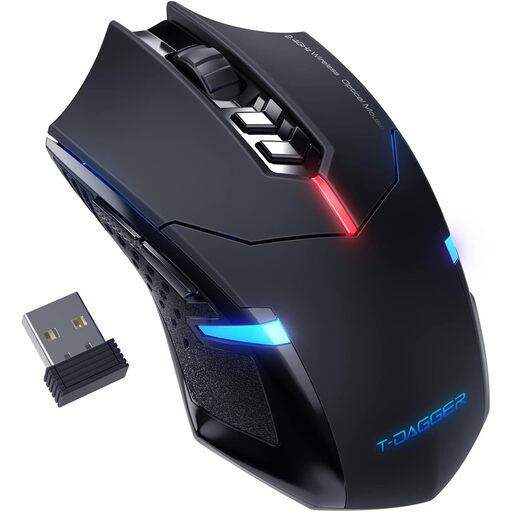
Its described quiet left and right buttons may suit lesson planning near other people; the claim does not cover scrolling or other desk sounds.
The title lists a USB wireless connection, LED backlight and five adjustable DPI levels. Check port compatibility and hand fit rather than assuming a gaming-style shape suits long planning sessions.
Choose Bluetooth if your laptop supports it and keeping a USB port free matters; a receiver is another option if that connection suits your setup. Logitech lists Bluetooth Low Energy and Logi Bolt receiver support for the Signature M650 range, while Dell lists Bluetooth and RF-dongle connections for the MS355. Check the exact model's package contents and your laptop's ports.
No: a quiet-click claim does not cover every sound in the room. HP's noise-reduction claim for its 280 Silent Wireless Mouse applies to the left and right buttons; scrolling, desk movement and keyboard use need separate consideration.
Keep the mouse in line with your elbow and avoid a desk position that makes you twist or reach. The Health and Safety Executive also advises considering separate input devices for prolonged laptop use so that the screen can be positioned appropriately.
No such requirement for every independent student follows from the Health and Safety Executive's guidance. The display-screen-equipment regulations it describes apply to employers whose workers regularly use display screen equipment as a significant part of their normal work; its workstation advice can still help a student assess a desk setup.