Live-results multitaskers
If timing, result tables, browser pages and notes need to stay open together, horizontal workspace and window arrangement matter most. The ultrawide formats described by LG and Philips are relevant to this workflow.


Choose the screen layout around the results you need to see at once: a 27-inch 4K monitor suits dense tables on a desk with limited width, while a 34-inch ultrawide gives timing pages, spreadsheets and notes more room side by side. Consider a large multi-PC display only if several separate sources must remain visible together; it needs substantially more desk space. Before buying, check screen positioning, your computer’s video connections and any charging or input-management features you need.
If timing, result tables, browser pages and notes need to stay open together, horizontal workspace and window arrangement matter most. The ultrawide formats described by LG and Philips are relevant to this workflow.
If reading dense grids and lap comparisons is the main task, a high-resolution screen that fits the desk may matter more than extra width. Lenovo’s ThinkVision P27u-20 illustrates the 27-inch 4K format.
If a timing system and a work computer must both be visible or controlled, check for the particular picture-by-picture, multi-PC or KVM function required. Dell and Philips describe different source-management features on their cited models.
Decide whether your main constraint is window space, table detail, separate computer feeds or screen positioning; then check the connections and desk dimensions for the format you prefer.
| Concern | What to check | Who this matters to |
|---|---|---|
| Side-by-side workspace | Compare aspect ratio, native resolution and the space available for the stand. Check picture-by-picture separately if two computers must be shown. | If I need timing pages, a spreadsheet and notes open together, I want room to see them without continually switching windows; around 33% of consumers put side-by-side workspace first. |
| Detail on a compact desk | Check native resolution, screen size and whether your computer can output the resolution you intend to use. | When dense lap tables take priority on a desk with limited width, I want readable detail without a very wide screen; about 25% of consumers chiefly prioritise table detail. |
| Separate computer feeds | Confirm the required video inputs and whether the exact model offers picture-by-picture, KVM or multi-PC display functions. | If a timing system and work computer both feed my analysis, I need to know how their views can be displayed or switched; roughly 25% of consumers make source management their primary concern. |
| Screen positioning | Measure desk depth and check stand adjustment or compatible mounting. The Health and Safety Executive advises positioning the screen top around eye level and the display about an arm’s length away. | During long analysis sessions, I need the screen at a workable height and distance rather than fitting my posture around it; around 17% of consumers put positioning first. |
A wide or large display is less useful if it cannot be positioned comfortably. The Health and Safety Executive advises placing the screen top around eye level, with the display about an arm’s length away.
Measure desk width and depth, then check the stand footprint and mounting compatibility before choosing a 34-inch or larger format.
A monitor arm, deeper desk or rearranged workstation may be needed to place a large screen appropriately.
Video, laptop charging and USB-hub functions depend on the monitor and computer. Philips also notes bandwidth constraints for some combinations of refresh rate, USB functions and USB-C connection on its 34B2U5600C.
Compare the exact monitor and laptop specifications, including video output, power delivery, ports and the cable needed for your intended setup.
A wide desktop is not the same as a two-source feature. LG describes picture-by-picture on its 34WR55QK-B, while Philips describes Smart KVM on its 34B2U5600C; these functions serve different tasks.
If separate devices are involved, confirm the exact model’s inputs and whether you need simultaneous display, control switching or both.
Screen size or brand alone does not establish how two particular monitors compare for energy use.
Look at the energy label and product information sheet for each model you are considering, alongside the display features your work requires.
Dell’s UltraSharp U4323QE is a large-format example for a desk that needs multiple visible views or connected PCs.
LG’s 34WR55QK-B illustrates a continuous ultrawide desktop for keeping several analysis windows in view.
Lenovo’s ThinkVision P27u-20 represents a 27-inch 4K docking-monitor approach to detail-led desk work.
BenQ’s GW2790QT illustrates a 27-inch QHD route where stand adjustment and desk connections are priorities.
Philips’ 34B2U5600C is a business ultrawide example for a desk where switching sources matters.
These monitors cover compact screens and wider layouts relevant to reading race-result tables or arranging analysis windows. Choose the format first, then check each model’s connections and positioning against your desk and computers.
 No image available
Consider this format when detailed result tables matter more than a wide arrangement of windows. Check its stand and connections against your desk and laptop; confirm charging support separately if you need it.
 No image available
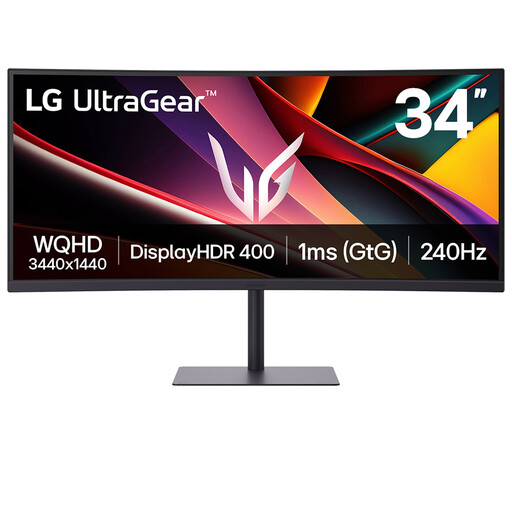
Its 34-inch format is relevant if timing pages and results need room alongside each other. Measure desk width, and confirm the input and laptop-charging capabilities required for your setup; do not assume it can display two computers simultaneously.
 No image available
This is a QHD option to consider for a desk centred on spreadsheets rather than an ultrawide window layout. If a USB-C laptop connection is important, check its video support, charging power and cable requirements before buying.
 No image available
Consider this smaller ultrawide when arranging desktop windows matters more than choosing a 34-inch screen. Check its stand positioning and confirm picture-by-picture or KVM separately if your workflow involves two devices.
 No image available
This compact option is relevant when documents and results tables must fit on a smaller desk. If refresh rate or USB-C affects your decision, confirm those specifications for this exact model before buying.
Choose the ultrawide format if your main need is to keep timing, spreadsheets and browser windows side by side; choose 27-inch 4K if dense table detail and limited desk width take priority. LG’s 34WR55QK-B and Lenovo’s ThinkVision P27u-20 illustrate these different layouts, but check the dimensions and connections of the exact model you buy.
It can with a suitable monitor and laptop, but USB-C alone does not establish which functions will work. BenQ states up to 65 W power delivery for the GW2790QT, while Lenovo lists 100 W Thunderbolt/USB-C ports on the P27u-20; compare the exact laptop’s video output and power requirements with the monitor and cable.
Place the screen directly in front of you, with its top around eye level and the display about an arm’s length away, as the Health and Safety Executive advises. Before choosing a large or wide model, check that your desk depth and stand or mount allow that position.
Compare the energy labels and product information sheets for the exact models under consideration, rather than judging by brand or screen size. Make that comparison alongside the resolution, layout and connections your analysis requires.