Dark-room visual-quality players
If tunnels, night scenes and dark terrain are central to your sessions, black depth and contrast deserve attention. RTINGS notes that higher contrast typically produces deeper blacks in dark rooms.


For railway-management games in a dark room, put contrast and readable maps ahead of refresh rate alone. A 32-inch-class 4K QD-OLED suits players who want detailed terrain and can run their game comfortably at that resolution; a 34-inch ultrawide OLED offers a wider layout for routes and panels. Check the game’s interface scaling and performance on your own PC before choosing either format, and consider the ownership implications of leaving game controls visible on an OLED screen for long sessions.
If tunnels, night scenes and dark terrain are central to your sessions, black depth and contrast deserve attention. RTINGS notes that higher contrast typically produces deeper blacks in dark rooms.
If you spend long sessions reading route labels, financial panels and construction menus, judge text at your usual viewing distance as well as judging the scene. Screen resolution and interface scaling both affect whether the layout feels comfortable.
If you play dense networks or accelerate the simulation, match the monitor’s resolution to what your PC can sustain. Urban Games distinguishes graphics bottlenecks from simulation load in its Transport Fever 2 guidance.
For railway-management games in a dark room, choose a screen format that makes maps and controls comfortable to use, then check how the intended resolution performs on your PC. Refresh rate alone cannot settle either question.
Consider it when: You want dark-scene contrast and a detailed 16:9 view, and your PC runs your game comfortably at 4K.
Bear in mind: 4K can increase graphics demand, while prolonged static controls make OLED care and warranty terms relevant.
Consider it when: You would rather have horizontal room for maps and management panels than a 16:9 4K layout.
Bear in mind: Check how your particular game arranges and scales its interface across the wider screen.
Consider it when: Your current PC struggles with the resolution you planned to use, particularly on a busy save.
Bear in mind: Reducing graphics demand will not resolve a separate CPU limitation in the simulation.
| Concern | What to check | Who this matters to |
|---|---|---|
| Dark-room contrast | Compare black-level performance in dark-room tests, alongside the panel type. | I want tunnels and night scenes to look dark rather than grey. Around 33% of consumers put dark-room contrast first. |
| Map and text clarity | Assess text at your viewing distance and check the game’s interface-scaling options. | Small route labels and management panels need to remain comfortable through a long session; roughly 27% of consumers make interface readability their primary concern. |
| PC performance | Try a busy save at the intended resolution; distinguish graphics slowdowns from simulation load. | I would rather adjust resolution than struggle to navigate a large network. About 20% of consumers prioritise PC-performance balance. |
| Persistent interface elements | Read the exact OLED model’s panel-care instructions and warranty terms. | Menus and overlays may remain visible for hours, so I want to understand the ownership trade-off. Around 20% of consumers put static-interface considerations first. |
A higher-resolution monitor cannot fix a game that is limited by its GPU or by simulation calculations on the CPU. Urban Games identifies both kinds of bottleneck in its Transport Fever 2 guidance.
Try your largest practical map at the resolution you intend to use. If graphics performance falls short, consider lower settings or resolution rather than assuming the monitor will make 4K play comfortable.
Route data, labels and tool panels remain on screen while you plan. RTINGS notes that text clarity is partly subjective, so a refresh-rate figure cannot tell you whether those elements will be comfortable to read.
Check text at your normal viewing distance and try the operating system’s and game’s scaling controls before settling on a screen size or format.
According to ASUS, OLED Care Pro reduces burn-in risk on the PG32UCDM3; risk reduction does not mean persistent interface elements cannot affect an OLED panel.
Follow the exact model’s care instructions and read its applicable warranty terms if you expect long sessions with fixed menus or overlays.
The PG32UCDM3 is a 4K QD-OLED option for players considering a 32-inch-class screen for dark-room play.
The AW3225QF is a curved, 32-inch-class 4K QD-OLED option.
The Odyssey OLED G8 G85SD offers an ultrawide layout for players who want more horizontal room for maps and panels.
These monitors offer OLED screen sizes and layouts worth considering for dark-room railway-management play, from a 27-inch QHD display to much wider formats and a 32-inch Ultra HD display. Compare their fit, interface comfort and the performance of your own game rather than treating their order as a performance ranking.
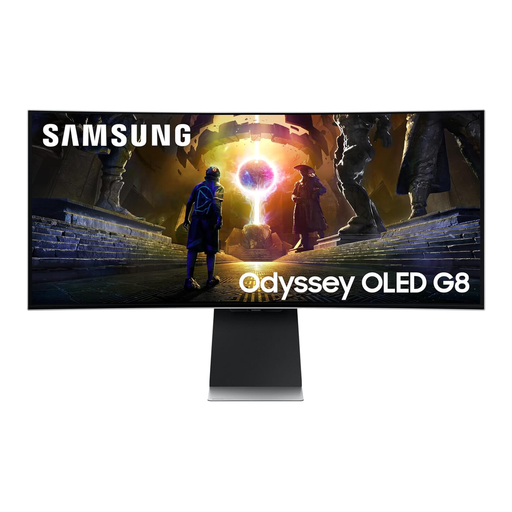 No image available
Consider this wider screen if route maps and management panels need more horizontal room.
The product name lists a 34-inch curved OLED display, WQHD resolution and 175Hz refresh rate. Check text comfort, game interface scaling and the exact model’s OLED-care terms for long sessions.
 No image available
This is another 34-inch OLED choice to assess if you want room for maps and dashboards while playing in a dark room.
The product name lists WQHD resolution and a 240Hz refresh rate. Try your game at the intended resolution and check interface comfort and the model’s OLED-care guidance.
 No image available
Consider this very wide format only if it suits your desk and the way your railway game places maps and controls.
The product name lists a 49-inch 32:9 QD-OLED display, an 1800R curve, Double Quad HD resolution and 240Hz refresh rate. Check viewing distance, game performance and the exact model’s OLED-care terms.
 No image available
Consider this smaller OLED screen if a 27-inch layout gives you enough room for your maps and panels.
The product name lists QHD resolution and a 240Hz refresh rate. Check interface scaling at your viewing distance and test game performance; a lower resolution than 4K does not guarantee a smooth large save.
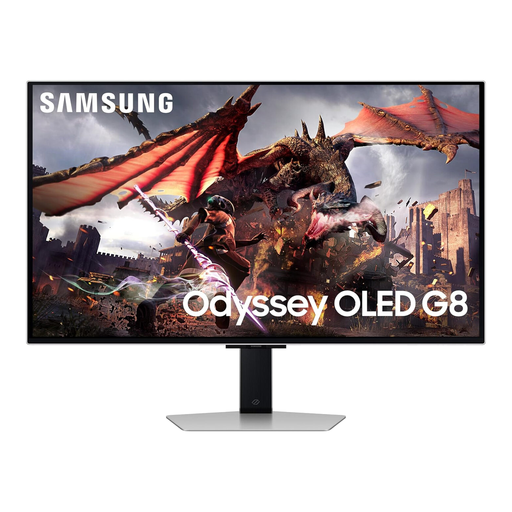 No image available
This 32-inch option is worth considering if you prefer an Ultra HD layout to an ultrawide screen for maps and controls.
The product name identifies an OLED gaming monitor. Try a busy save at the resolution you intend to use, assess text at your viewing distance and read the exact model’s OLED-care terms.
Choose 4K if the detail matters to you and your PC runs a representative large save comfortably at that resolution. Urban Games advises lowering graphics settings or using Full HD instead of UHD when Transport Fever 2 is graphics-limited; dense or accelerated simulation can present a separate CPU limitation.
In Transport Fever 2 on PC, you can adjust interface scaling from 75% to 200%, according to the game’s settings guidance. Set the monitor to its native resolution, then adjust the interface until labels and tool panels are comfortable at your usual viewing distance; check the controls in other games separately.
Contrast deserves particular attention for dark scenes: RTINGS says higher contrast typically produces deeper blacks in dark rooms. It does not settle whether a monitor’s text is comfortable to read or whether your PC can run the game at its intended resolution.