Players who map frequent commands
You want camera, time, construction or management commands within thumb or wheel reach instead of repeatedly returning to keyboard shortcuts.


For railway management games at a home-office desk, choose a mouse with reachable controls for commands you use often and a shape that suits your hand and workstation. A conventional multi-button layout is a sensible starting point for a short list of shortcuts; consider a dense thumb grid when you have many repeat commands and are willing to learn the layout. Neither button count nor mouse shape replaces checking your game’s bindings and your desk setup.
You want camera, time, construction or management commands within thumb or wheel reach instead of repeatedly returning to keyboard shortcuts.
You work and play at the same desk, so mouse fit and placement matter alongside the controls available in the game.
You also use the mouse for documents and browsing, making a familiar layout and useful scrolling behaviour important outside the game.
List the commands you would actually assign before comparing button layouts, then check how the mouse fits your hand and connects to your desk.
| Concern | What to check | Who this matters to |
|---|---|---|
| Reachable shortcuts | Count the controls you can comfortably reach, and check both game bindings and any remapping software. | If I repeatedly use construction and time controls, I want a few dependable assignments rather than buttons I cannot remember. Around 40% of consumers put reachable shortcuts first. |
| Comfort over long sessions | Check shape and thumb reach in hand where possible; make sure the desk lets you position the mouse in line with your elbow. | When work and play share a desk, I need a mouse position that does not make me reach or twist. Keeping that setup workable is the primary concern for roughly 40% of consumers. |
| Desk and connection fit | Confirm the exact model’s connection modes, required port or receiver, included accessories and cable route. | I switch between everyday desk tasks and gaming, so I want a connection and layout that fit both uses without getting in the way. For about 20% of consumers, that simplicity comes first. |
A 12-button side panel offers room for repeat shortcuts, but a dense layout also takes time to learn and can lead to accidental presses when you only need a handful of commands.
Write down the game actions you would assign before choosing between a conventional multi-button mouse and a thumb grid.
A sensitivity figure does not tell you whether the mouse’s controls, scrolling and in-game settings will suit railway management play.
Check that you can set a comfortable cursor speed and bind the actions you use, rather than choosing solely by the highest quoted DPI.
The Health and Safety Executive’s display-screen guidance connects workstation setup and overuse with possible fatigue and upper-limb problems. Mouse position is only one part of that setup.
Keep the mouse in line with your elbow and consider your chair, keyboard and monitor positions as well as the mouse’s shape.
Connection modes and box contents differ by model; a brand name alone cannot tell you whether a particular mouse supports Bluetooth or includes the accessory your desk needs.
Check the exact listing for connection modes, receiver or cable contents, and charging requirements before buying.
Razer offers both conventional multi-button and dense thumb-control layouts: its Basilisk V3 lists 10+1 programmable buttons, while the Naga V3 Pro lists up to 23 and has interchangeable side plates.
Corsair’s Scimitar Elite Wireless is a thumb-grid option with 16 programmable buttons and an adjustable 12-button side panel.
SteelSeries’ wired Rival 5 lists nine programmable buttons and a quoted weight of 85 g.
The wired Logitech G502 X has a scroll wheel that switches between ratcheted and free-spin modes, alongside an adjustable DPI-shift button.
These wired and wireless gaming mice offer different starting points for a shared work-and-railway-gaming desk. Compare their stated controls with the commands you plan to bind; the product list is not a ranking of comfort or in-game performance.
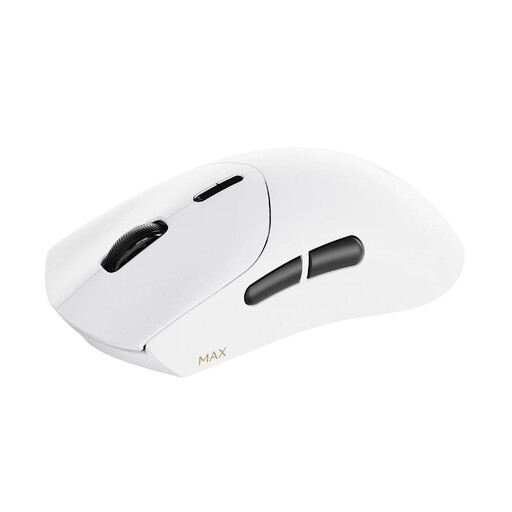 Image unavailable
Consider this mouse if you want to assign a repeatable set of game commands on a wireless desk.
The title lists 10 programmable buttons, macro support and a 53 g weight. Its stated battery life of up to 750 hours is conditional on low-power mode enabled through the latest driver and is specified at 1000 Hz.
Check the scroll-wheel functions against the map and list navigation you use.
 Image unavailable
Consider this model if changing connections between desk devices matters alongside assigning game commands.
Its title specifies Bluetooth, 2.4G and USB-C modes and a charging dock. Check the exact SKU’s weight before using it to judge your preferred mouse feel, and check its wheel behaviour if scrolling is central to your game.
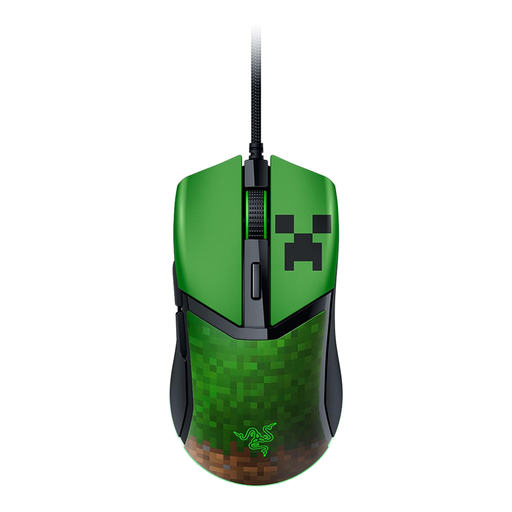 Image unavailable
This wired option may suit a desk with a clear cable route if you prefer a conventional layout to a thumb grid.
Before relying on mouse shortcuts, check how many controls you can assign and whether their positions suit your intended commands.
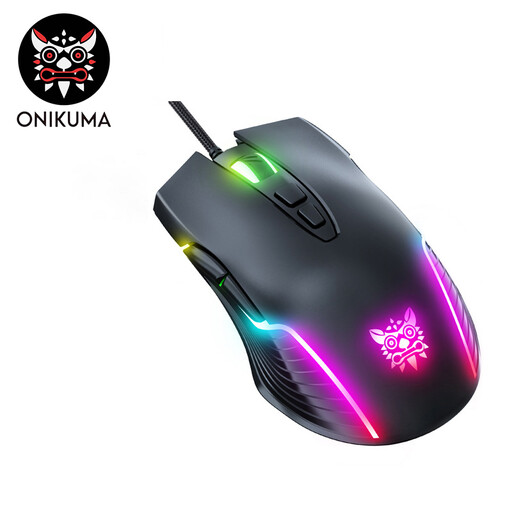 Image unavailable
Consider this wired model if you want a conventional desk connection and need to assess whether its extra controls fit a modest shortcut set.
The title mentions adjustable sensitivity levels and programmable buttons. Confirm which buttons can actually be reassigned before planning game bindings around them.
Start with the commands you use repeatedly, not a target button count. A conventional multi-button layout can accommodate a short list while remaining familiar for office use; a thumb grid makes more sense when you have enough repeat commands to justify learning its denser arrangement.
A different mouse alone may not resolve discomfort. The Health and Safety Executive advises keeping the mouse in line with your elbow, relaxing your shoulders and avoiding a twisted workstation position, so assess the wider desk setup as well as mouse fit. Seek appropriate professional advice for persistent symptoms rather than relying on a peripheral change.
Choose according to your devices, available ports, cable route and willingness to manage charging or batteries. Corsair lists wired USB, 2.4 GHz wireless and Bluetooth for its Scimitar Elite Wireless, but those options should not be assumed for another model; check the exact mouse and included accessories.
A faulty or misdescribed mouse may give you a remedy, depending on the circumstances. Citizens Advice identifies a refund, repair or replacement as possible outcomes for faulty goods; keep the order details and evidence of the problem, then contact the seller. This is distinct from a change-of-mind return under a retailer’s policy.
Check an appropriate electrical recycling or take-back route rather than assuming the mouse belongs in ordinary household waste. UK government guidance describes waste electrical and electronic equipment measures intended to encourage recovery, reuse and recycling; local collection and retailer arrangements can differ.