For long reading-list editing sessions, start with a screen you can position comfortably and a resolution that accommodates the text and windows you use together; a 27-inch QHD monitor is one option. Check whether the stand suits your desk, and choose USB-C charging only after comparing the monitor’s power output with your laptop’s requirements. Eye-care settings are preferences, not substitutes for suitable lighting, screen position and breaks.
Who this choice matters to
Long-session list editors
If you regularly revise bibliographies, citations or dense notes, look for a readable text layout and screen settings you can adjust to your room. The Health and Safety Executive notes that poor display-screen setup can contribute to fatigue and eye strain; a monitor feature alone cannot resolve a poorly arranged workstation.
Laptop users organising a study desk
If fewer cables matter to you, check the exact monitor’s USB-C video and charging capabilities. BenQ lists different power-delivery levels across its monitor models, so a USB-C socket alone does not establish whether it will charge your laptop adequately.
Home workers and students adjusting their screen position
If your desk and chair leave the display too low or too close, stand adjustment or a compatible monitor arm may matter more than another display mode. The Health and Safety Executive advises positioning the top of the screen around eye level and the screen about an arm’s length away.
What to check before choosing
Decide how much text you need visible, then check whether the screen will fit your viewing position and laptop setup. For sustained reading-list work, screen settings also need to make sense alongside the lighting in your study.
| Concern |
What to check |
Who this matters to |
| Comfort during text work |
Check the screen finish against reflections in your room, and whether the exact model offers adjustable brightness or text-oriented display modes. |
If I spend long stretches checking citations and links, I want text I can read without fighting reflections or unsuitable settings. Around 38% of consumers put viewing comfort first. |
| Screen position and desk fit |
Check desk depth and the stand’s height adjustment; consider VESA mounting if you need a different position. |
With a fixed desk and chair, I need to get the screen to a workable height and distance. Around 31% of consumers prioritise positioning above other monitor features. |
| Text workspace and laptop connection |
Compare screen size with native resolution, then check USB-C video support and power-delivery wattage against your laptop if you want one cable. |
When I edit a list beside source documents on a laptop, I want enough room for both and a connection that suits my desk. Around 31% of consumers make workspace and laptop integration their primary concern. |
Common buying mistakes
-
Judging text workspace by screen size alone
A 27-inch screen does not tell you its resolution. BenQ’s GW2790 is Full HD, while its GW2790QT and Dell’s U2724D are QHD; those differences affect how much text you can arrange on screen and the size at which you choose to display it.
Compare both the diagonal size and native resolution, particularly if you keep a reading list and reference material open together.
-
Assuming every USB-C monitor can power a laptop
USB-C video support and charging output vary by model. BenQ lists 65 W power delivery for the GW2790QT and 20 W for the GW2790TC; neither figure alone establishes suitability for your laptop.
Check USB-C video input and compare the monitor’s stated power delivery with your laptop’s charging requirements.
-
Overlooking stand adjustment
A screen that only tilts may be difficult to position on a fixed-height desk. The Health and Safety Executive advises placing the screen top around eye level, at approximately an arm’s length.
Check the stand’s adjustment range and any VESA mounting option against your desk and chair before choosing.
If the supplied stand cannot reach the position you need, a compatible arm or riser may be necessary.
-
Expecting eye-care branding to fix the whole setup
Flicker-free, low-blue-light and text-oriented modes describe monitor features, not a solution to every source of discomfort. The Health and Safety Executive also identifies workstation design and the working environment as relevant to display-screen use.
Choose settings you find usable, while also managing reflections, screen position, lighting and breaks.
Relevant brands to consider
BenQ
BenQ has text-oriented display modes in some home-office monitors, but stand adjustment and USB-C charging depend on the model.
- BenQ lists a matte QHD IPS screen, adjustable stand, ePaper mode and 65 W USB-C power delivery for the GW2790QT.
- Check the exact model suffix: BenQ’s GW2790TC has a different listed power-delivery level, and features should not be assumed across the range.
Dell
Dell’s UltraSharp models include QHD workstation and 4K hub-monitor options for different desk connections and display preferences.
- Dell lists QHD resolution, anti-glare treatment and a 150 mm height-adjustable stand for the U2724D.
- Connection and charging features differ between the U2724D and the 4K U2725QE; check the individual configuration against your laptop.
ASUS
ASUS lists Full HD IPS monitors with flicker-free and low-blue-light features, including compact and 27-inch options.
- The ASUS eye-care catalogue includes the 23.8-inch VA24EHF and 27-inch VA27EHF.
- Check stand adjustment and connections on the particular model rather than assuming they accompany eye-care features.
Joybuy monitors for this task
These QHD and 4K models are options for editing reading lists alongside other documents. Compare their screen specifications with the positioning and connection requirements of your own desk.
 No image available
ASUS ProArt PA278CV IPS WQHD
Consider this model if WQHD resolution is part of your plan for editing lists beside reference material. Check the stand’s adjustment range and USB-C charging output against your desk and laptop before buying.
View on Joybuy
 No image available
ASUS ProArt PA278CFRV IPS QHD 100Hz
This QHD option is relevant if you want room for a reading list and another document. Confirm the exact version’s stand adjustments and USB-C video or charging capabilities if those features matter to your setup.
View on Joybuy
 No image available
Samsung Odyssey G6 S27DG612 27-inch QHD OLED 240Hz
Its 27-inch QHD format is relevant if you want to arrange reading-list work on a larger display. OLED and 240Hz are characteristics of this variant; check its screen settings, stand adjustment and laptop connection separately for your study setup.
View on Joybuy
 No image available
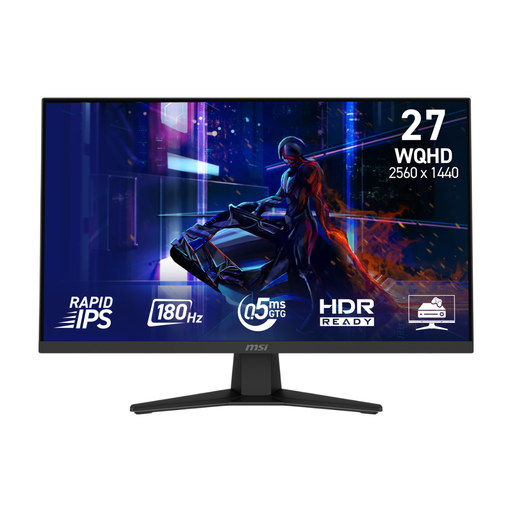
MSI MAG 274QF 27-inch WQHD Rapid IPS
Consider its 27-inch WQHD format if Full HD does not suit the way you arrange your documents. Check the screen finish and whether the supplied stand or a compatible mount can achieve your required height.
View on Joybuy
 No image available
LG 27UP650K 27-inch 4K IPS 60Hz
This 4K model is an option if higher resolution matters to the way you display documents. Check its screen finish, positioning options and preferred laptop connection before deciding whether it suits your study.
View on Joybuy
Frequently asked questions
Do I need 4K to edit a reading list?
No. A 27-inch QHD monitor is another option when you want more resolution than Full HD; consider 4K if your preferred text size and window arrangement make the extra resolution useful. BenQ’s GW2790QT and Dell’s U2724D are QHD examples, while Dell’s U2725QE is a 4K example.
Will any USB-C monitor charge my laptop?
No. USB-C does not guarantee a particular charging output or video connection. BenQ lists 65 W power delivery for the GW2790QT and 20 W for the GW2790TC; check the exact monitor’s video support and wattage against your laptop’s requirements.
Which stand adjustment matters for a study desk?
Choose an adjustment that lets you place the screen at a workable height and distance on your desk. The Health and Safety Executive advises having the screen top around eye level and the display roughly an arm’s length away; if a supplied stand cannot achieve that, check compatibility with a suitable monitor arm.
Can eye-care modes replace breaks and a well-arranged desk?
No. Low-blue-light, flicker-free and ePaper modes are display features you may prefer, but screen position, lighting and work habits still matter. The Health and Safety Executive identifies workstation design and the working environment as relevant to fatigue and eye strain.


