Choose a remappable controller for the platform where you need the new layout, then check whether its controls can put the troublesome game action somewhere you can use. Xbox Elite Series 2 offers Xbox and Windows configuration through the Xbox Accessories app; DualSense Edge is a PS5-focused option with Windows profile configuration; and PlayStation Access addresses a different physical input arrangement on PS5. Connection requirements, included controls and game-specific features still need checking for the model and games you use.
Who needs a different layout?
The useful starting point is the action or physical control that causes difficulty, not the number of customisation features on a controller.
Xbox and Windows players changing recurring actions
If dodge, jump or another frequent action sits awkwardly on the default layout, look for a controller that can reassign it and retain the layouts you use across games. Microsoft documents Xbox Accessories app configuration on Xbox and Windows, with a separate connection requirement for most app features on Windows.
PS5 players who want rear-button assignments
DualSense Edge is relevant when reassigned face buttons, mappable rear buttons or saved profiles would make particular PS5 controls easier to use. PlayStation also documents profile configuration on Windows; check the features you need in each game and connection mode.
Players who need a different physical input arrangement
If rear buttons on a conventional controller do not solve the placement problem, PlayStation Access offers configurable PS5 controls and ports for compatible external buttons or switches. Plan where each input needs to sit, and check any external device before buying it.
What should you check before choosing?
Identify the difficult game action first, then narrow the options by platform, physical input and setup method.
| Priority | What to check | Your needs |
|---|
| Button assignments |
Check whether the exact model can assign the required action to another button and save or switch layouts if you use several games. Confirm that any rear buttons, paddles or extra bumpers can be mapped as needed. |
I want a frequent action somewhere easier to reach, without rebuilding my layout each time I change games. |
| Platform support |
Match the exact model to every console or operating system you intend to use. For example, 8BitDo lists Windows and Android for Ultimate 2C Wireless, while PlayStation describes Access as a PS5 controller; neither description establishes Xbox support. |
Will the remapped layout work on the device where I actually play, rather than just on a device I can plug the controller into? |
| Configuration connection |
Check the app, device and connection needed to change assignments. Microsoft says most Xbox Accessories app features on Windows require USB or an Xbox Wireless Adapter rather than Bluetooth; requirements for other models can differ. |
I need to be able to set up the layout with the computer, console and connection equipment I have. |
| Physical placement |
Check where additional inputs sit and whether you can operate them. For a different arrangement, PlayStation Access supports orientation settings and compatible devices through its 3.5 mm expansion ports; PlayStation cautions that not every third-party device works. |
Moving an action to another conventional button is not enough for me; the input itself needs a different position. |
| Game features |
Check the individual game’s control options separately from controller-side remapping. PlayStation says features such as DualSense Edge haptic feedback and adaptive triggers depend on game support, with connection requirements affecting some PC uses. |
I want to change the controls without assuming that every optional feature will work in every game. |
What can go wrong when choosing?
-
Assuming a USB or Bluetooth connection proves console compatibility
A controller’s supported platforms are model-specific: 8BitDo lists Windows and Android for Ultimate 2C Wireless, and PlayStation describes Access as PS5-only. A possible connection method does not establish that the controller will serve your console.
Check the exact model’s platform list against every device where you need the remapped controls.
-
Counting extra buttons without checking their assignments
An additional control helps only if it can send the action you need and sits where you can use it.
Name the troublesome game actions, then check the model’s mapping options, the position of its extra controls and how you switch profiles.
-
Expecting remapping to enable every game feature
Changing a button assignment does not establish support for optional features in a particular game. PlayStation says DualSense Edge haptics and adaptive triggers depend on game support.
Check the game’s control and feature information as well as the controller specification, particularly for PC play.
-
Planning an adaptive layout without checking external inputs
PlayStation Access accepts compatible devices through its 3.5 mm expansion ports, but PlayStation warns that not all third-party devices work.
Sketch the intended layout and check each required switch, button or mount against the controller and the accessory maker’s setup guidance.
The layout may require separate compatible buttons, switches or mounting accessories.
Which brands offer relevant options?
These brand references describe particular controller lines, not a promise that every controller from the brand has the same controls or compatibility.
Xbox / Microsoft
The Xbox Accessories app provides an official configuration route on Xbox consoles and Windows, including additional options for Elite Series 2.
- Microsoft describes button remapping and saved profiles, with further Elite Series 2 input configuration.
- The app is for Xbox and Windows. Microsoft says most of its features are not supported over Bluetooth on Windows; use USB or an Xbox Wireless Adapter for configuration.
PlayStation / Sony
DualSense Edge addresses conventional-controller customisation for PS5, while Access offers a different PS5 input arrangement.
- PlayStation documents DualSense Edge custom assignments and Windows profile configuration, plus Access profiles, orientation settings and compatible external inputs.
- PlayStation describes Access as PS5-only and cautions that not all third-party external devices work with it.
8BitDo
Ultimate 2C Wireless is an option to examine for Windows play when extra shoulder inputs and button mapping matter.
- 8BitDo lists L4/R4 extra bumpers and custom button mapping without software for Ultimate 2C Wireless.
- Its stated compatibility is Windows 10 and above and Android 9.0 and above; do not assume Xbox or PlayStation console support for this model.
Joybuy controller options
These options cover Xbox and Windows remapping, a PS5-focused controller with Windows profile configuration, and a third-party modular PlayStation controller. Compare the exact controls and setup requirements rather than assuming the models offer the same layout changes.
 No image available
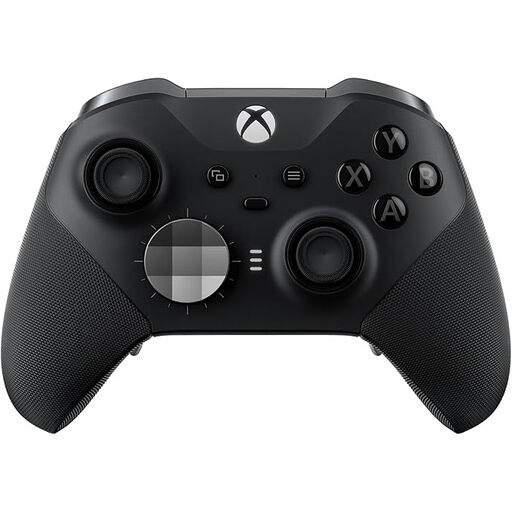
Microsoft Xbox Elite Wireless Controller Series 2
For Xbox or Windows players moving frequent actions to extra controls, the listing describes four remappable back buttons and three onboard profiles. Microsoft says most Xbox Accessories app features on Windows require USB or an Xbox Wireless Adapter rather than Bluetooth. Confirm the supplied model and components before buying, as the listing’s platform details differ.
View on Joybuy
 No image available
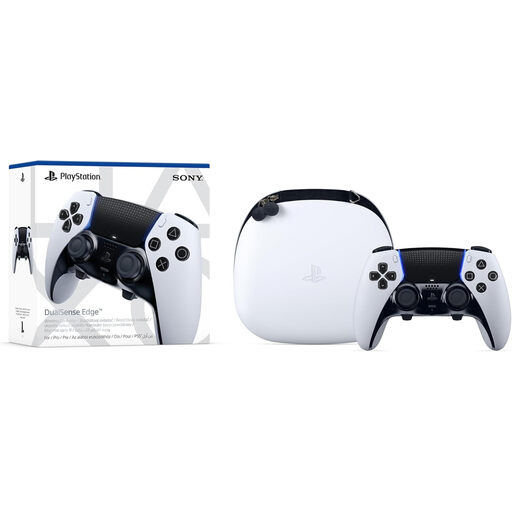
Sony DualSense Edge Wireless Controller, White
For PS5 players who want to reassign actions, the listing describes two interchangeable back buttons and saved profiles. PlayStation also documents profile configuration on Windows through PlayStation Accessories. Check game support and connection requirements for any optional features you expect to use.
View on Joybuy
 No image available
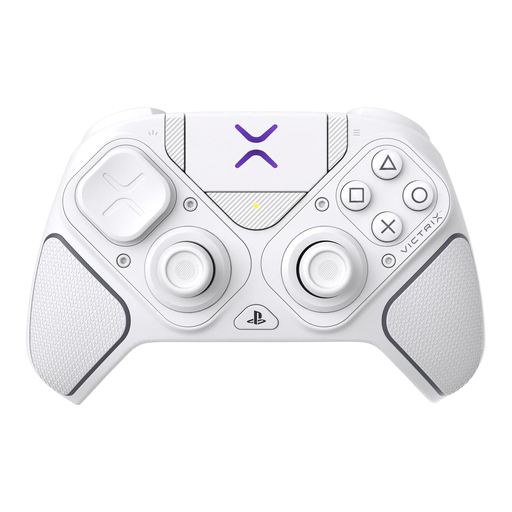
Turtle Beach Victrix Pro BFG Reloaded Modular PlayStation Controller, White
For players considering a change to the physical control layout, the listing describes interchangeable modules and button mapping through Victrix Control Hub. It lists PS5, PS4 and Windows use, but gives differing connection details. Confirm the exact variant’s platform support, wired or wireless mode and app setup before choosing it.
View on Joybuy
 No image available
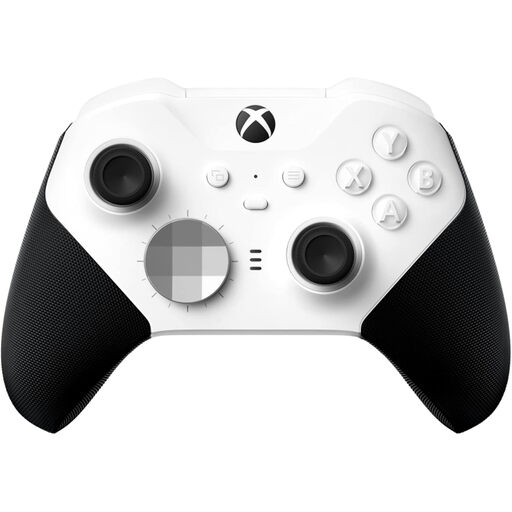
Xbox Elite Wireless Controller Series 2 Core, White
For Xbox or Windows players changing button assignments, the listing describes Xbox Accessories app profiles, adjustable-tension sticks and hair-trigger locks. If you need extra rear inputs, check which components come with this Core variant. Microsoft says Windows app configuration needs USB or an Xbox Wireless Adapter for most features.
View on Joybuy
 No image available
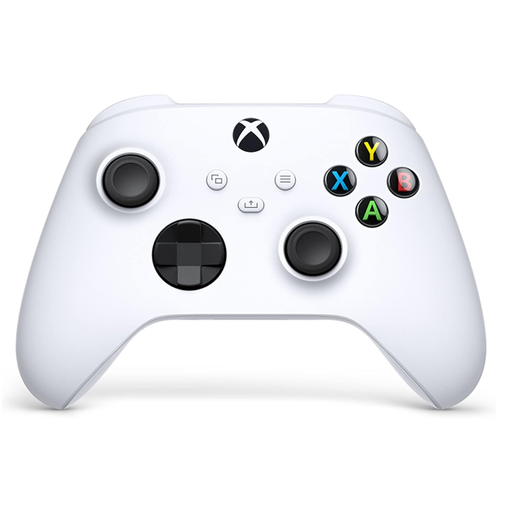
Xbox Wireless Controller, Robot White
For Xbox or Windows play where changing standard button assignments is the main need, the listing describes mapping through the Xbox Accessories app. Check the physical inputs if your aim is to move an action to an additional button rather than reassign an existing one. Microsoft says most Windows app features require USB or an Xbox Wireless Adapter for configuration.
View on Joybuy
Common questions
Can I configure an Xbox controller over Bluetooth on Windows?
Do not rely on Bluetooth for Xbox Accessories app configuration on Windows. Microsoft says most app features are not supported through that connection and advises using a USB cable or Xbox Wireless Adapter.
Can I set up DualSense Edge profiles on a Windows PC?
Yes. PlayStation documents creating, editing and switching DualSense Edge profiles through PlayStation Accessories on Windows. Check game support and connection requirements separately for optional controller features during play.
Can I use a PlayStation Access controller on PC or Xbox?
PlayStation describes Access as compatible only with PS5 consoles. If you need the same physical arrangement on PC or Xbox, check a controller specifically documented for that platform rather than assuming Access will work there.
Will any switch or button work with PlayStation Access?
No. PlayStation says its four 3.5 mm expansion ports can take compatible third-party buttons, switches and other devices, but not every device works. Check the external device’s compatibility and setup instructions before planning a layout around it.


