What should you check before buying?
Begin with the school’s requirements, then match the device to a typical week of coursework. Check accessories and the home connection separately: either may solve a problem without changing the main device.
| Concern |
What to check |
Who this matters to |
| School-platform compatibility |
Ask for required apps, browsers and extensions, plus rules for personal or managed devices. Check them against the exact model and operating-system version. |
If a course requires particular accounts or software, I need to know the device can run them before weighing up screen size or portability. Around 36% of consumers put compatibility first. |
| Typing and coursework space |
Review assignment length, file uploads and multi-document work; check the keyboard and, for a tablet, exact accessory compatibility. |
When I regularly write longer assignments and work across documents, comfortable typing and file handling drive my choice. Around 29% of consumers prioritise that workspace need. |
| Live lessons and connectivity |
Test calls at lesson times and check camera, microphone and headset needs. If useful, confirm whether the device can use Ethernet directly or through an adapter. |
With several people online at home, I need lessons to stay usable before I consider a faster computer. Around 21% of consumers put call and connection reliability first. |
| Portability and accessibility |
Check handling and touch needs alongside compatibility with any required keyboard, switch, braille display or other assistive technology. |
If I move between study spaces or rely on a particular input method, the device must fit the way I use it. Around 14% of consumers prioritise portability or an individual accessibility setup. |
Joybuy laptop choices for home study
These laptops cover Windows and Chromebook approaches to coursework, including a convertible touchscreen option. Choose between them only after confirming the school’s software and device rules; a laptop purchase will not by itself resolve an unsuitable home connection.
 No image available
ASUS Vivobook 14 X1407QA-LY003W, Snapdragon X, 16GB RAM, 512GB SSD, Quiet Blue
Consider this laptop for coursework if the school’s required apps and browser tools work on the exact model.
The named configuration has a Snapdragon X processor, 16GB RAM and a 512GB SSD. Confirm any specialist software requirements and expected unplugged use before choosing it.
View on Joybuy
 No image available
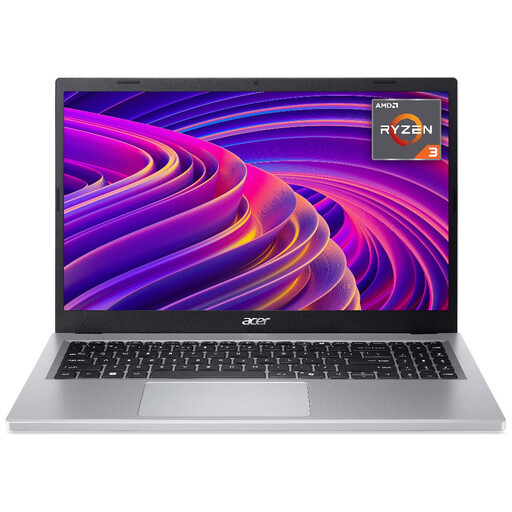
Acer Aspire Go 15 AG15-21P, 15.6-inch Full HD, Ryzen 3 7320U, 8GB RAM, 256GB SSD, Silver
Consider the larger screen for assignments and browser work if this model meets the school’s software requirements.
The named configuration has a 15.6-inch 1920 × 1080 display, AMD Ryzen 3 7320U processor, 8GB RAM and a 256GB SSD. Check the expected battery use if lessons will take place away from a power socket.
View on Joybuy
 No image available
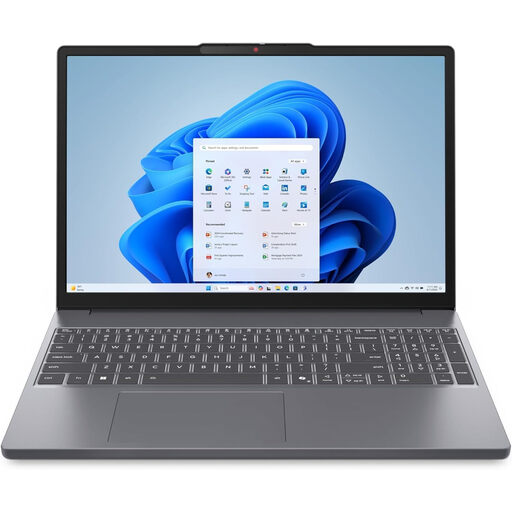
Lenovo IdeaPad Slim 3 83K7009MUK, 15.3-inch WUXGA, Ryzen 5 7535HS, 24GB RAM, 512GB SSD, Grey
This Windows 11 Home laptop is an option for learners weighing a larger display against the space available for studying and carrying the device.
The named configuration has a 15.3-inch WUXGA display, AMD Ryzen 5 7535HS processor, 24GB DDR5 RAM and a 512GB PCIe SSD. Confirm school-platform compatibility and battery needs for the learner’s routine.
View on Joybuy
 No image available
Acer Chromebook Plus 514 CB514-5H, 14-inch WUXGA, Core i3-1315U, 8GB RAM, 256GB SSD, Iron
Consider this Chromebook for browser-first coursework only if the school confirms that every required service and specialist task works on ChromeOS.
The named configuration has a 14-inch 1920 × 1200 display, Intel Core i3-1315U processor, 8GB RAM and a 256GB SSD. Traditional Windows or macOS desktop software is not a substitute for checking ChromeOS compatibility.
View on Joybuy
 No image available
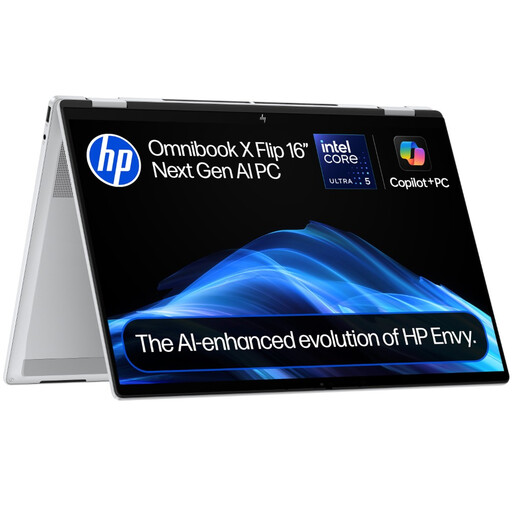
HP OmniBook X Flip 16-as0004na, 16-inch touchscreen 2-in-1, Core Ultra 5 226V, 16GB RAM, 512GB SSD
The convertible format is worth considering when the learner wants touch input alongside laptop use, provided the required school tools work in the intended setup.
The named Windows 11 Home configuration has a 16-inch touchscreen, Intel Core Ultra 5 226V processor, 16GB RAM and a 512GB SSD. Check that rotation and tablet-mode functions work as needed, and confirm keyboard and battery requirements before buying.
View on Joybuy
Frequently asked questions
What should I ask the school before buying a study device?
Ask which learning platforms, accounts, apps, browsers, extensions and specialist programs the learner must use. Also confirm personal-device rules, file storage, video-call expectations and any accessibility tools. Google Classroom Help and Microsoft Support describe requirements for their own services, but the school can confirm the combination needed for its coursework.
Can a tablet replace a laptop for remote study?
A tablet can be the main study device if the required apps, meetings and file tasks work on the exact model and its typing setup suits the learner’s assignments. Google Classroom Help identifies additional apps for full mobile use; for regular writing, check keyboard compatibility by tablet generation rather than assuming any case will fit.
Will a faster laptop fix unstable video lessons?
Not necessarily: the home connection may be the limiting factor even if the device can run the meeting app. Ofcom notes that router placement and simultaneous household use can affect Wi-Fi performance. Test calls at lesson times and, where practical, try Ethernet before replacing the laptop for that reason alone.
How should I check accessibility before choosing a device?
Confirm the learner’s required input, display, audio and software tools with the school and any relevant support professional, then check compatibility with the exact device and platform. Apple lists switch and braille-display accessories for iPad, but an accessory listing does not establish that every combination will meet an individual learner’s needs.


