Start with the part of your desk setup that limits your work: an external monitor for sustained screen work, a dock if you repeatedly connect several devices, or a webcam or headset if calls are the problem. Before buying anything that connects to a work laptop, check its video and USB-C capabilities, charging requirements and permitted accessories; the presence of a matching socket alone does not establish compatibility.
Who this setup is for
People working regularly at a laptop desk
If you spend sustained periods doing computer-based work at home, screen position and the arrangement of your workspace matter alongside meeting equipment. The Health and Safety Executive advises assessing home display-screen work according to the individual workstation, rather than assuming everyone needs the same equipment.
People on frequent video calls
If colleagues struggle to see or hear you, identify whether camera placement, lighting or microphone pickup is the immediate problem. If the difficulty is hearing others privately, a headset addresses a different need from a webcam.
People connecting several desk devices
If you regularly reconnect a display, charging cable and other peripherals, a dock may reduce the number of daily cable changes. Check the laptop’s port specifications first: Microsoft and Anker both describe host-device requirements that can limit what a connected dock does.
What to check before buying
Choose the problem to solve before choosing a product category, then check the proposed connection against your exact laptop and desk arrangement.
| Concern |
What to check |
Who this matters to |
| Dock and display compatibility |
Compare the laptop’s USB-C video protocol, external-display limit and charging input with the dock’s host requirements and power output. Check the required cable. |
If I connect several devices at one desk, I need to know they will work together before buying a dock. Roughly 33% of consumers put connection compatibility first. |
| Screen workspace |
Check desk space, display positioning and matching laptop output and monitor input. For sustained work, consider the individual workstation assessment. |
When I work at a laptop desk for long periods, I want a screen arrangement I can position comfortably. Around 27% of consumers make the sustained-work display their primary concern. |
| Meeting image and audio |
Decide whether the limitation is camera framing, voice pickup or private listening. Check mounting, connection type and the intended meeting software. |
If meetings are frequent, I need to address the particular way my calls fall short, rather than assume one accessory fixes everything. About 27% of consumers prioritise call image or audio. |
| Setup complexity |
For an occasional meeting, check whether one direct connection or a single permitted accessory solves the problem before adding a dock. |
If I rarely join calls, I would rather fix one recurring annoyance than maintain a permanently connected workstation. Roughly 13% of consumers put a simpler setup first. |
Purchasing pitfalls
-
Assuming every USB-C port supports a full dock setup
A USB-C socket does not by itself establish support for the dock’s video protocol, USB4 features or charging arrangement. A connected dock may consequently offer fewer functions than expected.
Find the laptop’s exact model specification and compare its port, charging and cable requirements with those of the dock. Anker, for example, specifies both DisplayPort Alt Mode and Power Delivery support for its 575 dock.
-
Counting video ports instead of supported displays
Two outputs on a dock do not establish that a particular laptop can run two independently extended screens. Microsoft notes that a display splitter duplicates one signal rather than creating two independent signals.
Check the laptop’s external-display limit and the dock’s display support for your operating system before planning the screen layout.
-
Buying work-required equipment before discussing provision
For applicable home display-screen work, the Health and Safety Executive says workers cannot be charged when an assessment identifies action such as providing equipment. Acas advises employers and staff to agree who provides equipment and handles repairs.
If you use display-screen equipment daily for continuous periods of an hour or more, ask about your employer’s workstation assessment and equipment arrangements before making a personal purchase.
Buying first may mean paying personally for equipment that the applicable assessment says your employer should provide.
-
Treating headset noise cancellation as a microphone fix
Active noise cancellation concerns what the wearer hears; it does not establish what colleagues hear through the microphone. A webcam addresses camera placement and image capture, not private listening.
Work out whether the issue is incoming sound, outgoing speech or your image, then check the relevant microphone, headset or webcam connection in the meeting application you use.
Relevant brands to consider
Dell
Relevant when considering a monitor that also provides desk connections.
- Dell lists a 27-inch 4K display, Thunderbolt 4 upstream connection, USB-C and Ethernet connectivity for the U2725QE.
- Those connections and its stated power-delivery options belong to that specific model. Check laptop compatibility and whether your workstation calls for that arrangement.
Anker
Relevant for hubs and docks that add display, USB or wired-network connections.
- Anker lists HDMI, DisplayPort and Gigabit Ethernet ports for its 575 dock.
- Anker specifies a laptop USB-C port supporting Power Delivery and DisplayPort Alt Mode for that dock, and says actual display output can vary with the host device.
Logitech
Relevant when a separate webcam would address camera placement or lighting during calls.
- Logitech specifies Full HD 1080p, automatic light correction and auto-framing for the Brio 500.
- Those are features of the named model, not a substitute for checking placement, lighting, USB access and work-device rules.
Jabra
Relevant for work headsets when private listening and microphone use are priorities.
- Jabra describes the Evolve2 55 as having active noise cancellation and noise-cancelling microphones.
- Check the intended connection and meeting setup, and distinguish the listening feature from microphone performance.
Joybuy products for the desk
These products cover an external display, connection expansion, a webcam and wired meeting audio. Choose among them according to the limitation in your own setup, not as a single equipment bundle.
 No image available
ASUS PROART PA278CV IPS WQHD monitor
Consider an external screen if the laptop display limits sustained desk work and you have room to position a monitor comfortably.
The product title identifies an IPS WQHD display. Check your laptop’s video connection and the monitor’s connection and charging requirements before relying on a single cable.
View on Joybuy
 No image available
Targus USB-C Universal Dual HDMI 4K Docking Station, 100W Power Delivery Pass-Thru
Consider a dock if you repeatedly connect displays and desk peripherals and want to reduce daily cable changes.
The title specifies dual HDMI 4K connections and 100W Power Delivery pass-through. Check the laptop’s USB-C video capability, independently supported display count and charging requirement, as well as the power adapter supplied or required.
View on Joybuy
 No image available
Targus 2K Webcam with Auto Focus
Consider a separate webcam if camera position or the built-in camera is the limitation during regular calls.
Check the exact video output before choosing by resolution: the product title says 2K, while the associated detailed specification states Full HD 1080p at 30fps. Also check the USB connection and whether the accessory is permitted on your work laptop.
View on Joybuy
 No image available
Baseus Metal Gleam Series II 10-in-1 USB Hub, Cosmic Black
Consider this hub when you need several desk connections but should not assume that two HDMI sockets guarantee two extended displays.
Its title lists two HDMI connections, USB and card connections, RJ45 and a USB-C Power Delivery port. Check the laptop’s DisplayPort Alt Mode support, the simultaneous display modes and the charging output before planning a multi-screen setup.
View on Joybuy
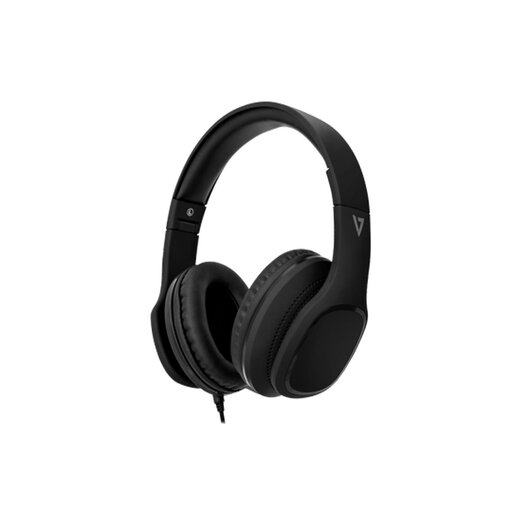 No image available
V7 HA701-3EP wired over-ear headphones with inline MEMS microphone
Consider wired headphones with a microphone when you want private meeting audio without a wireless charging routine.
The product title specifies 40mm drivers, an inline MEMS microphone and passive noise isolation; it does not describe active noise cancellation. Check that the work computer’s headset connection accepts the microphone, or that a suitable adapter is permitted.
View on Joybuy
Common questions
Will every home worker be given a monitor or dock?
No universal monitor-or-dock entitlement follows from the Health and Safety Executive’s home-working guidance. Its display-screen equipment guidance covers workers who use it daily for continuous periods of an hour or more; where an applicable individual assessment identifies action such as providing equipment, the worker cannot be charged for it. Ask your employer about the assessment and equipment arrangements before buying work-required items yourself.
Does a USB-C port mean a dock can run monitors and charge my laptop?
No: check the laptop and the exact dock together. Microsoft notes that USB-C device combinations can have limited functionality, while Anker specifies DisplayPort Alt Mode and Power Delivery support on the laptop for its 575 dock. Charging and display support also depend on the proposed equipment and configuration.
Can an HDMI splitter create two separate extended screens?
A splitter that duplicates one video signal will not create two independent extended desktops. Microsoft makes this distinction in its external-monitor guidance. For separate screens, check the laptop’s supported display count and the dock or adapter’s display behaviour.
Should I check before connecting my own peripherals to a work laptop?
Yes, if the laptop is employer-managed, check which docks, webcams, headsets and adapters are permitted before purchasing. Acas advises agreeing equipment and information-security arrangements for home working; your employer’s process determines what you can connect to its device.


