Choose the computer around the renovation software you will use, then choose a separate monitor that you can position away from window reflections. A standard Windows tower can suit browser planners, documents and 2D layouts; regular SketchUp modelling calls for a closer look at discrete graphics, while Revit users should check Autodesk’s Windows and configuration requirements. Screen placement and lighting still matter, regardless of the desktop’s specifications.
Who is this setup for?
Window-side renovation planners
If your work centres on supplier sites, PDFs, web room planners and marked-up plans, a readable display that you can reposition may matter more than a powerful graphics card. The Health and Safety Executive advises arranging screens and lighting to avoid reflections and glare.
Regular 3D home designers
If you regularly build and edit models in desktop SketchUp, check the graphics card in the exact computer configuration. SketchUp’s recommended Windows hardware includes a discrete graphics card.
Revit and multi-display project users
If you work with Revit models or keep plans, schedules and references open across several screens, select the operating system, memory, graphics and display connections for that workload. Autodesk’s Revit 2026 requirements specify Windows for its entry-level configuration.
What matters when choosing?
Start with the applications you will run, then decide how much of the setup needs to go towards the monitor and its positioning. For a bright-window desk, the Health and Safety Executive’s advice to avoid screen reflections applies whichever computer you choose.
| Concern | What to check | Who this matters to |
|---|
| Readable plans beside the window |
Check monitor adjustment, screen finish and where the display can sit relative to the window. |
If daylight reflects across drawings and supplier documents, I need to move the screen without losing a useful working position. Around 36% of consumers would put glare control first. |
| Regular 3D modelling |
Check your application’s current requirements and the exact graphics card in the chosen configuration; SketchUp recommends discrete graphics for Windows. |
When I regularly edit and move around a 3D renovation model, graphics capability becomes a primary purchase concern. Around 29% of consumers would prioritise that need. |
| Everyday planning and value |
Compare the selected tower’s memory, storage and ports, and account for the separate monitor rather than assuming you need advanced graphics. |
For browser planners, PDFs and household spreadsheets, I would rather match the computer to those tasks and leave room for a suitable display. Around 21% of consumers would put everyday planning first. |
| Revit and future expansion |
Check Autodesk’s requirements for your Revit version and project size, alongside memory, graphics, display outputs and upgrade options. |
If Revit files and several working screens are central to my project, I need a configuration that supports the workflow as it grows. Around 14% of consumers would make capacity and expansion their primary concern. |
Buying pitfalls
-
Upgrading the tower but leaving the screen facing reflections
A faster computer will not remove reflected daylight from a monitor. The Health and Safety Executive advises arranging screens and lighting to avoid glare.
Work out the desk and window positions before choosing a display; check its adjustment and any mounting requirements.
Repositioning the display may call for a separate monitor arm or suitable mount.
-
Assuming every tower variant has graphics for SketchUp
Some desktop configurations use integrated graphics, while SketchUp’s recommended Windows hardware includes a discrete graphics card.
Check the graphics card listed for the exact configuration and compare it with the requirements for your SketchUp version.
-
Treating a workstation tower as a complete desk setup
Lenovo states that the ThinkStation P3 Tower’s monitor is sold separately. Its graphics and expansion options do not settle which screen will work beside your window.
Confirm the monitor, required connections, cables and available desk space before ordering.
-
Choosing macOS before checking the required software
Apple’s Mac mini supports external displays, but Autodesk’s Revit 2026 entry-level requirements specify Windows. A suitable screen does not resolve that application requirement.
List the applications, versions and plug-ins you need, then confirm their operating-system requirements before selecting the computer.
Relevant brands and display ranges
Dell
Dell offers standard Tower configurations for everyday desktop work and Tower Plus configurations positioned for more demanding graphics and expansion needs.
- The standard Tower range includes configurations with integrated graphics; Tower Plus offers configurable graphics options.
- Check the selected processor, graphics card and memory rather than assuming all configurations in a family are alike.
Lenovo
The ThinkStation P3 Tower is a workstation route to consider when Revit work, professional graphics or internal expansion is part of the plan.
- Lenovo lists support for professional NVIDIA discrete graphics on the ThinkStation P3 Tower.
- Specifications vary by configuration, and Lenovo says the monitor is sold separately.
Apple
Mac mini is a compact macOS desktop used with an external display; Studio Display is one display option within Apple’s range.
- Apple lists support for multiple external displays on Mac mini and specifies a 27-inch 5K, 600-nit panel for Studio Display, with optional nano-texture glass.
- Check each required application before choosing macOS: Autodesk specifies Windows for Revit 2026’s entry-level configuration.
LG
LG’s 27UP850K-W is an example of a separately selected monitor for viewing plans at a window-side desk.
- LG specifies a 27-inch 4K IPS panel with height, pivot and tilt adjustment.
- Its display specifications do not establish whether a particular desk position will avoid window reflections.
BenQ
BenQ’s PD2732U is a monitor option for buyers considering screen treatment and physical adjustment alongside their desktop choice.
- BenQ specifies 4K resolution, 400-nit typical brightness, Nano Matte Black coating and 115 mm height adjustment.
- Screen treatment does not replace positioning the display and lighting to avoid reflections, as the Health and Safety Executive advises.
Joybuy monitors for a window-side desk
These are separate monitors to consider for viewing renovation plans beside a bright window, not desktop computers. Choose the computer for your software first, then check the monitor’s position, connections and screen characteristics for your desk.
 No image available
iiyama ProLite XUB2792UHSU-B6 27-inch 4K UHD Monitor
Consider this as a separate screen for reviewing renovation plans. It has a 27-inch 4K UHD format; check its screen finish, stand adjustments and connection to your computer for the window-side position.
View on Joybuy
 No image available
ASUS ProArt Display PA32UCG-K 32-inch 4K IPS Mini LED Monitor
Consider this larger separate screen if you have desk space for renovation plans and references. Check that its 32-inch format can be positioned away from reflections, and confirm the brightness specification for the exact variant before buying.
View on Joybuy
 No image available
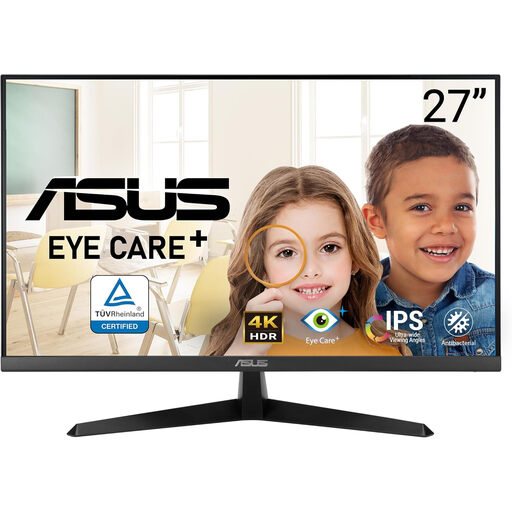
ASUS EYE CARE VY27UQ 4K UHD 60 Hz Monitor
This is a separate display option for viewing plans rather than a replacement for the computer. Its stated resolution is 4K UHD at 60 Hz; check the screen finish and whether the available stand adjustment suits your desk position.
View on Joybuy
 No image available
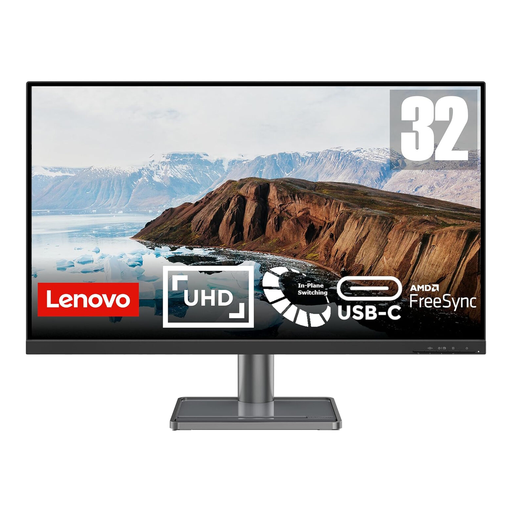
Lenovo L32p-30 31.5-inch 4K UHD IPS USB-C Monitor
Consider this separate display if a larger screen fits the planning desk. The stated 31.5-inch 4K UHD IPS format and USB-C connection should be checked against your space and desktop; also check brightness and screen finish for the window position.
View on Joybuy
 No image available
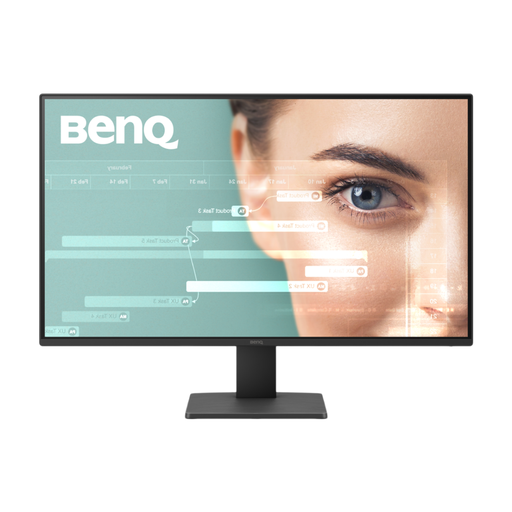
BenQ GW2791 27-inch Full HD 100 Hz Monitor
This separate monitor may suit a planning desk where Full HD provides enough detail for your drawings. Check whether its 27-inch screen and available positioning work with the plan detail you view and the light at your desk.
View on Joybuy
Frequently asked questions
Do I need a dedicated graphics card for renovation planning?
Not necessarily for browser planners, PDFs and 2D documents. For regular desktop SketchUp modelling, check the exact computer configuration against SketchUp’s current requirements; its recommended Windows hardware includes a discrete graphics card.
Will a 4K monitor solve glare from a bright window?
No: resolution does not remove reflections. The Health and Safety Executive advises arranging screens and lighting to avoid glare, so check whether you can angle and position the monitor appropriately at your desk.
What should I check on a monitor for this desk?
Check physical adjustment and screen finish as well as resolution and stated brightness, then make sure its inputs match your computer’s outputs. BenQ specifies a Nano Matte Black coating and 115 mm height adjustment for the PD2732U, but even a screen with those features needs suitable placement relative to the window.
Should I choose Windows if I plan to use Revit?
For Revit 2026’s entry-level configuration, Autodesk specifies 64-bit Windows 10 or Windows 11. Autodesk lists 16 GB RAM for a typical single-model editing session with a model up to approximately 300 MB on disk; check its current guidance against your own model size and workload before choosing a configuration.


