Mobile plan annotators
If you open plans, sketch layout changes and mark up PDFs or photos in short gaps between visits, prioritise a compatible pen and a screen you can comfortably carry and read.


Choose around the work you must do between visits: an iPad Air or Galaxy Tab S10+ offers a tablet-based route for handwriting and visual planning, while a Surface Pro is more relevant when Windows work is essential. A Lenovo Tab Plus is worth considering mainly for viewing plans and taking general notes; check its exact pen setup before relying on handwritten mark-up. Across all four routes, confirm your required apps, accessories and away-from-Wi-Fi needs before choosing a configuration.
If you open plans, sketch layout changes and mark up PDFs or photos in short gaps between visits, prioritise a compatible pen and a screen you can comfortably carry and read.
If your visit notes lead straight into Windows applications, typed documents or desktop-style multitasking, check whether a keyboard-capable 2-in-1 can run your essential tools.
If you chiefly review plans and reference images and take general notes, establish which accessories and apps you actually need before choosing a pen-led setup.
The decisive distinction is whether you need handwritten mark-up, Windows applications or mainly a screen for reviewing plans; then check how the device will travel and connect between appointments.
Consider it when: You annotate and sketch in an Apple-based workflow and want a choice of 11-inch or 13-inch screens.
Allow for: Apple Pencil and Magic Keyboard are separate accessories; the larger Wi-Fi model also weighs more than the 11-inch Wi-Fi model, according to Apple.
Consider it when: You want a 12.4-inch Android screen for plans and handwriting, with an S Pen included in the box according to Samsung.
Allow for: Choose between Wi-Fi and 5G configurations based on whether the tablet needs its own mobile connection.
Consider it when: Windows applications and keyboard-led work are central to what you do after a client visit.
Allow for: Check essential software on the selected configuration; Microsoft sells the keyboard and Slim Pen separately.
Consider it when: Your main tasks are viewing plans, reference images and general notes on an 11.5-inch Android tablet.
Allow for: Confirm the exact pen and keyboard arrangement before making handwritten annotation part of your workflow.
| Concern | What to check | Who this matters to |
|---|---|---|
| Sketching and mark-up | Check the named pen against the exact tablet model, whether it is included and whether your plan or PDF app accepts handwritten annotation. | If I need to mark layout changes as soon as a client raises them, handwriting is my primary requirement. Around 27% of consumers put pen annotation first. |
| Windows work and typing | Test must-run applications, files, sign-in tools and peripherals on the chosen configuration; check the compatible keyboard. | When a visit ends with work in a Windows application, I need those files and tools to remain usable. Windows workflow is the main concern for around 27% of consumers. |
| Carrying and connecting | Compare the size and weight of the exact variant, then decide whether Wi-Fi, phone tethering or independent cellular access suits your visits. | I move between appointments and need plans to remain readable without carrying an awkward device. Around 26% of consumers make portable plan review and connectivity their first concern. |
| Complete working setup | Confirm the pen, keyboard, charger and connectivity arrangements for the specific tablet and accessories you intend to use. | If viewing plans and taking general notes are enough, I do not want to depend on accessories that may not work with my model. A workable setup is the primary concern for around 20% of consumers. |
A device suitable for viewing plans may still need a separate pen or keyboard for the work you intend to do.
Check the exact tablet variant, compatible accessories, case and charging equipment together before ordering.
An incompatible pen can leave handwritten plan mark-up unusable. Lenovo lists Tab Pen Plus as an add-on on its Tab Plus page, while its pen support page does not name Tab Plus among the compatible models.
Match the tablet and pen model numbers against the maker’s compatibility information before relying on that pairing.
A touchscreen and detachable keyboard will not resolve an incompatibility with an application or peripheral your work requires.
List your indispensable renovation, PDF and client-management tools, then confirm they work on the Surface Pro configuration you plan to use.
Cellular is useful when the tablet itself must connect away from Wi-Fi, but it also requires a suitable mobile-data arrangement.
Consider where you actually work between visits and whether reliable Wi-Fi or phone tethering already covers those locations.
The iPad Air is a pen-capable route for portable annotation and visual planning within an Apple-based workflow.
The Galaxy Tab S10+ offers a large-screen Android route for viewing plans and taking pen notes.
Surface Pro is a Windows 2-in-1 route when tablet use must sit alongside laptop-style work.
The Tab Plus is an Android option for viewing plans, reference material and general notes.
These tablets offer different starting points for viewing plans and, where the appropriate pen is included or compatible, adding handwritten notes. Check your required plan and PDF apps against the exact model before treating any of them as a complete renovation-planning setup.
 No image available
Consider this for viewing plans on a larger screen and making pen notes between visits. The product name specifies a 12.7-inch 2K display, an included stylus with 4,096 pressure levels, 256GB storage and dual-SIM 4G LTE. Its stated 20GB memory combines 8GB RAM with 12GB virtual memory, rather than 20GB physical RAM; check your required annotation apps and whether its carrying size suits you.
 No image available
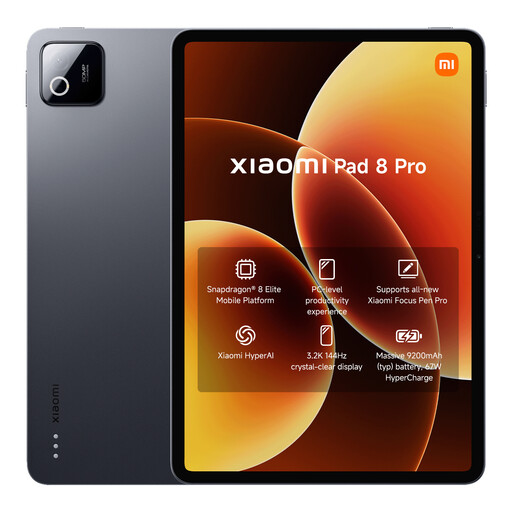
Consider this if an included pen is important for notes alongside plan viewing. The product name specifies 8GB RAM, 128GB storage and a Focus Pen included. Confirm that the pen and your chosen apps handle the mark-up you need, and check what charging equipment comes in the box.
 No image available
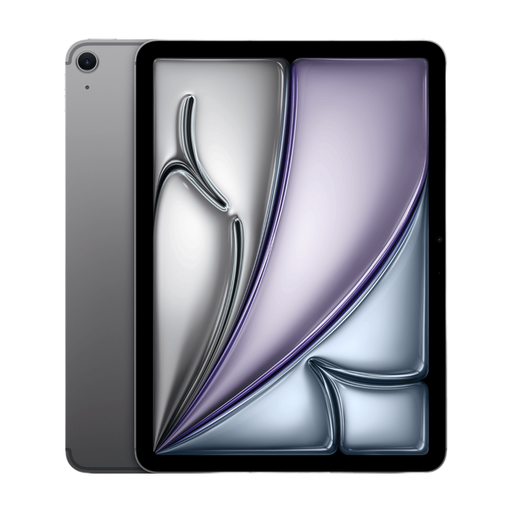
Consider this for an Apple-based plan-viewing and annotation workflow that travels between appointments. Apple specifies a weight of 464 g for the 11-inch Wi-Fi iPad Air and compatibility with Apple Pencil Pro and Apple Pencil (USB-C). A Pencil and keyboard are separate accessories; confirm your preferred pen and required apps before ordering.
 No image available
Consider this 11-inch Wi-Fi model if you want to review plans in an Apple-based workflow and add pen input after checking the accessory. The product name specifies 256GB storage and standard glass. Confirm which Apple Pencil works with this exact model and whether your required apps meet your needs; pen and keyboard accessories are separate.
 No image available
Consider this for reviewing plans and adding handwritten annotation if a compatible pen suits your work. The product name specifies 12G RAM and 512G ROM. A Focus Pen is a separate accessory: confirm the exact compatible model, your required annotation apps and the connectivity you need between visits.
Choose a cellular configuration if the tablet itself regularly needs to connect where Wi-Fi and phone tethering will not meet your needs. Otherwise, a Wi-Fi model may cover the places you work; a cellular model also needs a suitable mobile-data plan.
It depends on the exact model and accessory: Samsung lists an S Pen in the Galaxy Tab S10+ box, while Apple lists Pencil and Magic Keyboard as optional for iPad Air, and Microsoft sells the Surface Pro keyboard and Slim Pen separately. Check the contents and compatibility of the configuration you choose.
Confirm the exact pairing before ordering a pen for Tab Plus. Lenovo suggests Tab Pen Plus as an add-on on its Tab Plus page, but its Tab Pen Plus support page does not list Tab Plus among the compatible models.
For most online goods purchases in the UK, GOV.UK says customers can cancel up to 14 days after delivery without giving a reason. This concerns change-of-mind cancellation; check the seller’s cancellation instructions and keep the listing and order information. A faulty or misdescribed tablet raises a separate remedies question, rather than being settled by that change-of-mind period alone.