Who this setup suits
Using one computer away from home and at a fixed desk makes portability and desk compatibility part of the same decision.
Hybrid workers replacing a desktop
If you travel or work elsewhere but return to a desk for documents, calls and peripherals, check that the laptop works in both settings. The Office for National Statistics reported that 28% of working adults in Great Britain worked in a hybrid pattern between January and March 2025; that figure describes working arrangements, not laptop-buying preferences.
Home-office users who need more screen space
An external monitor can form part of a desk arrangement for documents, meetings and browser work. Check the exact laptop’s supported display arrangement before choosing the screen or a multi-output dock: Microsoft notes that a dock handling several devices may not support every advertised display combination at once.
One-cable desk users
If reconnecting a monitor, keyboard, mouse and charging cable separately is inconvenient, consider a compatible dock or a monitor with suitable connections. The USB Implementers Forum describes how a wall-powered monitor can charge a laptop while displaying, but the equipment must support the required power-delivery arrangement.
What to check before buying
For one laptop used on the move and at a home desk, establish the screen arrangement first. Then decide how much you want to reconnect each time you sit down.
Direct monitor connection
Choose when: One home screen meets your needs and the laptop can connect to it directly or through a compatible adapter.
Trade-off: Charging and other peripherals may need separate connections unless the monitor provides suitable hub and charging functions.
USB-C dock
Choose when: You want to reconnect desk accessories through one compatible laptop port.
Trade-off: Lenovo says its USB-C docks require a host port with the appropriate video protocol; the connector’s shape alone does not establish display support.
Thunderbolt dock
Choose when: Your planned screens and accessories call for a dock arrangement that the exact laptop and dock both document as supported.
Trade-off: Manufacturer display and charging figures remain conditional on the connected laptop and equipment; a Thunderbolt dock does not remove those checks.
| Concern | What to check | Who this matters to |
|---|
| External displays |
Check the exact laptop configuration’s supported screen count, resolution and refresh rate, then the relevant port and dock requirements. |
If I rely on a home monitor alongside the laptop, I need the intended screen arrangement to work before I choose a dock. Around 31% of consumers would put display capability first. |
| Portability |
Compare the configured laptop’s weight, dimensions and charger with how often you will carry them. |
When the same computer travels with me, carrying it regularly matters as much as using it at the desk; around 25% of consumers would make portability their primary concern. |
| One-cable convenience |
Match the dock or monitor’s power delivery to the laptop’s charging requirement, and check the ports needed for your peripherals. |
I want to sit down and reconnect my desk accessories without plugging in each one separately. For around 25% of consumers, that convenience would come first. |
| Refurbished condition |
Confirm the individual laptop’s configuration, battery condition, supplied charger, connectivity and seller terms. |
If I choose a refurbished business laptop, I need to know which configuration and accessories I am actually getting. Around 19% of consumers would put those condition and configuration checks first. |
Brands to consider
These brands provide relevant laptop or dock lines to compare; compatibility still depends on the individual model and configuration.
Lenovo
Lenovo’s ThinkPad USB-C and Thunderbolt docks are relevant when planning a repeatable desk connection.
- Lenovo states that its ThinkPad USB-C Dock Gen 2 can work with notebooks whose Type-C ports support the required industry-standard USB-C Alt Mode or Thunderbolt protocol.
- For the ThinkPad Universal Thunderbolt 4 Dock, Lenovo lists up to four 4K displays at 60Hz and up to 100W charging; the intended arrangement still needs checking against the host laptop.
Dell
Dell’s Thunderbolt dock range is relevant to buyers comparing charging and multi-display arrangements for a specific laptop.
- Dell specifies Thunderbolt 4 connectivity for its SD25TB4 dock.
- Dell lists 130W power delivery for Dell systems but 96W for non-Dell systems on that model, so its highest figure cannot be applied to every host.
HP
HP EliteBook configurations are relevant when comparing portable business laptops for a connected home desk.
- HP’s UK EliteBook listings include models filtered for USB-C with Thunderbolt.
- Ports and other specifications vary by configuration; check the individual laptop’s external-display documentation rather than relying on the EliteBook name.
Apple
MacBook models are relevant if macOS is part of the workstation requirement.
- Apple lists Thunderbolt 4 USB-C ports with display support in its MacBook Air specifications.
- External-display capability differs between MacBook models and configurations. Check the exact chip and model before planning a multi-monitor desk.
Joybuy products for the desk setup
These docks, monitors and peripherals address parts of a laptop workstation at home or while travelling. Choose a laptop with the required display and charging support before pairing it with any of them.
 No image available
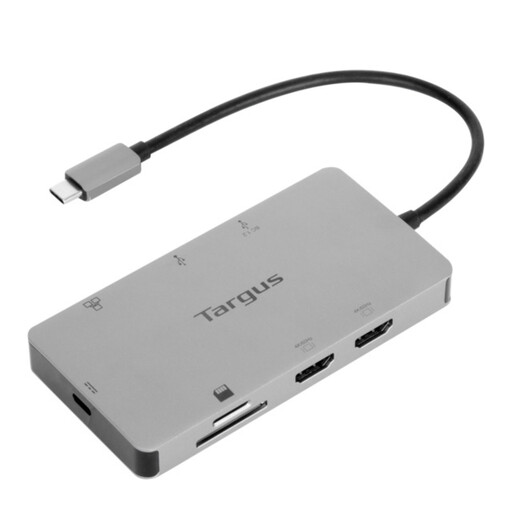
Targus USB-C Universal Dual HDMI 4K Docking Station, 100W PD Pass-Thru, retail packaging
Consider this dock if your home desk needs two HDMI display connections and you want to check whether one dock will suit the laptop. Its name specifies dual HDMI 4K and 100W Power Delivery pass-through; confirm the laptop’s USB-C video support, intended display mode and charging requirement before choosing it.
View on Joybuy
 No image available
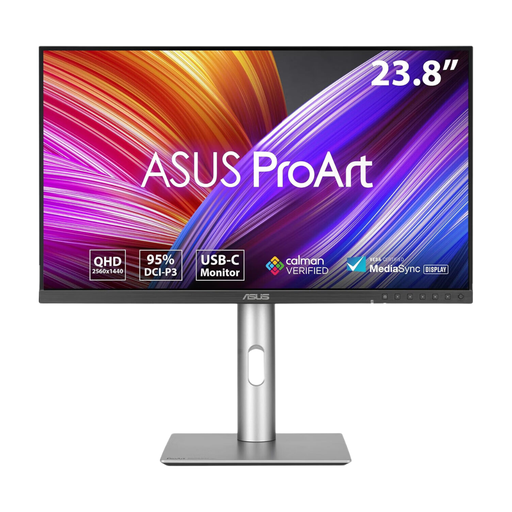
ASUS ProArt PA24ACRV IPS QHD monitor
Consider this QHD IPS monitor for a fixed home screen. If you plan to use USB-C video and charging, check the laptop’s video support and charging requirement; confirm which cable is supplied with the monitor.
View on Joybuy
 No image available
ASUS ProArt PA278CV IPS WQHD monitor
Consider this WQHD IPS monitor when choosing an external screen for the home desk. If you intend to connect and charge the laptop over USB-C, check its video capability and the monitor’s power delivery against the laptop’s requirements.
View on Joybuy
 No image available
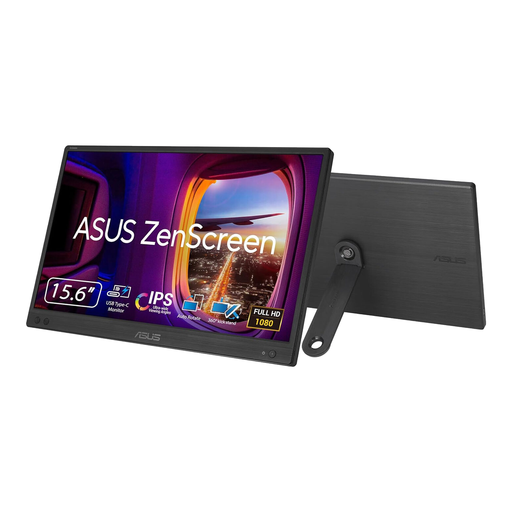
ASUS ZenScreen MB166CR FHD monitor
Consider this FHD screen if an additional display away from the home desk is part of your plan. Check that the laptop and cable can provide the USB-C video connection and power the monitor requires; do not plan around HDMI for this model.
View on Joybuy
 No image available
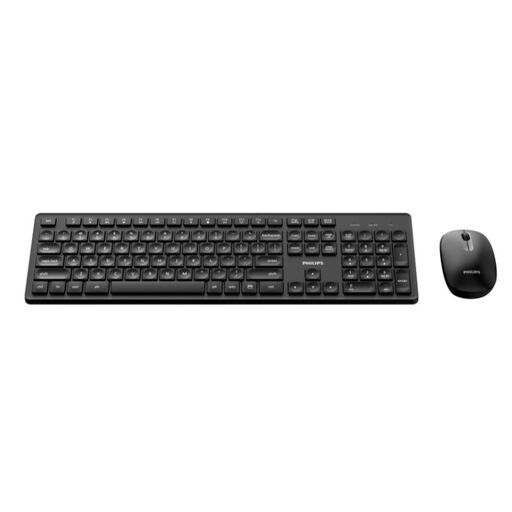
Philips 3000 Series SPT6318B/05 wireless keyboard and mouse, UK English, black
Consider a separate keyboard and mouse if you want desk input devices alongside the laptop. Check that the laptop or dock has an available USB-A port for the receiver described for this set.
View on Joybuy
Questions about laptop workstations
Is a USB-C port enough to connect a monitor and dock?
No: the laptop port must support the video protocol required by the intended connection. Lenovo says its USB-C and Thunderbolt docks require a Type-C port supporting the appropriate USB-C Alt Mode or Thunderbolt protocol, so check the exact laptop model and port.
Will a dual-output dock run two 4K monitors?
Only if the laptop, dock, cables and connected devices support the intended resolution and refresh rate together. Microsoft warns that a dock handling Ethernet and USB devices alongside displays may not support every two-monitor 4K arrangement; Lenovo also says actual video output depends on the system.
How much charging power should a dock or USB-C monitor provide?
Match the power it delivers to your laptop with the laptop maker’s charging requirement. USB Power Delivery allows compatible equipment to negotiate power, but a standard’s maximum rating does not establish what a particular dock, monitor and cable will deliver.
What should I test after connecting a new dock?
Test the screen arrangement, charging and every peripheral you intend to use together. Where the manufacturers recommend it, apply relevant dock firmware or drivers, then check the chosen resolution and refresh rate as well as keyboard, mouse, network and sleep-and-wake behaviour.
What if a laptop or dock bought from a trader does not work as described?
Keep the listing and any specific compatibility claims, and raise the problem promptly with the trader. For goods that breach statutory standards, the Consumer Rights Act 2015 provides a short-term right to reject; its explanatory notes describe a minimum 30-day period, with the starting point subject to the applicable delivery, ownership and trader-required installation conditions. A compatibility disappointment does not by itself establish that those legal conditions are met.


