Choose a laptop that runs your research group’s required software, then check its memory, display and connections against the way you edit posters. A compact laptop is easier to carry between workspaces, while a larger built-in screen gives you more room to inspect a layout; for prolonged work with a raised screen, plan for separate input devices or a separate display.
Who this is for
Poster editors juggling design and references
If Illustrator or similar layout software sits alongside PDFs, images, browser tabs and communication tools, check memory for the whole workload rather than the design application alone. Adobe calls 8GB RAM a good baseline for Illustrator, particularly when several applications are open, and says additional RAM can improve performance.
Researchers building a standing-desk workstation
For sustained editing at a fixed desk, consider where the screen, keyboard and mouse will sit before choosing a laptop. The Health and Safety Executive advises using a separate keyboard and mouse when a laptop screen is raised on a riser, or using a separate display.
Researchers moving between workspaces
If you revise poster assets between the office, lab, library and home, carrying size matters alongside screen space. A compact laptop may suit frequent moves; decide whether its built-in display gives you enough room or whether you will use a larger display at your main desk.
What matters when choosing
Check your institution’s applications, plug-ins and printer workflow before choosing between macOS and Windows. Then compare the exact configuration and the equipment you will connect at the standing desk.
| Concern |
What to check |
Who this matters to |
| Memory for multitasking |
Check the configured RAM alongside the applications and file sizes you expect to use. Adobe describes 8GB as an Illustrator baseline, not a guarantee for every poster workload. |
If design software, PDFs, images and browser research stay open together, I want enough memory to move between them without making a screen-size decision first. Around 27% of consumers put this multitasking need first. |
| Standing-desk setup and connections |
Check display output, ports and compatibility with your monitor, input devices and any dock. Plan separate input devices if you will raise the laptop screen for prolonged use. |
At a fixed standing desk, I need an arrangement that lets me see the poster without working on a raised keyboard. For around 33% of consumers, that complete desk setup is the primary concern. |
| Display space and colour-aware review |
Compare the selected panel’s size, resolution and published colour coverage. Confirm the printer’s export and proofing requirements rather than assuming screen colour will match the print. |
When I inspect fine text, figures and the overall layout, I need enough visible workspace and a dependable way to check the final output. Around 20% of consumers prioritise this review need. |
| Portability |
Check the selected laptop’s size and weight, then account for anything you will carry between locations. |
If I regularly edit between research locations, carrying the laptop matters even if I use a larger display at my main desk. Mobility comes first for around 20% of consumers. |
Buying pitfalls
-
Choosing by processor label or screen size alone
A spacious screen does not address a memory constraint when design software, images, PDFs and browser tabs are open together.
Check the exact RAM and storage configuration. Adobe’s 8GB Illustrator baseline is a starting point for comparison, not proof that every 8GB laptop will suit your poster files.
-
Raising the screen but keeping the built-in keyboard
Elevating a laptop screen also raises its keyboard and trackpad, which can make prolonged editing awkward.
Plan the screen and input-device positions together. The Health and Safety Executive advises a separate keyboard and mouse with a raised laptop screen, or a separate display.
-
Assuming a USB-C port covers every desk connection
Monitor, charging and peripheral requirements depend on the selected laptop and connected equipment, not just the port’s shape.
List your monitor and desk accessories, then check the laptop’s display support, port specifications and any dock against them.
Existing HDMI, USB-A or Ethernet equipment may call for a compatible adapter or dock.
-
Treating display colour coverage as a print guarantee
A published colour-gamut figure does not establish how the poster will look on a particular printer and paper.
Compare laptop display specifications, but follow the printer’s file, colour and proofing requirements for the final poster.
Brands to consider for these laptop routes
Apple
The MacBook Air range is relevant if your research and print workflows support macOS and you want a portable laptop with a choice of built-in screen sizes.
- Apple lists 16GB unified memory in the current range, two Thunderbolt 4 ports and support for up to two external displays. The 15-inch model offers more built-in screen space than the 13-inch model.
- Confirm institution software, plug-ins and printer compatibility. Older HDMI or USB-A desk accessories may require an adapter or dock.
Dell
The XPS 13 is a compact Windows route for researchers who frequently move between workspaces.
- Dell’s XPS 13 range provides a 13-inch format for a portability-led choice.
- For reviewing a whole poster alongside application panels at a fixed desk, consider whether you will need an external display. Check the selected configuration rather than relying on the XPS 13 name alone.
Lenovo
The ThinkPad X1 Carbon range is relevant to Windows users who want a portable business laptop with desk connections.
- Lenovo lists a configuration with 32GB memory and a 14-inch anti-glare IPS display specified at 100% sRGB and 500 nits, alongside Thunderbolt 4, USB-C and HDMI connectivity.
- Those display and memory figures describe a particular configuration. Check the unit you intend to buy, and decide whether its 14-inch workspace is sufficient without a desk monitor.
Joybuy product choices
These laptops offer different approaches to research-poster work: larger built-in displays, compact Windows options, a dual-screen layout and macOS models. Match the chosen configuration to your required software and standing-desk equipment.
 No image available
ASUS ProArt P16 H7606WW-SE006W, RTX 5080 16GB, 64GB/2TB
Consider this 16-inch Windows laptop if you work with large poster assets and want built-in space for the layout. Its named configuration includes a 4K OLED touchscreen, AMD Ryzen AI 9 HX 370, 64GB RAM and a 2TB SSD.
If colour-sensitive review or a particular external monitor matters, check the display and monitor specifications for your intended setup. A raised-screen workstation also needs an appropriate keyboard and mouse arrangement.
View on Joybuy
 No image available
ASUS Vivobook 14 X1407QA-LY003W, Snapdragon X, 16GB/512GB
This compact option suits a researcher who values a 14-inch laptop for moving between workspaces and can use a desk display when more layout space is needed. The named configuration has a Snapdragon X processor, 16GB RAM and a 512GB SSD.
Before choosing this Snapdragon X Windows model, confirm that your institution’s applications, plug-ins and printer workflow work with it. Check the display’s published colour characteristics if they matter to your review process.
View on Joybuy
 No image available
ASUS Zenbook DUO UX8406CA-QL135W, dual 14-inch OLED, 16GB/1TB
The two-screen format may suit work that keeps references visible beside a poster layout. This configuration names an Intel Core Ultra 7 255H processor, 16GB RAM and a 1TB SSD.
Confirm the exact panel resolution before buying, and plan where both screens, the keyboard and a separate mouse will sit during prolonged standing-desk sessions.
View on Joybuy
 No image available
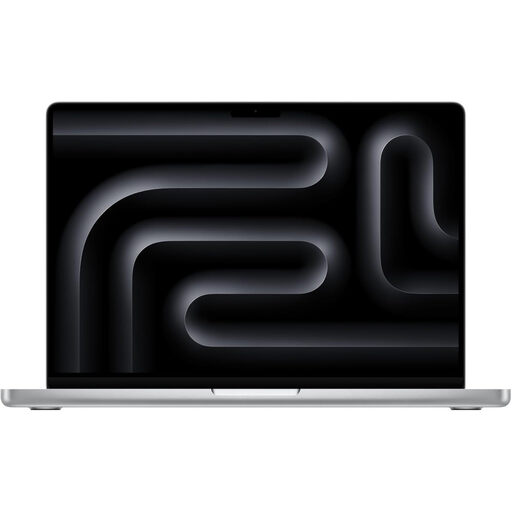
Apple MacBook Pro 14.2-inch M5 Pro, 15-core CPU/16-core GPU, 24GB/2TB, Silver
Consider this macOS configuration if your required software is compatible and you want memory and local storage for several open research and design files. Its named variant has 24GB memory and a 2TB SSD.
Check the screen specification against your poster-review needs, and confirm the appropriate USB-C charging arrangement for your desk before buying.
View on Joybuy
 No image available
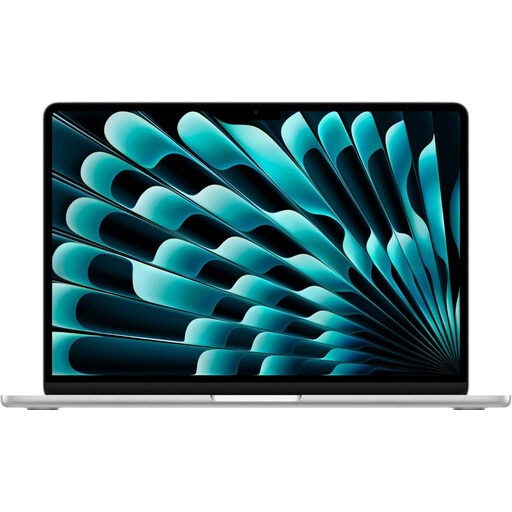
Apple 15-inch MacBook Air (2026) M5, 16GB/1TB, Silver
The 15-inch built-in screen suits macOS-compatible poster work when you want more layout space away from your main desk. This variant names 16GB unified memory and a 1TB SSD; Apple lists support for up to two external displays for the current MacBook Air.
Confirm institution software and printer compatibility. Check whether your existing HDMI or USB-A accessories need an adapter or dock for this setup.
View on Joybuy
Common questions
Do I need a separate monitor to edit a poster at a standing desk?
Not necessarily: a laptop screen can serve for shorter sessions, but plan the screen and input devices together for prolonged editing. The Health and Safety Executive advises a separate keyboard and mouse when a laptop screen is raised on a riser, or a separate display.
How much RAM should I consider for Illustrator-based poster work?
Start by checking the full mix of applications and files you will keep open. Adobe describes 8GB as a good Illustrator baseline, particularly with multiple applications running, and says more RAM can improve performance; compare the exact laptop configuration rather than treating that baseline as a guarantee for your workflow.
Will the laptop screen match my printed poster’s colours?
Published display colour coverage does not guarantee a match to a particular print service, paper or printer. Check the printer’s file and colour requirements and arrange a print proof when colour decisions are critical.
What should I do with an old laptop in the UK?
Use an appropriate electrical-equipment recycling or take-back route rather than putting it in general waste, and remove personal data before handing it over. GOV.UK describes the UK’s waste electrical and electronic equipment framework as intended to reduce disposal by incineration or landfill.


