External-display rhythm players
If you plan to use a TV or desktop monitor, check that the laptop output, display input and cable can deliver the resolution and refresh rate you want together.


For rhythm games on a TV or desktop monitor, choose a gaming laptop by checking its exact display output against the screen, cable, resolution and refresh rate you intend to use. An 18-inch laptop gives you a larger built-in screen without a separate display, but its panel specifications do not establish what it can show on an external screen.
If you plan to use a TV or desktop monitor, check that the laptop output, display input and cable can deliver the resolution and refresh rate you want together.
If fast note patterns make visual timing a priority, check the mode available on your connected display. Microsoft Support says the refresh rates shown in Windows depend on what that display supports.
If you move between places or cannot keep a separate display set up, an 18-inch laptop may suit your routine. ASUS ROG UK lists an 18-inch panel for the Strix G18 (2026); it remains a laptop-sized screen rather than a TV or desktop monitor.
Choose it when: You want a screen substantially larger than a laptop panel and can check the exact laptop output against your intended display.
Trade-off: The supported resolution and refresh rate depend on the complete connection, not the laptop panel’s advertised refresh rate.
Choose it when: You need a larger built-in play area but regularly move the laptop or have no space for a separate screen.
Trade-off: You avoid an external display for everyday play, but an 18-inch panel does not provide the scale of a large TV or desktop monitor.
| Concern | What to check | Who this matters to |
|---|---|---|
| External connection | Check the exact laptop’s display-output specification and the intended screen’s input; confirm the cable and desired display mode. | If I am connecting to a TV, I want to know that the complete connection can provide a usable picture at my chosen settings. Around 33% of consumers put connection certainty first. |
| Refresh rate | Check the external screen’s supported rates at your chosen resolution, then inspect the connected display in Windows Advanced display settings. | Fast note patterns make clear, responsive visual cues my main concern. For around 27% of consumers, refresh behaviour is the primary need. |
| Image detail | Check which resolution and refresh-rate combinations the external screen supports; Microsoft Support notes that selecting some rates changes the resolution. | On a larger screen, I care about the detail I can see without assuming that my preferred refresh rate is available at the same resolution. Image presentation comes first for around 27% of consumers. |
| Built-in screen size | Compare the chosen variant’s panel size and specified refresh mode with how often you will play away from an external screen. | I need more screen space wherever I take the laptop, rather than relying on a separate display. Around 13% of consumers make that their primary concern. |
A 240Hz or 300Hz internal-panel specification does not establish the rate available on a connected screen. Microsoft Support says available rates depend on the display, and selecting some rates changes the resolution.
Check the exact laptop output, screen input and cable, then inspect the external screen’s reported resolution and refresh rate after connecting it.
Output capability varies by model and port. ASUS ROG UK explicitly identifies display-capable USB-C and Thunderbolt ports on the cited Strix G16 (2026) configuration; that does not describe every gaming laptop.
Read the technical specification for the exact configuration and identify which ports support an external display.
A model name alone does not identify the plug supplied with a particular configuration. Lenovo UK, for example, specifies a UK 3-pin adapter for its cited Legion Pro 7i Gen 10 configuration.
Confirm the supplied plug and product documentation for the configuration you are ordering, particularly if it will be delivered to or used in Northern Ireland.
The cited Strix configurations illustrate both a documented external-display connection and an 18-inch built-in-screen option.
Lenovo UK lists a Legion Pro 7i Gen 10 configuration with a 16-inch, 2560 × 1600 OLED display specified at 240Hz.
HP UK presents OMEN gaming-laptop configurations with 16-inch panels specified at up to 240Hz.
These gaming laptops are choices to consider if you intend to connect a separate large screen. Compare each laptop’s exact output with your TV or monitor before relying on a particular external resolution or refresh rate.
 No image available
Consider this 15.6-inch laptop if your larger play screen will be a separate display; confirm the output mode you need with that screen and cable.
The product name specifies an AMD Ryzen 7 170, 16GB RAM, 1TB SSD and GeForce RTX 5050. Its 144Hz figure describes the built-in display, not a confirmed external-screen mode.
 No image available
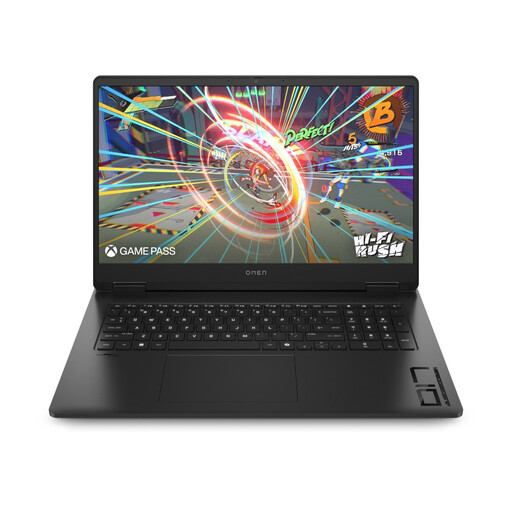
Consider its larger built-in screen if you will also play away from your TV or monitor; check the external display mode independently.
The product name specifies an AMD Ryzen AI 7 350, 16GB RAM, 1TB SSD and Windows 11 Home. Product details describe the built-in display as 144Hz; that is not a confirmed rate for a connected screen.
 No image available
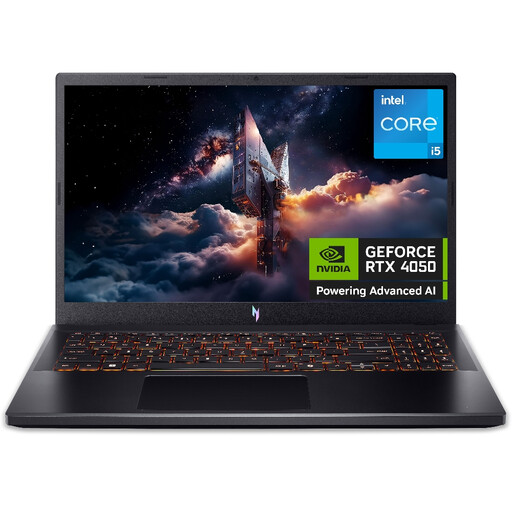
Consider this 15.6-inch laptop for a separate-screen setup only after checking its output against your intended display and cable.
The product name specifies an Intel Core i5-13420H, 16GB RAM and 512GB SSD. Confirm the built-in panel’s refresh rate before purchase: the product information gives conflicting 144Hz and 165Hz figures.
Not on the strength of the laptop name or internal-panel specification alone. NVIDIA describes 4K at 120 frames per second over HDMI 2.1 for compatible GeForce systems; check the exact laptop output, display input, cable and available Windows mode for your setup.
With the screen connected, open Windows Settings, go to System, Display, then Advanced display, and select the external screen to inspect its resolution and refresh rate. Microsoft Support notes that choosing certain available rates can change the resolution.
An 18-inch laptop suits play that needs a larger built-in screen without a separate display; choose an external TV or monitor if you mean a substantially larger viewing area. ASUS ROG UK specifies an 18-inch display for the cited Strix G18 (2026) configuration, but its panel refresh rate does not establish an external-screen mode.
Confirm the supplied plug and documentation for the exact laptop and its destination. GOV.UK guidance for Great Britain recognises CE marking alongside UKCA within its applicable product rules; check the requirements for the particular product rather than applying Great Britain guidance to Northern Ireland.