For timing-sensitive rhythm games, check measured input lag and pixel response at the resolution and refresh rate you will use; the highest advertised refresh rate alone cannot settle the choice. An FHD esports monitor suits a PC that can deliver very high frame rates, while a high-refresh QHD display offers more image detail for mixed use. On a console, start with the monitor’s supported HDMI, 120 Hz and variable refresh rate (VRR) modes.
Who is this for?
Timing-first PC rhythm players
If visual feedback and readable motion determine your choice, compare input-lag and response tests at the mode your PC can run. RTINGS treats input lag, refresh rate and pixel response as distinct monitor characteristics, so a headline refresh figure cannot stand in for all three.
Mixed-use rhythm and PC gamers
If the screen also serves other games or desktop work, resolution and available refresh-rate modes matter alongside timing. LG’s 27GX790B-B, for example, specifies separate QHD 540 Hz and HD 720 Hz modes rather than one refresh rate at every resolution.
Console rhythm-game players
For PS5 or Xbox Series play, establish what the game, console and monitor can use over HDMI before focusing on a PC-oriented maximum refresh rate. PlayStation and Xbox support guidance sets out conditions for their respective 120 Hz output modes.
What matters when choosing?
Choose the screen route that fits your main use, then check timing and connection behaviour at the mode you intend to run. A fast PC setup, mixed-use display and console setup can call for different trade-offs.
FHD esports TN
Consider it when: Your PC can deliver very high frame rates and you prefer a compact 24.1-inch screen with motion-focused features. ZOWIE specifies 540 Hz for the XL2586X; ASUS specifies a 540 Hz overclocked mode for the PG248QP.
Trade-off: Both cited models are FHD rather than QHD. ASUS says the PG248QP’s 540 Hz overclocked mode requires an NVIDIA RTX 20-series-or-newer graphics card and the latest Windows OS.
High-refresh QHD OLED
Consider it when: You want QHD detail for other games and desktop use as well as high-refresh rhythm-game play. LG specifies QHD 540 Hz and HD 720 Hz modes for its 27-inch 27GX790B-B.
Trade-off: The 720 Hz figure applies to its HD mode, not QHD. Extended display of static, high-contrast elements is also an OLED-care consideration; review the guidance for the exact model.
| Concern |
What to check |
Who this matters to |
| Display delay |
Compare independent input-lag results at the resolution and refresh rate you plan to use; confirm your connection supports that mode. |
If timing feedback drives my choice, I want the monitor’s contribution to visual delay kept low. Around 33% of consumers put display delay first. |
| Motion clarity |
Look at response and overshoot tests at your intended refresh rate and overdrive setting, rather than a single advertised response-time figure. |
Dense, fast note patterns make blur or inverse ghosting particularly distracting for me; around 27% of consumers primarily seek clearer motion. |
| Image versatility |
Check the native resolution and the refresh rate available at that resolution, alongside the mode your graphics hardware can run. |
I use the same screen beyond rhythm games, so image detail and a usable high-refresh mode both matter. Roughly 27% of consumers prioritise that flexibility. |
| Console output |
Confirm the monitor’s HDMI modes at your intended resolution, including 120 Hz and VRR support where relevant to the console and game. |
On a console, I need the game and display to reach the intended output mode before extra PC refresh headroom matters; about 13% of consumers put compatibility first. |
Buying pitfalls
-
Assuming the headline refresh rate works in every setup
A top mode can depend on resolution, port, cable and source device. ASUS says the PG248QP’s 540 Hz overclocked mode requires an NVIDIA RTX 20-series-or-newer graphics card and the latest Windows OS.
Check the complete requirements for the resolution and refresh rate you intend to select before choosing the monitor.
-
Using one response-time number as a motion verdict
Pixel response and overshoot both affect moving images. RTINGS explains that slow response can produce blur or inverse ghosting, so an advertised figure does not show how a monitor behaves across settings.
Compare independent response and overshoot results at your target refresh rate where available.
-
Choosing a PC refresh specification for console-only play
A 540 Hz monitor specification does not mean a PS5 or Xbox Series game will output at 540 Hz. The usable mode depends on the game, console, display and HDMI connection.
Check the intended resolution and 120 Hz or VRR support on the monitor’s HDMI input first.
-
Overlooking fixed interface elements on an OLED screen
LG’s OLED guidance notes a risk of image retention or burn-in when static, high-contrast images remain on screen for extended periods. That matters if game interfaces or desktop elements stay fixed during long sessions.
Review the exact monitor’s OLED-care features and usage guidance as part of the choice.
Relevant brands to consider
ZOWIE by BenQ
The UK-listed XL2586X is a 24.1-inch FHD esports monitor for players considering a compact, high-refresh Fast TN screen.
- ZOWIE specifies 540 Hz, DyAc 2, height adjustment and esports-oriented controls for the XL2586X.
- It is FHD, not QHD. ZOWIE’s comparative motion-clarity claims should not replace independent tests at the settings you will use.
ASUS ROG
The 24.1-inch FHD ROG Swift Pro PG248QP is an esports-focused option with an overclocked high-refresh mode.
- ASUS specifies a 540 Hz overclocked Esports-TN panel, a G-SYNC processor, ULMB 2 and Reflex Analyzer.
- ASUS requires an NVIDIA RTX 20-series-or-newer graphics card and the latest Windows OS for 540 Hz overclocked operation; the model is not a QHD alternative.
LG UltraGear
LG’s UK-listed 27GX790B-B offers a 27-inch QHD OLED route for rhythm games alongside other games and desktop use.
- LG specifies QHD 540 Hz and HD 720 Hz modes, plus G-SYNC Compatible, AdaptiveSync and FreeSync Premium Pro support for this model.
- Check which mode your system can run. For extended static-image use, consult the exact model’s OLED-care guidance rather than assuming image-retention risk is eliminated.
Joybuy monitor choices
These monitors offer FHD, QHD or 4K choices for high-refresh PC play and mixed use. For a console setup, check each model’s supported HDMI modes at your intended resolution before choosing.
 No image available
LG UltraGear G8 27G850A 27-inch 4K Nano IPS monitor
Consider its dual modes if you alternate between detailed viewing and higher-refresh rhythm-game play. The product name specifies 240 Hz and 480 Hz modes; the 480 Hz mode is at 1080p, not 4K.
If timing performance determines your choice, compare independent input-lag and pixel-response results at the mode you intend to use.
View on Joybuy
 No image available
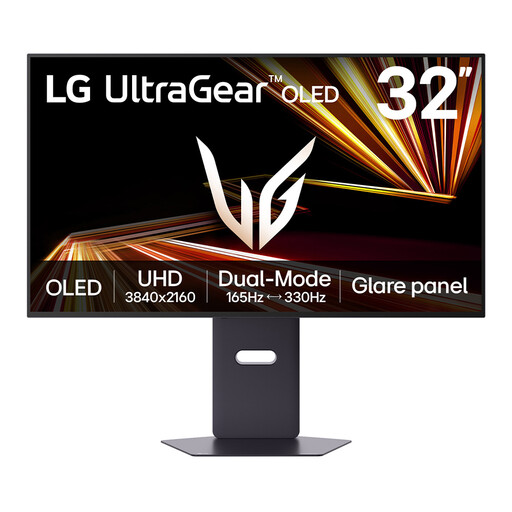
LG UltraGear 32GX850A-B 32-inch 4K OLED monitor
Its dual-mode design suits consumers choosing between 4K viewing and a faster FHD mode. The stated maximum of 330 Hz applies at FHD; confirm the resolution and refresh rate you will use.
Consider the guidance on prolonged static images if rhythm-game interfaces will remain fixed on screen, and check independent timing tests for your intended mode.
View on Joybuy
 No image available
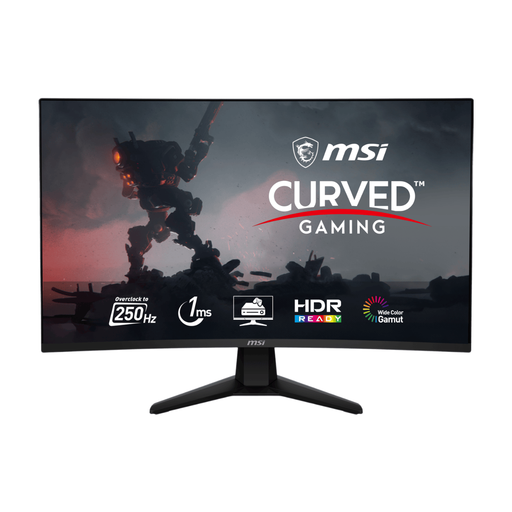
MSI MAG 32C6X 32-inch curved FHD monitor
This FHD monitor is a choice for PC play if you want a curved screen and can use its stated high-refresh mode. The product name specifies 250 Hz overclocked operation and Adaptive Sync; the 250 Hz mode is specified over DisplayPort.
Confirm the connection and settings you need, and compare independent input-lag and motion tests if timing is decisive.
View on Joybuy
 No image available
HKC G27H2DPro 27-inch QHD Fast IPS monitor
Consider this model if QHD detail and a stated 220 Hz refresh rate both matter to your PC setup. Its product name specifies a 2560 × 1440 Fast IPS display.
Confirm the refresh rate available through your chosen connection; for console use, check the intended 120 Hz and VRR modes separately.
View on Joybuy
 No image available
CRUA 32-inch 1500R curved QHD monitor, 165 Hz
Its 2560 × 1440 resolution and curved format suit consumers who want QHD viewing alongside rhythm-game play. The product name specifies 165 Hz and Adaptive Sync.
The stated maximum 165 Hz at QHD uses the included DisplayPort cable; confirm the mode your source device and connection can run.
View on Joybuy
Frequently asked questions
Is a 540 Hz monitor automatically the right choice for rhythm games?
No. A 540 Hz mode matters only if the PC, connection and game can use it, and it does not establish the monitor’s input lag or pixel response. Compare independent tests at the mode you will actually select.
How do I check that my monitor is running at the intended refresh rate?
Select the intended mode in your PC or console settings and confirm the monitor reports that mode. On PS5, PlayStation directs users to the Screen and Video settings to inspect the connected display’s supported video-output options.
Will a PS5 or Xbox Series console use a monitor’s 540 Hz mode?
Do not choose a console monitor on the assumption that it will use 540 Hz. PlayStation describes 120 Hz output for compatible PS5 games and displays; Xbox Support describes 4K at 120 frames per second on Xbox Series X when its stated cable and HDMI 2.1 display conditions are met. Check the individual game and monitor’s HDMI modes.
What cable does Xbox Series X need for 4K at 120 Hz?
Xbox Support specifies an Ultra High Speed HDMI cable supporting HDMI 2.1, together with an Xbox Series X and an HDMI 2.1-capable display. Confirm that the monitor supports the intended mode through the HDMI input you will use.


