Timing-first rhythm-game players
If tracking fast note patterns is your priority, look beyond the advertised refresh rate to input-lag and pixel-response evidence. RTINGS identifies both as relevant to reaction-based gaming.


Choose a monitor whose resolution and refresh rate your computer can use without making the screen awkward for daily work. A 27-inch QHD OLED offers a high-refresh work-and-play route; a smaller 400Hz Fast TN screen suits a compact competitive setup, while a dual-mode OLED reaches its highest stated refresh rate at a lower resolution. Refresh rate alone does not establish low input lag, so check model-specific measurements where available.
If tracking fast note patterns is your priority, look beyond the advertised refresh rate to input-lag and pixel-response evidence. RTINGS identifies both as relevant to reaction-based gaming.
If one screen handles documents and games, consider desktop resolution, screen positioning and reflections alongside gaming modes. The Health and Safety Executive advises looking at the whole home workstation, not just the display.
If you prefer a smaller esports-style screen, a 24.5-inch-class, 400Hz model such as the ZOWIE XL2566X+ is a route to consider. Check that its screen size also works for your office tasks.
Decide which display mode your computer can use, then weigh motion handling against workspace, screen positioning and room lighting.
Consider it when: You want QHD desktop space and a very high stated refresh rate without changing to a lower-resolution mode.
Trade-off: Using that mode still depends on your computer, connection and game output.
Consider it when: You want QHD for work but would switch to HD for a higher-refresh gaming mode; ASUS specifies 540Hz at QHD and 720Hz at HD for the PG27AQWP-W.
Trade-off: The 720Hz mode lowers resolution, and the model’s glossy surface makes room reflections worth checking.
Consider it when: A smaller, competition-oriented screen matters more to you than a 27-inch QHD work display.
Trade-off: ZOWIE positions the XL2566X+ around FPS esports; its motion-clarity claims are not a guarantee of rhythm-game performance.
| Concern | What to check | Who this matters to |
|---|---|---|
| Timing and motion | Check the refresh rate at your chosen resolution and seek model-specific input-lag and response-time tests. A manufacturer’s GtG figure is not an input-lag measurement. | When fast note patterns are my main reason for upgrading, I want to judge responsiveness rather than choose by the largest Hz number. Around 42% of consumers would put timing and motion first. |
| Daily work | Compare screen size and resolution, stand adjustment or mounting options, and reflections in your room. | I need enough usable desktop space for work and a screen I can position comfortably before I consider specialist gaming modes. Daily work would be the primary concern for around 33% of consumers. |
| Setup compatibility | Identify your graphics hardware, output port and cable; confirm the available display modes after connection. Check hardware and settings before relying on variable refresh rate (VRR). | If my computer cannot expose the mode I intend to use, the monitor’s headline specification will not help my setup. Compatibility would come first for around 25% of consumers. |
A high refresh rate does not by itself establish low input lag or fast pixel transitions. RTINGS treats input lag as a separate consideration for reaction-based games.
Compare modes at the resolution you intend to use, then look for measurements of the exact model where available. Treat advertised GtG response times as manufacturer specifications.
Microsoft says the refresh-rate choices shown in Windows depend on both the display and computer. VRR also requires compatible graphics hardware and settings.
Identify the graphics card, port and cable you plan to use before buying. Once connected, select the monitor in Advanced display settings and check its available modes.
A gaming specification does not tell you whether the screen will sit well on your desk. The Health and Safety Executive’s home-working guidance addresses screen placement, furniture and lighting as parts of the workstation.
Check desk depth, stand adjustment or mounting, your viewing position and reflections from the room’s lighting.
Microsoft notes that video playback can stall or stutter when connected displays use different refresh rates.
If work video becomes unstable after adding a high-refresh monitor, test the available refresh-rate settings across the connected displays.
LG’s 27GX790A-B is a 27-inch QHD OLED option specified at 480Hz for a desk shared between work and gaming.
The PG27AQWP-W offers distinct QHD 540Hz and HD 720Hz modes for buyers willing to change resolution between work and competitive play.
The ZOWIE XL2566X+ is a 24.5-inch-class, 400Hz Fast TN option aimed at compact esports setups.
These monitors offer different ways to share a desk between gaming and office tasks: two LG models list dual display modes, while the larger Samsung OLED is another work-and-play screen to assess against your desk space and computer.
 No image available
Consider this dual-mode screen if you want a 4K desktop for work and a separate high-refresh option for rhythm games.
The product title lists 240Hz/480Hz modes, a 1ms GtG rating, AMD FreeSync Premium Pro, DisplayPort 2.1 and HDMI 2.1. The 480Hz mode is listed at Full HD rather than 4K; confirm that your computer and connection can use the mode you want. The GtG rating is not an input-lag measurement.
 No image available
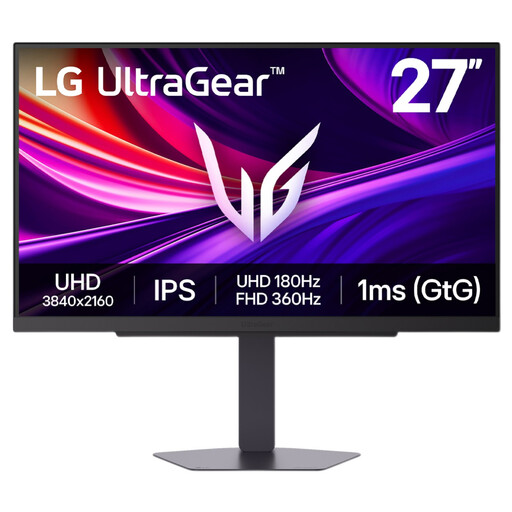
Consider this model if you want a 4K screen for office tasks alongside a higher-refresh gaming mode.
The product title identifies a 27-inch IPS display with dual modes and a stated maximum of 360Hz. That maximum is listed for Full HD rather than 4K; check which resolution and refresh-rate combinations your computer exposes.
 No image available
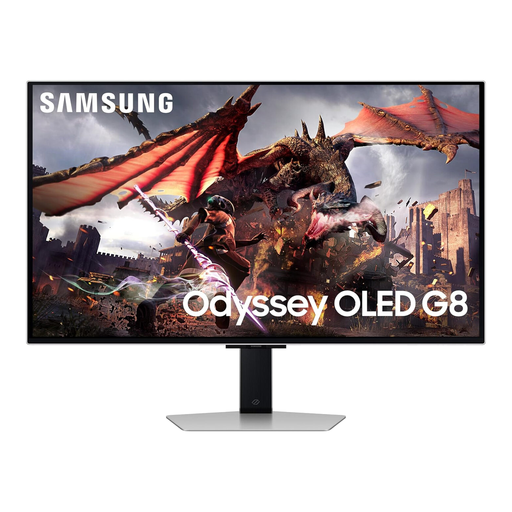
Consider this larger OLED screen if a 32-inch Ultra HD display fits both your office tasks and the space available on your desk.
Check your viewing position and the refresh rate your computer can use before choosing it for rhythm games. The product title identifies the screen as a Smart Gaming Monitor but does not, by itself, establish its input-lag performance.
Not necessarily: choose such a mode only if your computer and preferred game settings can use it and its resolution suits your work desk. RTINGS notes that higher refresh rates can make gaming feel smoother, but input lag and response time remain separate checks for reaction-based games.
Select the monitor in Windows display settings and check its available modes under Advanced display. Microsoft says the choices shown depend on the display and computer, so check the active setting after connecting your intended cable.
No: VRR depends on the monitor, graphics hardware and settings working together. NVIDIA specifies Pascal-class or later graphics hardware for G-SYNC Compatible displays, while AMD specifies a FreeSync-capable monitor and supported Radeon graphics or an AMD A-Series APU for FreeSync.
It can affect how you arrange and assess your workstation, rather than prescribing a particular gaming monitor. The UK Health and Safety Executive says display-screen-equipment rules can apply to permanent or long-term home workers; consider screen position, furniture and lighting through the relevant workplace assessment process.