Sort out the window reflections before choosing a monitor: position the screen to avoid direct glare and use blinds or curtains where needed, as the Health and Safety Executive advises. Then look for a screen surface and stand that suit the desk. QHD or 4K may help with dense rota grids if text remains comfortable to read; USB-C docking is useful only when the work laptop supports the required video and charging functions.
Who this setup suits
Window-side rota planners
Staff reading shift names and times beside a bright window need to control reflections and position the screen comfortably before relying on display specifications. The Health and Safety Executive advises arranging the desk and screen to avoid glare and bright reflections.
Dense-grid coordinators
Planners who keep broad rotas, messages and documents open together may want more native screen space. They still need to check that the rota software remains legible at a comfortable text size.
Shared-desk laptop users
Staff moving between laptop-based desks may value an adjustable screen position and fewer separate connections. USB-C video, charging and hub functions need to match the particular laptop and desk setup.
What matters when choosing
Start with the screen’s position relative to the window, then check how much rota information must fit on screen and whether the laptop needs a docking connection.
| Concern |
What to check |
Who this matters to |
| Glare and readability |
Check the screen’s position relative to the window, available blinds or curtains, and the exact model’s surface treatment and stand adjustment. |
If reflections hide shift names, I need a workable screen position before comparing resolutions; around 42% of consumers put glare control first. |
| Rota workspace |
Compare native resolution with the rota application’s layout, then check text size at the scaling setting you would use. |
When a rota grid competes with messages and documents for space, I want to see more without shrinking the text too far. Around 33% of consumers make workspace their primary concern. |
| Desk adjustment and connections |
Check the stand’s adjustment and, for a laptop desk, its USB-C video and charging compatibility. |
At a shared desk, I need to position the screen for my seat and connect my work laptop reliably; around 25% of consumers prioritise desk adjustment and connectivity. |
Mistakes to avoid
-
Buying a new monitor before checking the window position
A different panel can still reflect the window or leave the viewer facing a bright background.
Try the intended screen position first. The Health and Safety Executive advises arranging the desk and screen to avoid glare or bright reflections; consider blinds, curtains or a desk move where needed.
-
Treating a matte or eye-care label as a comfort guarantee
Surface treatment is only one part of the setup; light, screen position and settings also affect the workstation. A manufacturer’s feature label does not establish how every user will experience it.
Check the exact model’s features, then assess the installed desk and adjust the screen angle, surrounding light and display settings.
-
Choosing a large Full HD screen for a wide rota
Physical size alone does not tell you how much native workspace a display provides. A wide rota may need more space than a Full HD layout allows at a comfortable text size.
View a representative rota at the proposed resolution and scaling setting before choosing one monitor for multiple planners.
-
Assuming every USB-C laptop will dock in the same way
A monitor’s USB-C connection or power-delivery rating does not establish that a particular laptop will carry video and charge as required.
Check the laptop’s USB-C video capability, charging requirement and required cable before ordering a shared-desk setup.
Brands to consider for this setup
Dell
Dell’s P2725QE is a business-monitor reference for planners considering a 27-inch 4K workspace and USB-C hub connectivity.
- Dell UK lists the P2725QE with a 3840 × 2160 resolution; its product information also describes USB-C power delivery up to 90W and Ethernet.
- For a one-cable desk, check that the work laptop supports the required USB-C video and charging functions. Resolution and docking do not resolve a reflection from the window.
BenQ
BenQ offers models relevant to text-heavy desks where screen surface and positioning deserve attention.
- BenQ’s RD280UA specifications list a Nano Matte coating, 3840 × 2560 resolution, 350-nit typical brightness, 130 mm height adjustment and 90W USB-C power delivery.
- Those are specifications for the RD280UA, not a guarantee that its coating will eliminate direct window reflections or suit every rota layout.
LG
LG’s 27BA850-B is a reference for desks that also need built-in conferencing equipment and adjustable positioning.
- LG UK lists a webcam, microphone, speakers, RJ45, USB-C power delivery up to 90W and height, tilt, swivel and pivot adjustment for the 27BA850-B.
- Its 27-inch Full HD display has less native workspace than the higher-resolution models discussed here; check a broad rota in the intended software.
Monitors to consider on Joybuy
These monitors offer different starting points for window-side rota desks, from Full HD displays to higher-resolution options for dense grids. Check screen placement for every model, then compare the specific surface, stand and laptop connections you need.
 No image available
ASUS ProArt PA278CV IPS WQHD monitor
Consider its WQHD display if a rota grid needs more native workspace than Full HD. Check that names and time slots remain comfortable to read at your chosen scaling setting.
For the window-side position, assess reflections at the desk rather than relying on the monitor’s surface treatment alone.
View on Joybuy
 No image available
iiyama ProLite XUB2792UHSU-B6 27-inch 4K UHD monitor
The 27-inch 4K UHD format is worth considering when broad rotas and other windows need space. Check the rota software at a readable scaling setting.
Confirm the exact screen surface for the window-side position. If you intend to dock a laptop, also check whether its USB-C connection meets your video and charging needs.
View on Joybuy
 No image available
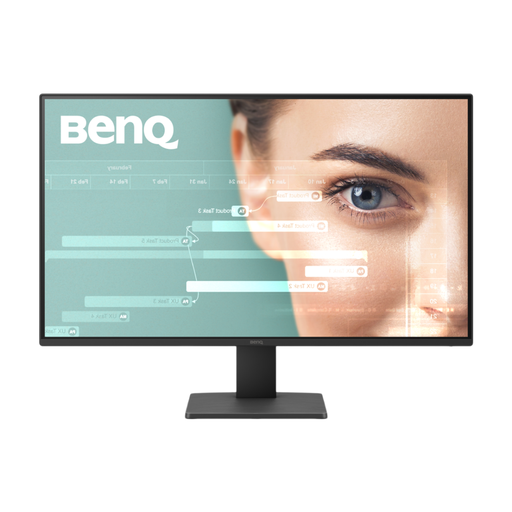
BenQ GW2791 27-inch IPS Full HD 100Hz monitor
This Full HD option may suit a straightforward rota layout; check a representative grid before choosing it for wide schedules.
Confirm that the available screen positioning works beside the window, particularly if the desk cannot be moved.
View on Joybuy
 No image available
MSI MD272UPSW 27-inch 4K UHD Smart Monitor with Google TV, Dolby Audio and USB-C 65W
The 4K UHD display may suit dense rota grids if the application remains legible at your preferred scaling setting.
Check the screen surface for the intended light conditions. For a laptop desk, confirm USB-C video and charging compatibility rather than relying on the 65W label alone.
View on Joybuy
 No image available
iiyama ProLite XB2492HSU 24-inch Full HD monitor
A 24-inch Full HD format may be sufficient for a simpler rota view; open the actual schedule to check how much of it fits at a readable text size.
Confirm the screen surface and positioning options for the window-side desk. The Matte Black colour description does not establish an anti-glare screen coating.
View on Joybuy
Frequently asked questions
Will a brighter monitor solve reflections from the window?
Not by itself: position the desk and screen to avoid glare or bright reflections before comparing brightness figures. The Health and Safety Executive also advises adjusting blinds or curtains where intrusive light remains; a screen coating can be considered alongside those changes, not instead of them.
Does UK display-screen law specify a monitor size or resolution for rota work?
The cited Display Screen Equipment Regulations do not set a monitor size or resolution for this task. Where those regulations apply, their workstation requirements include a screen free from reflective glare and reflections liable to cause discomfort; the suitable setup depends on the work and its lighting.
What should an employer check for staff who regularly plan rotas on screen?
Assess the workstation and reduce identified risks where staff regularly use display screen equipment as a significant part of their normal work. The Health and Safety Executive’s guidance makes screen position and reflections practical parts of that assessment.
Is USB-C power delivery necessary for a rota-planning monitor?
Only choose it as a docking feature if a one-cable desk is useful and the work laptop supports the required USB-C video and charging functions. Check the laptop’s charging requirement against the exact monitor and cable before purchase.


