When calls, study and streaming overlap, check the incoming broadband connection before replacing Wi-Fi equipment. A new router may suit a home with broadly adequate coverage, mesh can address weak connections across several rooms, and an extender may be enough for one isolated dead spot. If a wired connection near the router is consistently inadequate, investigate the service with your provider rather than expecting new Wi-Fi equipment to add internet capacity.
Who is choosing?
Multi-room work and study households
Calls need to stay connected in bedrooms, lofts or extensions while others use the internet elsewhere. Ofcom and Which? both identify coverage beyond the router’s immediate area as a reason to assess home Wi-Fi equipment.
Households with overlapping activities
Video calls, lessons, streaming, downloads or gaming may happen together. Ofcom advises checking what others are doing online; the purchasing question is whether the constraint lies with the incoming service, the Wi-Fi connection or both.
Households changing provider equipment
Replacing a hub or adding mesh calls for a check of the broadband connection type and any provider-specific phone or TV arrangement. eero Support documents different setup paths for UK providers and connection types.
What matters when buying?
Separate a slow incoming connection from weak Wi-Fi first. Then choose equipment according to how many rooms need it and whether a dependable wired link can reach them.
Replacement router
Consider when: Coverage is broadly adequate, but the current router appears to be the local weak point.
Trade-off: Ofcom cautions that a third-party router can be harder to set up and may receive less troubleshooting help from the provider.
Mesh system
Consider when: Several separated rooms or floors need a usable connection for calls, learning and entertainment.
Trade-off: Nodes need suitable positions and a usable connection to one another; walls and distance still matter.
Extender or wired access point
Consider when: An extender can reach one isolated weak area, or an Ethernet cable can reach a room that needs an access point.
Trade-off: An extender needs a usable signal at its own position; a wired installation needs a practical cable route.
Provider investigation or service upgrade
Consider when: Tests on a wired device near the router repeatedly show that the incoming connection is inadequate.
Trade-off: A service change does not fix weak Wi-Fi inside the home, and available speeds depend on the property.
| Concern |
What to check |
Who this matters to |
| Coverage across rooms |
Locate the rooms where connections drop and assess node positions; check whether Ethernet can reach a difficult area. |
If calls or lessons move between separated rooms, I need a dependable connection beyond the router’s room. Around 33% of consumers prioritise multi-room coverage. |
| Incoming broadband |
Test with a wired device at different times where practical, then compare the results with the provider’s promised service. |
When every room slows down, I want to know whether the connection entering the home can meet our needs. Around 27% of consumers put incoming broadband capacity first. |
| Simultaneous use |
Note when calls, lessons, streaming or downloads overlap; compare the broadband result with Wi-Fi performance in the rooms being used. |
If Wi-Fi reaches our rooms but calls suffer when other activities start, I need to identify the shared bottleneck. Roughly 27% of consumers prioritise overlapping use. |
| One weak spot |
Confirm the problem is confined to one area and that an intermediate extender position receives a usable signal. |
When only one room has poor reception, I would rather address that spot than change the whole network. Around 13% of consumers make an isolated dead spot their primary concern. |
Mistakes to avoid
-
Buying Wi-Fi equipment before checking the connection
Slowdowns throughout the home can come from the incoming service as well as Wi-Fi. Ofcom advises testing at different times rather than relying on one result.
Test by Ethernet near the router where practical and compare results with the provider’s promised service before choosing a router, mesh kit or extender.
-
Assuming any router works with the provider’s setup
Connection types and provider arrangements differ. eero Support documents distinct UK setups, including configurations that retain provider equipment for particular services.
Check the provider, hub, connection type and any bundled phone or TV service against the chosen product’s setup guidance.
Allow for setup time; retaining provider equipment may also be necessary for some arrangements.
-
Putting a mesh node in a room it cannot reach reliably
A node still needs a suitable link to the rest of the network. TP-Link’s and ASUS’s guidance describes Ethernet backhaul as an option where a cable can be installed.
Plan intermediate positions and test the connection before fixing nodes in place; check the exact model’s wired-backhaul support if cabling is part of the plan.
-
Expecting an extender to increase broadband capacity
Which? presents extenders as a way to address Wi-Fi reach, not the speed of the incoming service. An extender also needs a usable signal from the main router.
Use one for a limited coverage gap; assess mesh or a wired access point for wider gaps, and investigate the provider if the wired connection is inadequate.
Brands to consider for home Wi-Fi
TP-Link Deco
A mesh family relevant to households planning a network across several rooms.
- TP-Link describes Deco units as forming one network and documents Ethernet backhaul for supported setups.
- Check the particular model’s node count, ports, backhaul support and requirements for the existing modem or router.
eero
A mesh option with setup guidance covering several UK provider environments.
- eero Support explains different approaches for connection types and provider hubs.
- The appropriate arrangement depends on the provider and may involve settings or equipment needed for phone or TV services.
NETGEAR Orbi
A mesh family to assess where several rooms need coverage.
- NETGEAR describes backhaul features on selected Orbi products; check which arrangement the exact model uses.
- The brand’s coverage claims do not establish results in a particular property; placement and the incoming service still matter.
ASUS ZenWiFi / AiMesh
A mesh route for households willing to plan operating modes and, where practical, Ethernet connections.
- ASUS publishes Ethernet-backhaul setup guidance for its documented configurations.
- Check the chosen model’s mode and the switch and cable requirements for the intended layout.
Joybuy mesh options for multiple rooms
These mesh systems are relevant when several rooms need Wi-Fi for work, study or entertainment. Choose the number of units for your layout, and check how the chosen system connects to your provider’s equipment before buying.
 No image available
TP-Link Deco BE22 BE3600 Wi-Fi 7, 3-pack
Consider this mesh set when Wi-Fi is needed across several rooms. The named configuration contains three units; check their proposed positions and confirm provider compatibility before replacing an existing hub.
View on Joybuy
 No image available
NETGEAR Orbi 370 RBE373 WiFi 7, 3-pack
The three-unit configuration is relevant when several rooms need coverage. Its name specifies dual-band BE3600 and 2.5Gbps Ethernet; check the port arrangement, node-link options and connection to your existing modem or gateway for your intended setup.
View on Joybuy
 No image available
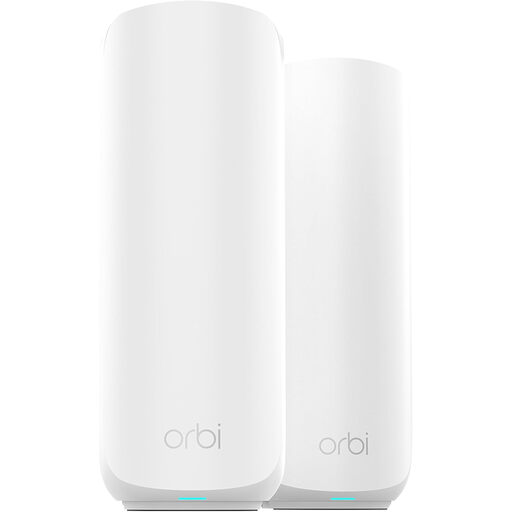
ORBI3 DB WiFi 7 2-pack (RBE372)
Consider this two-unit mesh bundle if you can position a second unit to reach the weak area. Check its ports, node-link arrangement and provider setup against the connection you have at home.
View on Joybuy
 No image available
TP-Link Deco BE25 WiFi 7, 3-pack
This three-unit mesh set is relevant to a multi-room layout. If you plan to connect units by cable, confirm wired-backhaul support for the BE25 configuration and check how it works with your provider’s equipment.
View on Joybuy
 No image available
TP-Link Deco BE65 BE9300 Tri-Band Wi-Fi 7, 3-pack
The three-unit configuration offers another mesh option for rooms spread across the home. Its name specifies tri-band Wi-Fi 7; check port details, wired-backhaul support and provider compatibility if those features affect your installation.
View on Joybuy
Common questions
Do I need new Wi-Fi equipment or faster broadband?
Start with a wired test near the router where practical, repeated at different times. Ofcom advises comparing connection performance with the service promised by your provider; if the incoming connection is consistently inadequate, investigate that before expecting mesh or an extender to help.
Can I use mesh with my provider’s router?
A mesh system can work alongside provider equipment, but the correct setup depends on the service and hub. eero Support documents different UK arrangements, including PPPoE, bridge mode and double NAT; check the specific provider setup and any phone or TV service before buying.
When is Ethernet backhaul worth considering?
Consider it when a practical cable route connects mesh nodes across a difficult layout. TP-Link and ASUS describe wired node connections in their setup guidance, but check support and cabling requirements for the exact system you choose.
What should I check before adding an extender?
Check that the weak signal is confined to one area and that the extender can sit where it still receives a usable signal from the router. If several distant rooms need coverage, compare mesh or a wired access point instead.


