What should you decide before buying?
Settle the provider-agreed ONT position and power supply first, then work out where the router and any wired devices need to be. The right additional hardware depends on whether the problem is router placement, connections in other rooms or compatibility with equipment you already own.
Router beside the ONT
Choose when: The installation point is also a useful position for household Wi-Fi.
Trade-off: It avoids an ONT-to-router cable run, but an enclosed position may leave other rooms poorly served.
Router in another room
Choose when: An internal Ethernet route reaches a more useful router position.
Trade-off: The cable must reach safely, and the router must work with the provider’s connection arrangement.
Router with added mesh or access points
Choose when: The router needs to remain near the ONT but other rooms still need Wi-Fi.
Trade-off: Check the system’s operating mode and whether node locations can use Ethernet; bridge mode can change available features.
| Concern | What to check when buying | Who this matters to |
|---|
| Router position |
Confirm the ONT position and power supply, then check whether Ethernet can reach a useful, less enclosed router position. |
If Wi-Fi needs to reach the rooms we actually use, placing the router beside the fibre entry point may not suit us. Around 36% of consumers put router position and coverage first. |
| Wired connections |
Count the required LAN ports and room connections; check port speeds and Ethernet-backhaul support where relevant. |
For a fixed device or mesh node, I want to know where a dependable cable connection can go. Wired connections are the primary concern for around 29% of consumers. |
| Equipment reuse |
Check the existing router’s Ethernet WAN or documented Full Fibre mode and the provider’s required settings; check access-point or bridge mode for added Wi-Fi hardware. |
Rather than replace my current hub or extender, I need to know whether it can work in the new setup. Around 21% of consumers prioritise reuse and compatibility. |
| Cable route |
Measure the actual internal route, including corners, and check where protection or permission for permanent work is needed. |
A cable across a doorway or an impractical wall route could decide where our equipment can go. Routing and finish come first for around 14% of consumers. |
Joybuy products for mesh and wired expansion
These mesh systems address Wi-Fi in rooms beyond the router’s position; the switches add wired ports after a suitable router. Before choosing either type, settle the ONT connection, power and internal cable route.
 No image available
NETGEAR Orbi 370 RBE373 Wi-Fi 7 Mesh System, 3-Pack
Consider this three-pack if Wi-Fi is needed beyond the main router’s position. The product name specifies dual-band BE3600 and 2.5 Gbps Ethernet; check the WAN connection and provider settings for your installation before using it directly with an ONT.
View on Joybuy
 No image available
TP-Link Deco BE22 BE3600 Wi-Fi 7 Mesh System, 3-Pack
This three-pack is a mesh option for rooms that need Wi-Fi after the fixed connection is installed. Confirm the main unit’s WAN connection and your provider’s settings before planning a direct ONT connection.
View on Joybuy
 No image available
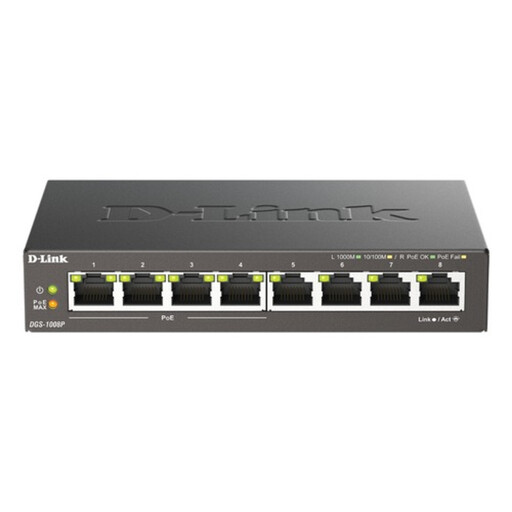
D-Link 8-Port Gigabit PoE Desktop Switch
Use a switch downstream of a suitable router when more wired connections are needed. This model is identified as an eight-port Gigabit PoE switch; check a device’s PoE requirements before relying on the switch to power it.
View on Joybuy
 No image available
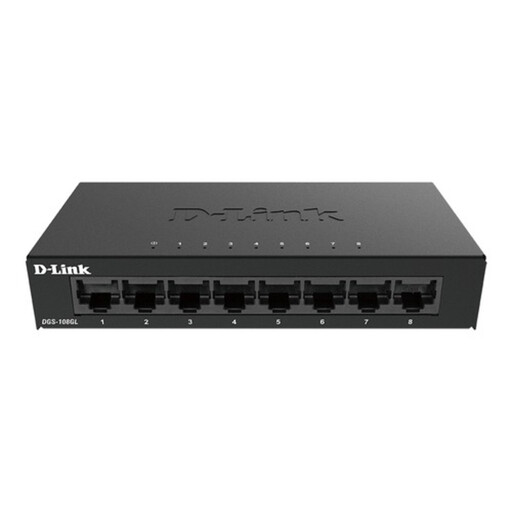
D-Link DGS-108GL 8-Port Gigabit Desktop Switch
Choose an additional switch if several fixed devices need Ethernet connections after the router. The DGS-108GL is an unmanaged eight-port Gigabit model; it does not replace the router between those devices and the ONT.
View on Joybuy
 No image available
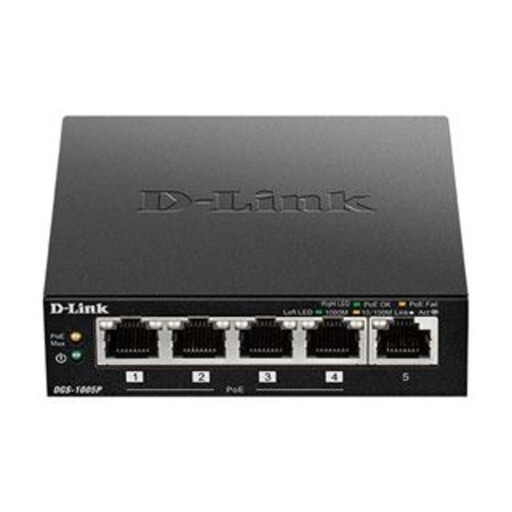
D-Link DGS-1005P 5-Port Gigabit PoE+ Switch
This five-port Gigabit PoE+ switch is an option for adding wired connections after the router, including connections to suitably matched powered devices. Check each device’s power requirements and plan a cable run to its location.
View on Joybuy
Full-fibre setup questions
Who decides where the ONT goes?
For an Openreach Full Fibre installation, discuss the proposed position and cable route with the engineer before installation. Openreach says the ONT and fixed fibre equipment should normally remain in place afterwards, so plan any router relocation using the home-network connection rather than moving that equipment yourself.
Can I put the router upstairs after full fibre is installed?
Yes, if a suitable Ethernet connection can run from the ONT to a compatible router upstairs. Openreach describes router relocation through an RJ45 data connection, and KCOM describes using Ethernet to place a router farther away; confirm your provider’s arrangement and the practical route through your home.
Can I keep my current router or Wi-Fi extender?
You may be able to keep it, but check how it connects and which role it can perform. BT provides Full Fibre mode instructions for its Smart Hub 2, while BT Business specifies an Ethernet WAN port and PPPoE capability for a third-party router in its Openreach ONT setup; requirements for your provider and any extender may differ.
Do I need mesh Wi-Fi with a full-fibre connection?
Not necessarily: consider mesh or access points if one well-positioned router does not reach the rooms you use. If Ethernet reaches the additional nodes, check for wired-backhaul support; eero says wired backhaul can improve speed, stability and latency. Wireless performance still depends on the home and its radio conditions.
What if someone uses a landline or a connected alarm?
Tell the service provider before changing the connection or router. Ofcom advises notifying the provider about care alarms, health pendants, security alarms and other telephone-line-connected devices so you can establish what equipment or arrangements the household needs.


