Start by checking whether a 27-inch QHD monitor fits your desk and whether your PC can run games at 2560 × 1440: that resolution offers more pixels for RTS maps and interface panels than Full HD. In a shared bedroom, weigh brightness control, screen positioning and a headset plan alongside refresh rate, rather than letting the highest advertised Hz figure decide the purchase.
Who is this for?
Map-and-interface-focused RTS players
If you want room for a map, minimap, build menus and unit controls, compare native resolution and screen size before concentrating on the highest refresh figure. LG UK and AOC UK list 27-inch QHD examples at 2560 × 1440.
Shared-bedroom evening players
If the room lighting changes or someone else may be resting nearby, look closely at brightness controls, physical fit and how you will use a headset. Check comfort-related features on the exact model rather than assuming they apply across a brand’s range.
Players using one monitor for several games
If RTS is your main use but you also play faster games, compare QHD models with adaptive sync and the refresh modes your PC can deliver. LG UK and AOC UK list relevant 165Hz and 180Hz models, with features varying by model.
What matters when choosing?
Decide how much map and interface space you need, then check the monitor’s fit, room-light controls and achievable refresh mode for your particular setup.
| Concern | What to check | Who this matters to |
|---|
| Map and interface space |
Compare native resolution and screen size; check that a 27-inch QHD screen fits your desk. |
I want to see the map, minimap and build menus without making everything feel cramped. Around 40% of consumers put interface space first. |
| Changing room light |
Check accessible brightness and contrast controls, and any model-specific low-blue-light or flicker-management modes. |
When I play in the evening, I need to adjust the screen as the room gets darker without relying on a fixed bright setting. For around 30% of consumers, adapting to the room light comes first. |
| Motion across games |
Compare native and overclocked refresh rates separately; confirm the PC, port and cable support the mode you intend to use. |
I mainly play RTS but want camera movement and my other games to feel responsive. Smooth motion is the primary concern for around 20% of consumers. |
| Desk fit and quiet use |
Measure the stand’s footprint; check adjustment or mounting requirements and your headset connection. |
My desk is tight, and I need to position the screen without disturbing someone nearby with room audio. Around 10% of consumers prioritise this setup fit. |
Buying pitfalls
-
Choosing by refresh rate alone
A higher Hz figure does not give an RTS interface more room. A move from Full HD to QHD changes the available pixel space, while a higher refresh mode also depends on the PC producing enough frames to use it.
Settle the resolution and physical fit first, then compare native refresh rates with any advertised overclocked maximum.
Using a higher refresh rate may call for a more capable graphics card or lower in-game settings.
-
Assuming an overclocked mode works with every connection
LG UK specifies that the 200Hz overclocked mode on its 27GS75QN-B requires DisplayPort 1.4 support from both the graphics card and cable.
For the exact monitor you choose, check the resolution and refresh modes supported by your intended input, GPU and cable.
-
Treating every HDR label as equivalent
An HDR or HDR10 label alone does not establish that a monitor meets a VESA DisplayHDR performance tier. VESA reserves its DisplayHDR logo for displays meeting the relevant specification.
If HDR matters to you, check the exact model and its stated certification tier rather than comparing labels alone.
-
Overlooking the stand and audio setup
A mounting pattern tells you how an arm may attach; it does not mean an arm is included. Room speakers may also be unsuitable when another occupant is resting.
Measure the desk and stand, match any arm to the monitor and desk, and confirm how your headset will connect.
Allow space in the setup for an arm or headset if you need one.
Brands to consider for specific monitor features
LG UltraGear
LG UK lists QHD IPS gaming models with different refresh rates and stand adjustments.
- The 27GS75QN-B is specified at 180Hz native refresh, with a 200Hz overclocked mode; the 27GR75Q-B lists height, tilt and pivot adjustment at 165Hz.
- The 27GS75QN-B’s 200Hz mode requires DisplayPort 1.4 support from the graphics card and cable. Check the features of the individual model.
AGON by AOC
AOC UK lists the Q27G4XFAD as a 2560 × 1440 Fast IPS option with 180Hz refresh and a height-adjustable base.
- Its listed resolution, refresh rate and adjustable base provide concrete points to compare for an RTS desk setup.
- AOC’s 0.5ms MPRT and 1ms GtG figures describe different response-time measurements; do not compare them as though they were identical.
ASUS
ASUS United Kingdom lists gaming and Eye Care monitors, including a 23.8-inch Full HD IPS route with 120Hz refresh on the VA249QG.
- The range offers model-by-model options to check for refresh rate, mounting and selectable blue-light filtering.
- Stand, port and comfort-related features vary; confirm them on the monitor you intend to buy.
BenQ
BenQ describes brightness-management features for changing ambient light in its Eye-Care range.
- According to BenQ, its Brightness Intelligence feature adjusts screen brightness in response to lighting conditions.
- This is a brand feature description, not a health claim; check whether the exact gaming model includes the controls you want.
Dell
Dell UK’s G2722HS provides a reference for checking stand, mounting and headset-connection details.
- Dell specifies 100mm height adjustment, a 100 × 100 VESA interface and a headphone output for that model.
- Dell marks the G2722HS unavailable; use its specifications as comparison points, not as an indication of current availability.
Joybuy monitors for this setup
These QHD gaming monitors offer 27-inch and 32-inch options for an RTS setup. Compare their stated panel, refresh and mounting details against your desk, PC and shared-room needs; a larger screen or higher Hz figure is not automatically the better fit.
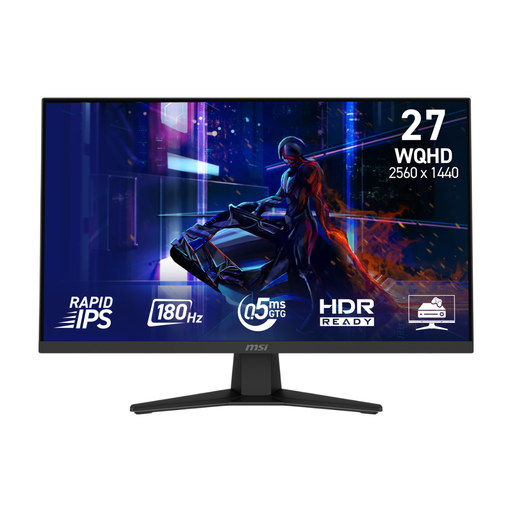 Image unavailable
MSI MAG 274QF 27-inch WQHD Rapid IPS gaming monitor
Consider this 27-inch QHD option if map and interface space matters and the size suits your desk.
The title lists a 180 refresh rate and Adaptive Sync. Check the connection needed for your intended refresh mode, along with stand adjustment and headset connectivity.
View on Joybuy
 Image unavailable
CRUA 32-inch 1500R curved QHD gaming monitor, black
Consider the larger screen if you want a 32-inch display for RTS maps and can accommodate it on your desk.
The title specifies 2560 × 1440, 165Hz, Adaptive Sync and a 100 × 100mm VESA mount pattern. Measure the stand’s footprint and check which connection supports the refresh mode you plan to use.
View on Joybuy
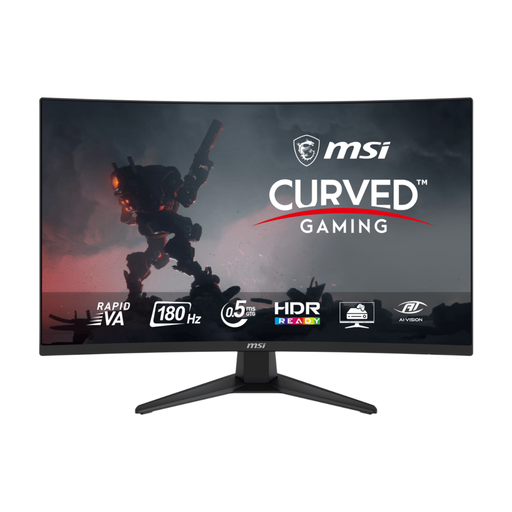 Image unavailable
MSI MAG 321CQF E18 32-inch WQHD curved gaming monitor
This is another 32-inch QHD option to assess if you have room for a larger display.
The title lists 180Hz and AI Vision. Check the screen’s dimensions, the connection required for your chosen refresh mode and how you would connect a headset.
View on Joybuy
 Image unavailable
Samsung Odyssey G6 S27DG612 27-inch QHD OLED gaming monitor
Consider this 27-inch QHD model if you also want to assess a high-refresh OLED display for games beyond RTS.
The title specifies 240Hz. Confirm that your PC and connection support the mode you intend to use, and check the brightness controls and audio connection for your room.
View on Joybuy
 Image unavailable
HKC G27H2DPro 27-inch QHD Fast IPS gaming monitor
This 27-inch QHD option is relevant if you want to compare interface space with a stated high refresh rate.
The title specifies 2560 × 1440 and 220Hz. Check the connection required for that refresh mode, plus stand positioning, reflections and headset connectivity for your bedroom setup.
View on Joybuy
Common questions
Is 27-inch QHD a sensible starting point for RTS games?
Yes, if a 27-inch screen fits your desk and your PC can run games at 2560 × 1440. QHD offers more pixels for maps and interface panels than Full HD; a smaller Full HD monitor may suit a shallower desk or a PC better matched to that resolution.
Do I need a 240Hz monitor for real-time strategy?
Not by default: prioritise resolution, physical fit and a refresh mode your PC can sustain. If you also play faster games, compare higher-refresh options, but check the required connection and whether the extra refresh matters to your use.
How should I set up the screen for evening play?
Position the monitor to reduce reflections and adjust brightness and contrast as the room lighting changes. The Health and Safety Executive advises matching those controls to room conditions; if another person is resting, plan how you will use a headset rather than relying on room speakers.
Does an HDR10 label mean a monitor is DisplayHDR certified?
No. VESA says only displays meeting its DisplayHDR specification may carry the DisplayHDR logo. If certified HDR performance affects your choice, check the exact model and its stated DisplayHDR tier.


