What should you check before choosing?
Start with the school tasks that cannot move to another device, then decide where the child will use it and how their account will be supervised. The Department for Education advises schools to assess devices against educational needs, so confirm the requirements of the child’s own school.
Tablet
Consider it when: Touch-led activities and use in different places matter, and required school work runs on the selected tablet.
Trade-off: Check longer writing tasks, file handling and required accessories before treating it as the only school device.
Laptop
Consider it when: The child needs a portable keyboard-based setup for written work and school platforms.
Trade-off: A laptop category alone does not establish software compatibility; check the school’s requirements and the exact operating system.
Shared desktop
Consider it when: Family members can use one fixed workspace at different times, with separate sign-ins.
Trade-off: It will not cover work that requires the child to take a device away from home.
Communication-led phone
Consider it when: Calls or messages with agreed contacts are the decisive need.
Trade-off: Assess substantial schoolwork and creative tasks separately rather than assuming the phone will cover them.
| Priority | What to check | Your needs |
|---|
| Schoolwork |
Ask which websites, apps, file formats and sign-in methods the school requires. Test them on the proposed device and check whether written work needs a physical keyboard. |
I need the child to complete the school’s actual tasks, not just open its home page. |
| Creative work |
Identify the apps, input tools and file-sharing steps the child will use. Check their compatibility with the exact device and operating system. |
Drawing on a touchscreen and working with longer files call for different setups; which activities will happen regularly? |
| Place of use |
Decide whether the device must travel or can stay at a household workstation. For a desktop, check the required display and input peripherals. |
We can share a fixed workspace, or the child needs to carry their work between places. |
| Communication |
Check the services and devices used for agreed contacts, plus the available account, app and contact settings. Assess a phone separately if calls and messages drive the choice. |
I want the child to reach the right people without making a communication device the default answer to schoolwork. |
| Family controls |
Set up a separate child or supervised account. Check device eligibility, signed-in use and browser coverage for the particular controls you intend to use. |
Settings need to work on the devices and browsers the child will actually use, including a shared computer. |
| Accessibility |
Check the required input methods, assistive tools, peripherals and support with the child and school. Trial a setup where that is possible. |
Specific access needs may decide the device route before screen size or portability does. |
Which account systems matter?
Account setup and control coverage depend on the platform, not just the shape of the device. These are platform references to check against your household setup, not a list of products available below.
Apple
For households considering an iPad, iPhone or Mac alongside Apple Family Sharing.
- Apple Support says a child should have a separate Child Account in the Family Sharing group before family controls are set up.
- Check which controls are available on the family’s particular devices and operating-system versions.
Microsoft
For Windows households considering a family group and Microsoft Family Safety.
- Microsoft Support says app and game limits can extend across connected Windows, Xbox and Android devices.
- Its web and search filters require a supported browser and a signed-in Microsoft account; activity reporting also depends on a connected device.
Google
For Android tablet or phone and Chromebook households considering a supervised Google Account with Family Link.
- Google’s family guidance describes app approvals, account settings and screen-time controls on eligible supervised devices.
- Google says system apps cannot have app limits. Check the child’s device eligibility and settings rather than assuming the same controls apply everywhere.
Joybuy device options
These options cover a portable Chromebook, a child-used tablet and fixed Windows desktops for the school-and-home routes discussed above. Check each device against the child’s school tasks, account setup and required accessories.
 No image available
Acer Chromebook 311 CBOA311-1H, 11.6-inch HD, 4GB RAM, 64GB eMMC
A portable keyboard-based option to assess for school platforms and video calls. The title lists an Intel Celeron N4500 and a 1366 × 768 display; confirm the exact model and specifications before buying because the product descriptions give conflicting model identifiers. Check the school’s apps and the child-account settings needed on this Chromebook.
View on Joybuy
 No image available
Stormforce Defiance Ryzen 7 5700X, 32GB RAM, 2TB SSD, RTX5070
This Windows 11 tower is an option for a fixed household workspace, not work that must travel with the child. Check the school’s software requirements and confirm whether a monitor, keyboard and mouse are included; the listing describes the tower as 24kg.
View on Joybuy
 No image available
Alldocube Kido 8-inch Android 15 tablet, 3GB/32GB, blue case
A handheld option for touch-led activities if the school’s required apps, websites and files work on it. The title lists front and rear cameras and a child-lock feature; check what that feature controls and whether the device supports your intended supervision setup. No charging adapter is included, so check for a compatible one.
View on Joybuy
 No image available
HP M02-0005na OmniDesk, Ryzen 5 8500, 8GB RAM, 1TB SSD
This Windows 11 Home desktop fits a fixed, shared-computer setup. The listing specifies a wireless keyboard and mouse; confirm whether a monitor is included. Check the child’s school platforms, creative apps and any accessibility tools against this setup.
View on Joybuy
 No image available
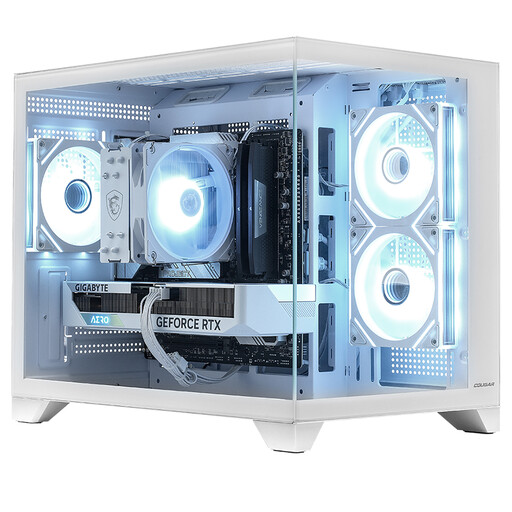
Stormforce White Ryzen 5, 16GB RAM, 1TB SSD, RTX5060Ti
Another fixed Windows 11 desktop to consider for a shared home workspace. The listing specifies Wi-Fi; check school-software compatibility and confirm whether a monitor, keyboard and mouse are included before planning the complete setup.
View on Joybuy
Common questions
Should I buy the same type of device the school uses?
Not automatically. Department for Education guidance says device needs should reflect their educational use; ask the child’s school which websites, apps, sign-ins, files and peripherals are required, then check whether the proposed tablet, laptop or desktop can handle them.
Can a child use a shared household computer with family controls?
A separate child or supervised account makes it possible to apply the relevant account settings without sharing an adult sign-in. Check the platform’s setup requirements: Apple calls for a Child Account in Family Sharing, Microsoft Family Safety depends on the connected family member’s account and device, and Google Family Link uses a supervised Google Account on eligible devices.
Will parental controls cover every website and app?
Do not assume they will. Microsoft says its web filters require a supported browser and signed-in account, while Google says Family Link cannot place app limits on system apps. Test the settings on the child’s actual account, browsers and devices before relying on them.
How should accessibility needs change the choice?
Check the child’s required input methods, reading or writing supports, communication tools and peripherals before choosing a device category. Department for Education guidance treats personalised assistive technology as a case-by-case decision; involve the school and relevant support, and ask about a trial where available.


