Who is this choice for?
The right setup depends on when the child can use it, what schoolwork they must complete and what is preventing them from getting online.
Families sharing one home device
If a child needs to check assignments or join a lesson while someone else is using the computer, plan around those timetable clashes. Decide whether a shared device can be made available reliably or whether a dedicated one is needed, then check the school account and platform before choosing its type.
Tablet-first households with regular typing needs
An existing or new tablet is worth considering if the school’s apps and assignment steps work on it. For regular writing, check that a compatible physical keyboard is practical to use and that required document features are available.
Homes where online learning is unreliable
A device that works for assignments may still struggle to connect in the room where it is used. The Department for Science, Innovation and Technology distinguishes access to a suitable device, a stable connection and confidence using online services as separate issues; identify the obstacle before replacing hardware.
What should you check before choosing?
Start with the child’s actual assignments and the school’s login requirements. Then choose a device format that fits where and when the work happens.
Laptop
Consider it when: One portable computer needs to cover regular typing, browser-based assignments and work in different rooms.
Check first: The operating system, browser and school account must work with the required services; camera and microphone access for live lessons also needs testing.
Desktop
Consider it when: The child has a fixed study space and does not need to move the computer between rooms.
Allow for: A suitable display and input devices, plus a webcam or audio equipment if live lessons require them and they are not already provided.
Tablet with keyboard
Consider it when: The school confirms its apps, account and assignment steps work on the tablet, particularly for reading and shorter documents.
Keep in mind: A physical keyboard helps with sustained typing, but tablet apps and browser-based document tools may not cover every computer workflow.
| Priority |
What to check |
Your needs |
| School access |
Confirm the school platform, account sign-in, required apps and supported operating system or browser. Ask how assignments are opened and submitted. |
I need the child to complete the school’s actual tasks, not just open its website. |
| Typing and documents |
Try the usual length of assignment with the intended keyboard. Check required file formats, editing features and uploads; Microsoft says some desktop Word features are unavailable in Word for the web. |
Regular written work needs a comfortable way to type, edit and hand in files. |
| Live lessons |
Check whether meetings require speaking or video. Test the microphone, speakers and camera with the school account; Microsoft says Teams in a browser also needs the relevant device permissions, which may be managed by IT settings. |
If lessons involve calls, I want the child to hear and participate using the intended setup. |
| Home connection |
Try the existing device where schoolwork takes place. Check whether the problem is the broadband connection, Wi-Fi coverage or signing in before choosing replacement equipment. |
When work fails to load in one room, I need to know whether changing the computer would address the problem. |
| Access and space |
Compare the child’s timetable with other household use. Decide whether the device must move between rooms or can remain at a desk, and check which accessories the complete setup needs. |
A shared computer has to be free when assignments or scheduled activities need it. |
Relevant platforms and device references
These references help with school-service compatibility; they are not a list of brands available in the product options below.
Microsoft
Relevant if the school uses Teams, Word or a Microsoft school account. Confirm which browser and applications the school expects the child to use.
- Microsoft says Teams works in supported desktop browsers, while Word for the web allows document editing and formatting.
- Teams camera and microphone access depends on permissions and potentially school-managed settings; Microsoft says some Word features require desktop Word.
Google
Relevant if assignments use Classroom and Google’s document apps. Check the school’s account and the complete route from receiving work to submitting it.
- Google supports the Classroom app on Android and iOS devices.
- Google says full Classroom-app functionality requires Docs, Sheets and Slides, and recommends Meet for class video meetings.
Apple
An iPad is a tablet route to assess when the school confirms that its apps and assignments work on it.
- Google documents keyboard shortcuts for navigating and editing Google Docs on iPad.
- Google cautions that some shortcuts may not work with every language or keyboard; check the child’s usual document tasks on the intended setup.
Joybuy device options
These options cover two laptops for portable computer-based work and a tablet-with-keyboard setup. Check each one against the school’s requirements rather than treating the device type alone as a compatibility guarantee.
 No image available
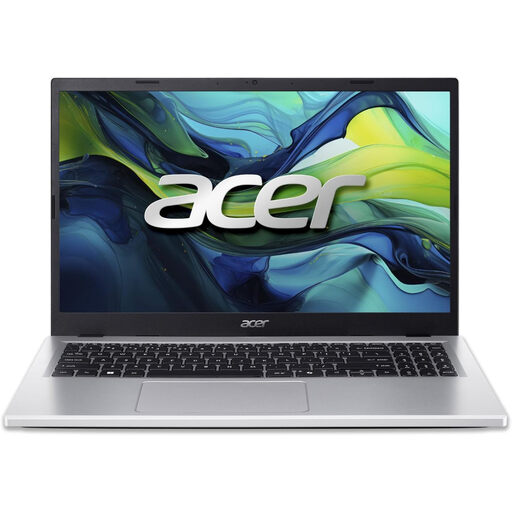
Acer Aspire Go 15 AG15-71P, Intel Core i5-13420H, 8GB DDR5, 256GB SSD
This laptop is an option when schoolwork involves regular typing and the computer needs to move around the home.
The product name specifies a 15.6-inch Full HD screen, 8GB DDR5 RAM, a 256GB NVMe SSD and Windows 11 Home. Confirm the school’s browser, apps and account requirements, including whether any software restrictions apply to the supplied Windows configuration.
View on Joybuy
 No image available
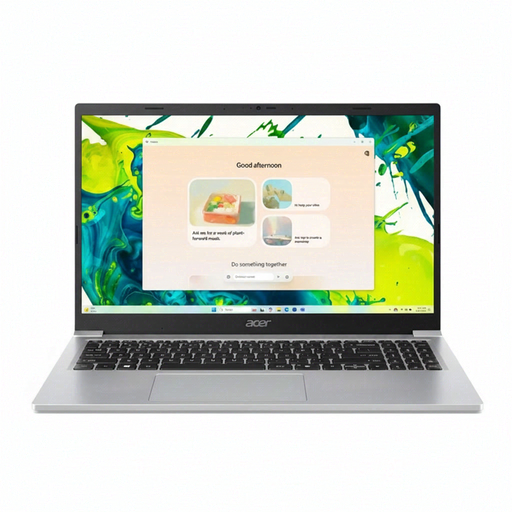
Acer Aspire Lite AL15-36P-C29Z, Intel N150, 8GB DDR4, 128GB SSD
This laptop provides a keyboard-based option for assignments completed in more than one room.
The product name specifies a 15.6-inch Full HD screen and Windows 11 Home. Check the school’s software requirements against the supplied Windows configuration, and confirm microphone provision if the child needs to speak in live lessons.
View on Joybuy
 No image available
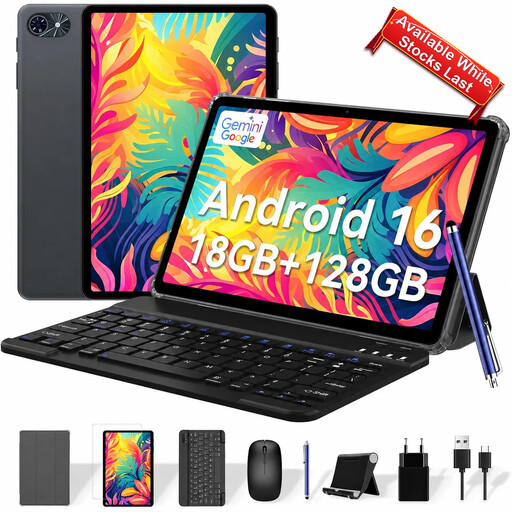
TABWEE T80 10-inch Android 16 tablet with keyboard, 128GB
This tablet-and-keyboard setup is worth considering for school tasks the child can complete through supported tablet apps.
The product name specifies Android 16, 128GB storage and a keyboard. Confirm the school’s apps, account and assignment workflow on Android before relying on it in place of a computer; check microphone provision if live lessons require speaking.
View on Joybuy
Questions about home schoolwork devices
Should I choose a laptop or a tablet for Google Classroom?
Start with a laptop if the child regularly types longer assignments or moves between browser-based services; consider a tablet once the school confirms the full app and submission workflow. Google says Classroom runs on Android and iOS, but full app functionality requires Docs, Sheets and Slides. Goat Lees Primary School’s Classroom guide recommends a PC or laptop for a smoother experience than a phone or tablet.
When does a child need a separate webcam or headset?
Consider one when live lessons require audio or video that the chosen device cannot provide adequately. First test the built-in equipment with the school account: Microsoft says Teams on the web needs browser permission for camera and microphone access, and some settings may be managed by IT.
Does trouble getting online mean we need a new computer?
No. The Department for Science, Innovation and Technology distinguishes a suitable device, stable internet access and the skills to use online services. If the current device meets the school’s requirements, check the connection where the child works, along with account access and available setup support, before replacing it.
Do we need installed Word software for schoolwork?
Not necessarily: Microsoft says Word for the web can edit and format documents, although some features require desktop Word. Ask the school whether assignments need a specific desktop feature or installed application, and whether its education account provides access, before choosing software or a device around that requirement.
What should we check about the complete device setup?
Check the exact bundle for the keyboard, charger and any audio or video accessories the child needs. Confirm the seller’s warranty terms and repair route for the chosen model, rather than assuming that accessories or cover are the same across devices.


