Choose a laptop with two built-in displays if you regularly test search filters away from a fixed desk and need both work areas to travel with you. At a desk, a conventional laptop with compatible external monitors gives you a different screen arrangement; if you need only two screens in total, the laptop display plus one monitor may be sufficient. Check the exact laptop’s video outputs and, where relevant, dock, cable and charging compatibility before buying.
Who each setup suits
Mobile dual-screen testers
If you test search filters in different rooms or workplaces, two built-in displays let you keep the test interface and supporting material visible without relying on a separate monitor. ASUS describes the Zenbook DUO UX8406 as having two 14-inch displays, a detachable keyboard and a kickstand; consider whether that arrangement suits how you work.
Desk-based test and QA workers
If your testing happens mainly at one desk, external monitors can keep browser views, test cases and results visible together. Lenovo and Dell specify dual-display docks, but the display modes you can use depend on the exact laptop, dock and connections.
Laptop-plus-monitor users
If the laptop screen can hold your live test, one external monitor may be enough for requirements or results. Lenovo documents HDMI and multi-purpose USB-C display connections for supported ThinkPad configurations, while Microsoft Support explains how to arrange connected displays in Windows.
What matters when choosing
Decide whether the second workspace needs to travel with you, then whether your desk workflow calls for one external monitor or two. For either external-monitor route, confirm the laptop’s display outputs before choosing a dock or cables.
| Concern |
What to check |
Who this matters to |
| Two screens on the move |
Check how both built-in displays work with the keyboard and stand, and whether the complete setup is practical to carry. |
When testing takes me between locations, I want the live filter and my test notes visible without finding a spare monitor. Around 42% of consumers put a portable built-in second screen first. |
| Two external desk displays |
Confirm the exact laptop’s video outputs and the dock’s host-port requirements; match the intended monitor resolution, refresh rate, cables and charging needs. |
At a fixed desk, I want room for the browser, requirements and results across external screens, but need the whole connection to work together. Around 33% of consumers prioritise a reliable two-monitor desk setup. |
| One additional monitor |
Check for an HDMI output or a USB-C connection that supports the intended display, then arrange and extend the screens in Windows. |
If my laptop panel can show the filter test, I only need one other screen for cases or notes and would rather keep the connections simple. Around 25% of consumers put that simpler two-screen arrangement first. |
Setup mistakes to avoid
-
Assuming every USB-C port can drive two monitors
The connector shape alone does not establish video or dual-display dock compatibility. Lenovo conditions use of its relevant docks on supported host-port protocols.
Match the exact laptop configuration against the dock’s compatibility guidance and confirm the display modes you intend to use.
-
Reading a dock’s display rating as a laptop guarantee
Dell specifies dual 4K at 60 Hz for its Pro Thunderbolt 4 Smart Dock SD25TB4, but that dock rating does not establish what every connected laptop can output or how it will be charged.
Check the laptop’s video-output specification alongside the dock, monitor inputs, cables and required charging power.
-
Choosing built-in dual displays for a permanently fixed desk
The ASUS Zenbook DUO UX8406 offers two built-in 14-inch screens and a detachable-keyboard arrangement. Those are different working surfaces and ergonomics from a desk with external monitors.
Consider where you actually test filters and whether you need both screens to move with the laptop.
-
Connecting a monitor without arranging the desktop
A connected screen may still need to be detected and positioned correctly for windows and the pointer to move as expected between work areas.
Microsoft Support advises using Windows display settings to identify the screens, detect a missing display and arrange them to match their physical positions.
Relevant brands to consider
ASUS
The Zenbook DUO UX8406 is a relevant example if both testing screens need to travel with the laptop.
- ASUS specifies two 14-inch OLED touchscreens, a detachable keyboard and a kickstand for the Zenbook DUO UX8406.
- Its built-in screens and keyboard layout differ from working with larger external monitors at a fixed desk.
Lenovo
Lenovo’s documented laptop connections and dual-display dock provide options to assess for a desk-based setup.
- Lenovo specifies two 4K displays at 60 Hz for its USB-C Dual Display Travel Dock, subject to a compatible host connection.
- Confirm the exact laptop’s port protocol and display capability; a USB-C connector alone does not establish either.
Dell
Dell’s Pro Thunderbolt 4 Smart Dock SD25TB4 is relevant when considering a docked testing desk.
- Dell specifies dual 4K at 60 Hz for the SD25TB4 dock.
- The dock specification does not replace a compatibility check for the exact host laptop and intended monitors.
Joybuy product for portable two-screen testing
This built-in dual-screen laptop is relevant if you want to keep a search-filter test and supporting material visible while working away from a fixed desk.
 No image available
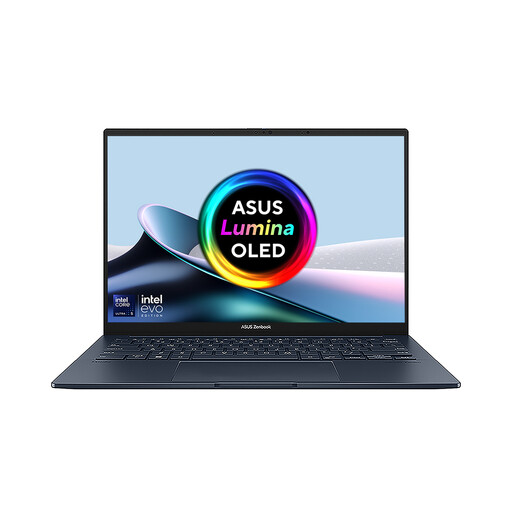
ASUS Zenbook DUO UX8406CA-QL135W dual OLED touch laptop
Its two built-in screens suit testing a search filter while keeping notes or results visible without an external monitor.
The listed configuration has 14-inch displays, an Intel Core Ultra 7 255H, 16 GB LPDDR5X RAM and a 1 TB SSD. Confirm the exact panel resolution for this configuration before ordering.
Joybuy
Questions about two-screen testing
Can any USB-C laptop run two external monitors through a dock?
No: a USB-C connector alone does not establish dual-display support. Lenovo says its relevant docks require a host port with a supported protocol, so check the exact laptop configuration and dock compatibility before choosing monitors and cables.
Is one external monitor enough for testing a search filter on two screens?
Yes, if the laptop’s own display can serve as one workspace and its video output supports the external monitor. You could keep the live filter on one screen and test cases or results on the other; check the exact laptop’s HDMI or USB-C display connection.
How do I arrange the screens after connecting them?
In Windows 11, open Settings, then System and Display to identify and arrange connected screens. Microsoft Support also describes detecting a screen that does not appear and adjusting the multiple-display settings.


