What to consider before buying
A permanent external monitor
Choose it when: you want a second screen to stay on your desk for documents, communication or visual tasks.
Trade-off: a larger screen takes up more desk space, and a conventional video connection may leave charging and peripherals on separate cables.
A USB-C monitor
Choose it when: your computer supports the required USB-C video connection and you want the monitor to provide laptop power or hub functions.
Trade-off: charging capacity and video support vary by model; check the upstream port and compare its Power Delivery rating with your laptop’s requirements.
A portable monitor
Choose it when: you need to carry the additional screen or clear a shared table after work.
Trade-off: a smaller display has less physical viewing area, and some connection methods may require software support.
A monitor arm or separate cable
Choose it when: you need a different screen position or a cable that matches your computer’s output and monitor’s input.
Trade-off: an arm adds mounting and load requirements, while a cable or adapter cannot resolve an unsupported video connection.
Which? and Samsung UK guidance highlight screen space, connections and adjustment as useful things to compare. The rows below help you weigh those factors against the way you use your desk.
| Concern |
What to check when buying |
Who this matters to |
| Screen space and detail |
Compare screen size with native resolution and the space available on your desk. |
I want documents and communication visible together, so usable screen space and detail lead my choice; around 31% of consumers put this need first. |
| Computer connection and charging |
Match the computer’s video output to the monitor input; check upstream USB-C charging separately. |
I want to connect my laptop and peripherals without relying on an unsuitable port; around 25% of consumers prioritise connection simplicity. |
| Desk fit and positioning |
Check the monitor’s full dimensions with its stand, adjustment range and any arm-mount requirements. |
I need the display to fit and sit comfortably on my desk; around 25% of consumers put positioning and desk fit first. |
| Moving or packing away |
Check the display’s size, stand or mounting method, and whether your computer needs software for the connection. |
I work in different spaces or need to clear the table after work, so portability matters most; around 19% of consumers prioritise moving or packing away their screen. |
Joybuy monitor options
The products below are external monitors for permanent home-office desks. Compare their stated screen sizes and resolutions with your desk space and the connections your computer supports.
 No image available
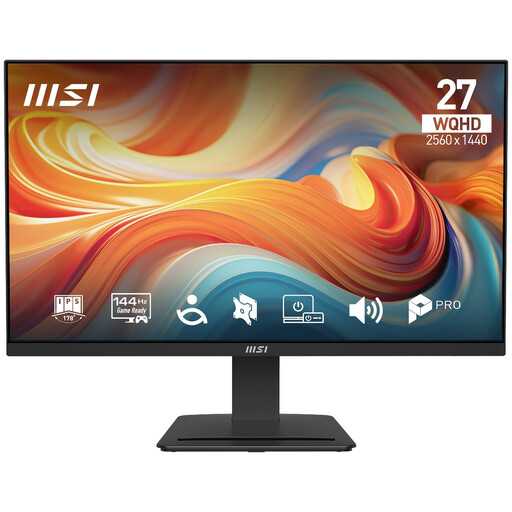
PRO MP273Q E14 27-inch WQHD 144Hz IPS Monitor
A 27-inch WQHD option for a permanent desk where you want to compare screen area with pixel resolution.
27-inch; 2560 × 1440 (WQHD); 144Hz; IPS.
Joybuy
 No image available
AOC Q32V4 31.5-inch QHD IPS Monitor
Consider this larger-format option if your desk can accommodate its stated screen size.
31.5-inch; 2560 × 1440; IPS; built-in speakers.
Joybuy
 No image available
ASUS ProArt PA278CV IPS WQHD Monitor
A WQHD external-monitor option for comparing a higher-resolution workspace with your desk setup.
IPS; WQHD.
Joybuy
 No image available
ASUS ProArt PA24ACRV IPS QHD Monitor
A QHD option to consider if you are comparing a smaller display format with the space available on your desk.
IPS; QHD.
Joybuy
 No image available
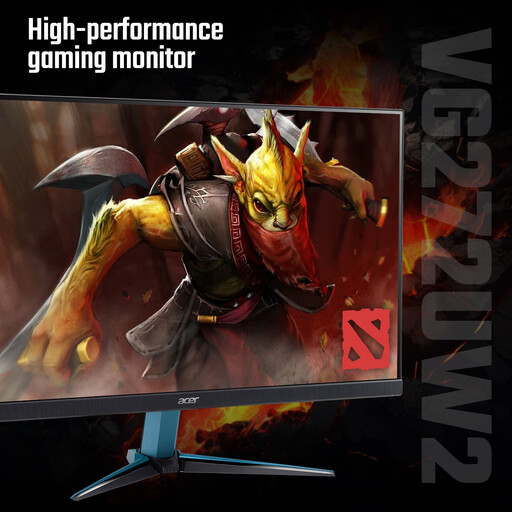
Acer Nitro VG272UW2bmiipx 27-inch QHD IPS Monitor
A 27-inch QHD option for a desk-based setup; check whether its stand’s adjustment suits your preferred screen position.
27-inch; QHD; IPS; 240Hz. The stand is described as tilt-adjustable only.
Joybuy
Second-monitor questions answered
Does a USB-C connector alone tell me whether a monitor works with my laptop?
No. Check the functions documented for the computer port and monitor input, then choose a supported cable or adapter. Also check whether the connection provides video and the laptop charging power you need; ASUS specifies driver-based USB-A operation for the ZenScreen MB16ACV.
How do I show different windows on my second screen?
In the Windows workflow described by Dell, open Settings, then System and Display, and select Extend these displays under Multiple displays. Arrange the display icons to match the screens’ physical positions; Duplicate shows the same content on both.
Will a portable monitor fit an ordinary monitor arm?
Not automatically; compare the exact mounting interfaces. ASUS specifies a quarter-inch threaded mounting hole for the ZenScreen MB16ACV, while BenQ specifies a 100 × 100 mm VESA mount for the GW2790QT.
How should I clean a computer monitor?
Follow the instructions for your exact monitor. Dell’s general guidance recommends powering down and unplugging it, starting with a dry microfibre cloth, and using a cloth lightly dampened with distilled water for persistent marks. Do not spray liquid directly onto the screen or use household window cleaner.
Must every home worker buy a second monitor to comply with DSE rules?
No. Official guidance does not prescribe a second monitor for every home worker. Where display screen equipment duties apply, the employer assesses the workstation and decides what equipment is needed for that worker’s circumstances; HSE guidance applies in Great Britain, while HSENI provides separate guidance for Northern Ireland.


