Laptop workers at a fixed desk
If documents, messages, browser tabs and calls compete for space on your laptop, a desk monitor can give those tasks a separate screen. Check its inputs and positioning options as well as its display size.


Choose the connection around your laptop’s supported display output, then choose a screen that fits the work and the desk. HDMI can provide a direct display connection when both devices have matching ports; a USB-C monitor can reduce cables only if the laptop supports video over USB-C and its charging requirements match the monitor’s stated power delivery.
If documents, messages, browser tabs and calls compete for space on your laptop, a desk monitor can give those tasks a separate screen. Check its inputs and positioning options as well as its display size.
When a desk is small or temporary, the monitor’s footprint, storage and cable arrangement may matter as much as its screen size. A portable display is worth considering if a permanent desk monitor would be awkward to accommodate.
A USB-C monitor may combine display, data and laptop charging, but the connector shape alone does not establish those capabilities. Which? notes that USB-C video support depends on the connection; check the laptop and monitor specifications together.
Check the laptop’s display output before settling on a monitor input. Then decide how much screen and stand space your work can use, and whether combining display and charging is important to you.
| Concern | What to check | Who this matters to |
|---|---|---|
| Display connection | Identify the laptop’s supported video output, the monitor input and the cable or adaptor needed between them. Confirm video support rather than relying on the presence of a USB-C port. | If my laptop cannot send a picture through the connection I choose, the extra screen will not solve my workspace problem. Around 31% of consumers put connection compatibility first. |
| Desk fit and positioning | Measure usable desk space, including room for the stand and laptop. Check the adjustments or mounting options you need. | On a small or shared desk, I need to position both screens without losing the space I use for work. For around 25% of consumers, desk fit is the primary concern. |
| Usable workspace | Compare physical screen size and resolution against the documents, communication and visual work you want to display. | I want enough room to keep documents and messages visible while switching tasks, rather than choosing by a specification alone. Gaining usable workspace comes first for around 25% of consumers. |
| Charging and peripherals | For a USB-C setup, confirm laptop video and charging support, the monitor’s stated power delivery and any peripheral ports you need. | I would rather connect fewer cables when I sit down to work, provided the display can also meet my laptop’s charging needs. Around 19% of consumers prioritise that single-cable arrangement. |
Which? says USB-C may carry DisplayPort video depending on the connection. A laptop and monitor can both have USB-C ports without that fact alone establishing a working display path.
Check the exact laptop model’s documentation for USB-C display output, such as DisplayPort Alt Mode, before choosing a USB-C-only connection.
USB-C power delivery varies by monitor model, and a stated output does not establish what a particular laptop will accept or require.
Compare the exact monitor’s power-delivery specification with the laptop manufacturer’s USB-C charging requirements.
You may still need to use the laptop’s separate charger at the desk.
A screen must fit alongside the laptop and leave room for the tasks you do at the desk. Which? distinguishes smaller displays for limited spaces, while the Health and Safety Executive advises considering the whole workstation when assessing display-screen work.
Measure the available width and depth, then compare stand footprints and positioning options. A compact or portable display may be easier to accommodate on a temporary desk.
Mismatched laptop outputs and monitor inputs add another point to check in the display connection. Microsoft advises identifying both connectors and using an appropriate cable or adaptor.
Write down the laptop output and intended monitor input before ordering. If conversion is required, check that the particular adaptor supports the display signal and mode you intend to use.
These brands offer examples of different desk and portable monitor arrangements; features vary by model, so compare the exact display rather than treating a brand name as a connection specification.
Dell UK lists fixed-desk USB-C monitors, including models with adjustable stands and laptop power delivery.
Lenovo UK lists both conventional ThinkVision desk monitors and the portable L15 for smaller or temporary workspaces.
Acer presents its SH2 series as slim desk monitors with USB-C and an adjustable-stand design.
LG UK’s UltraFine 27U730A-B is an example of a higher-resolution USB-C desk monitor.
These choices include fixed-desk and portable second screens. Their listed HDMI or USB-C features serve different laptop connections, so match a monitor to your device’s supported output before considering its size and placement.
 Image unavailable
Consider this for a fixed desk where you can accommodate a larger second screen. The listed model has a 32-inch 4K IPS display, USB-C connectivity and a height-adjustable stand; check your laptop’s USB-C video support before planning a single-cable setup.
 Image unavailable
This is a fixed-desk option for a separate document or task screen. Its name specifies a WQHD IPS display; confirm the connection you intend to use and measure the space available for the monitor and laptop.
 Image unavailable
The portable format suits a desk that cannot accommodate a permanent larger display. The product name specifies a 14-inch, 60Hz touchscreen with a 180° adjustable stand and VESA mounting; confirm your laptop’s video connection and how the display will be powered.
 Image unavailable
This portable screen is suited to adding display space away from a permanent desk. It is a Full HD model; its listed video connection requires USB-C DisplayPort Alt Mode, and HDMI is not supported, so check the laptop’s output before buying.
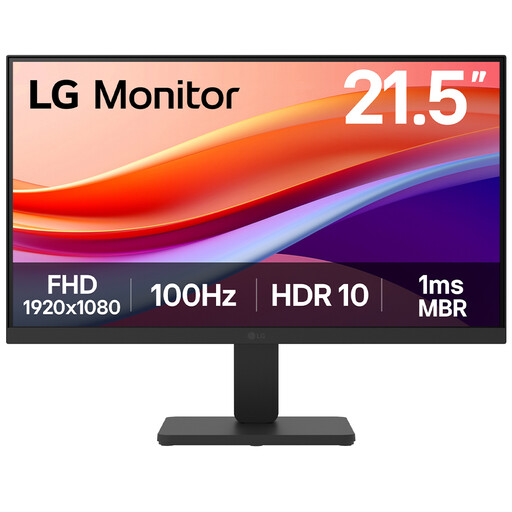 Image unavailable
Consider this conventional desk display if your laptop has a compatible HDMI output. The product name specifies a 22-inch VA Full HD screen, a 100Hz refresh rate and HDMI input; plan a separate laptop charger if you need one at the desk.
Check the exact laptop model’s documentation for external-display outputs and supported modes, then match one to a monitor input. Which? notes that USB-C carries DisplayPort video only when the particular connection supports it, so a USB-C port alone is not confirmation.
Use a matching HDMI connection if you want a dedicated display cable and both devices support the intended display mode. Choose USB-C for a combined display-and-charging arrangement only after confirming that the laptop supports USB-C video and that the monitor’s charging output suits it.
It can when the monitor provides suitable USB-C power delivery and the laptop supports charging through that connection. Dell UK and LG UK list different power-delivery ratings for specific monitors; compare the exact model’s rating with your laptop’s charging requirements before leaving its charger aside.
Identify the laptop’s output and the monitor’s input before selecting an adaptor or dock. Microsoft advises matching connection types where possible and notes that some signal conversions or longer runs may call for an active adaptor or extender; check the chosen accessory against the display mode you need.