What should you check before buying?
Start with the connection to your existing computer, then check the space and screen position you can accommodate. Extra features matter only if they fit the way you work.
| Priority | What to check | Your needs |
|---|
| Video connection |
Match the computer’s display output to the monitor input and the intended cable or adapter. If adding more than one external display, check the computer or dock’s display support. |
I want another area for documents or calls without replacing my computer. If I may add further screens, the number my computer supports matters too. |
| Desk fit and positioning |
Measure available width and depth, including room for the stand. Check height, tilt, swivel or pivot adjustments you will use, or compatibility with a planned mount. |
The screen needs to fit beside my keyboard and let me position it for regular desk work, rather than simply fit on the surface. |
| USB-C setup |
Confirm that the computer’s USB-C port carries video. For laptop charging, compare the exact monitor’s power-delivery rating with the laptop’s requirements; check which hub features work with your computer. |
One cable for the display and laptop would make my fixed desk simpler, provided it handles the connections and charging I actually need. |
| Detail and colour |
Compare resolution with the intended computer output. For colour-sensitive work, check the model’s stated colour specifications against your software and calibration workflow rather than treating a gamut figure as a guarantee of accuracy. |
I work with detailed images or video, so display detail and the requirements of my colour workflow matter more than they would for ordinary documents. |
| Portability |
Check screen size, video inputs, required cables and the available stand positions. Confirm the connection your laptop will use when you move the display. |
I need to take the second screen between workspaces, and can accept less permanent screen space than a fixed desk monitor offers. |
Joybuy monitors for different desk setups
These options cover fixed desk monitors and portable second screens. Choose by the space you have and how often the display will move, then confirm the connection with your existing computer.
 No image available
ASUS ProArt PA278CV IPS WQHD
A fixed-desk monitor to consider when you want a separate screen for home work. Check its inputs against your computer’s display output, and confirm the stand adjustments you need for your desk.
View on Joybuy
 No image available
iiyama ProLite XUB2792UHSU-B6 27-inch 4K UHD
Its stated 27-inch, 4K UHD format is an option for a permanent desk where display detail matters. Check desk fit and the video connection your computer can supply before choosing it.
View on Joybuy
 No image available
ARZOPA A1M 17.3-inch Full HD portable monitor
A portable option when your second screen needs to move between workspaces. Its name specifies an IPS display, kickstand, USB-C and HDMI; confirm the video path, required cable and kickstand position for your setup.
View on Joybuy
 No image available
ASUS ZenScreen MB166CR Full HD
This portable-screen option suits a workspace that changes location. Before planning a USB-C connection, check the laptop’s video output, the required cable and how you can position the screen.
View on Joybuy
 No image available
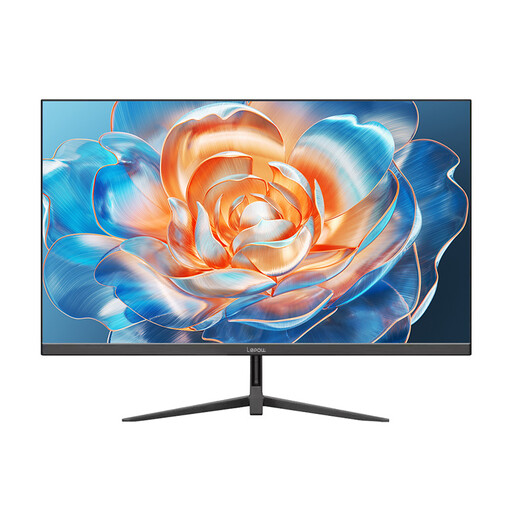
Lepow HC-27Z2 27-inch 100Hz monitor
A desktop-format option for adding screen space to a fixed setup. Check its available inputs and stand positioning against your computer and desk, and whether you have the cable needed for your chosen connection.
View on Joybuy
Common questions
Will any laptop USB-C port connect to a USB-C monitor?
No. Check that the laptop’s USB-C port supports video output and that it matches the monitor’s required video mode. ASUS, for instance, specifies DisplayPort Alt Mode for the USB-C connection on the ZenScreen MB16AHV.
Will I need a dock, adapter or different cable?
That depends on the computer’s output and the monitor’s input: identify both before choosing a cable or adapter. Microsoft Support also advises checking the computer’s display-adapter capability if one external monitor works but an additional one does not.
Can a USB-C monitor display video and charge my laptop?
Some models can when the computer supports the required connection. Dell and LG state up to 90W USB-C power delivery for the P2725QE and 27UP850K-W respectively, while BenQ states 65W for the GW2790QT. Compare the exact model’s video conditions and charging output with your laptop’s requirements.
Should I prioritise an adjustable stand for home work?
Prioritise the adjustments you need if you spend sustained periods at a fixed desk or share it with someone else. The UK Health and Safety Executive notes that poorly designed workstations can contribute to discomfort, so consider screen height and angle alongside your chair, desk and lighting.


