Who is this setup for?
The useful layout depends on what you keep open together and how often you connect a laptop or another computer at the desk.
Document-heavy home workers
If documents, spreadsheets, browser pages and calls compete for space, consider whether you want separate panels for distinct tasks or one continuous area for side-by-side windows. Microsoft Support describes arranging multiple displays in Windows; LG’s 21:9 ultrawide is an example of the alternative single-screen layout.
Laptop users setting up one-cable desks
A USB-C hub monitor or dock may connect a display and desk peripherals through one laptop connection. Check the exact laptop port’s video support and the power it requires before relying on that arrangement; Dell Support and HP Support both specify host-dependent connection requirements.
Workers with limited desk space
Measure the space available for the screen, its stand and your keyboard before deciding between two panels, an ultrawide or a monitor alongside the laptop screen. A mounting arm also needs to match the monitor and the desk edge, not just the screen size.
What should you check first?
Choose the screen layout for your work, then check whether your laptop can drive it and whether the complete arrangement fits your desk.
Two separate monitors
Consider this when: You want a call or messages on a distinct panel while you work on documents, or need an input for another computer.
Trade-off: Two panels take desk width, and both external displays must be supported by the laptop and connection arrangement.
One ultrawide monitor
Consider this when: You prefer a continuous area for wide spreadsheets or applications placed side by side.
Trade-off: One panel does not offer the physical separation of two monitors, and its width and depth still need checking against the desk.
Monitor plus laptop screen
Consider this when: One external display meets your main document-work needs and you can use the laptop screen for calls or reference material.
Trade-off: Plan the laptop screen’s position as part of the workstation; its height may differ from the external display.
| Priority |
What to check |
Your needs |
| Working space |
Compare separate panels with a continuous ultrawide layout. Check screen dimensions, resolution and the viewing distance available at your desk. |
I want documents and a call visible together without repeatedly rearranging windows. Would distinct screens or one wide area suit how I place them? |
| Laptop display support |
Look up the exact model’s supported number of external displays, resolutions and refresh rates. Apple Support says these limits depend on the Mac model and display settings; HP likewise conditions its dock’s display support on notebook capability. |
If I add two external monitors, I need to know that my laptop can run both in the configuration I intend to use. |
| Video connections |
Match the laptop’s video-capable port to the monitor inputs and any adapter or dock. Dell Support advises checking product documentation for DisplayPort over USB-C; the USB-C connector shape alone does not establish video support. |
I want to connect the screen I choose without assuming that every USB-C socket can carry its picture. |
| Daily docking |
For a hub monitor or dock, compare its video, peripheral and power-delivery functions with the laptop’s port support and charging requirement. Check the intended display combination, not just the number of sockets. |
When I sit down with my work laptop, would one connection replace cables I otherwise reconnect each day? |
| Desk and mounting fit |
Measure screen and stand space. For an arm, compare the monitor’s mounting interface and weight with the arm’s limits, then check clamp thickness and clearance beneath the desk. |
I need room to position the display, keyboard and laptop without discovering that a stand or clamp obstructs the desk. |
Relevant brand references
These named product lines illustrate different display, docking and mounting checks; the specifications do not apply across every product from each brand.
Dell
Dell’s P2725QE is an example of a 27-inch 4K USB-C hub monitor for a fixed desk.
- Dell UK specifies USB-C video, data and Ethernet with up to 90 W power delivery for the P2725QE.
- Dell says daisy chaining multiple displays through a single cable requires Thunderbolt; check the laptop and intended display setup.
LG
LG’s 34BA75QE-B illustrates the single-screen ultrawide route.
- LG UK specifies a 34-inch curved IPS panel with 3440 × 1440 resolution, USB-C power delivery up to 90 W and RJ45 connectivity for this model.
- Check its physical fit and whether your laptop supports the intended video connection and charging arrangement.
HP
HP’s Thunderbolt G4 Dock is a reference point for connecting displays and desk peripherals through a compatible laptop.
- HP lists support for up to four external displays plus the notebook display for this dock, dependent on notebook video capability.
- HP says USB-C Alt Mode operation requires DisplayPort Alt Mode support from the host; the dock’s listed outputs are not a promise for every laptop.
Ergotron
Ergotron’s LX Pro arm shows why mounting requirements belong in the desk-planning decision.
- Ergotron specifies a 1.8–10.0 kg display capacity and support for screens up to 34 inches for this arm.
- Its clamp requires a 10–60 mm desk edge and clearance beneath the surface; confirm the exact desk and monitor fit.
Joybuy options for a fixed desk
These options cover an external monitor to use alongside a laptop screen, a stand for two monitors and a single ultrawide display. Choose the layout first, then check each product against your laptop and desk.
 No image available
BenQ MA270UP 27-inch 4K USB-C monitor
Consider this external screen for a fixed desk where you plan to keep the laptop display in use. Its product name specifies a 27-inch 4K IPS monitor with USB-C and a height-adjustable stand. Check that your laptop’s USB-C port supports the video connection you intend to use and that the screen fits your working position.
View on Joybuy
 No image available
MSI MD272UPSW 27-inch 4K monitor with Google TV
This is another external-screen option for documents at a regular desk, with Google TV as a distinguishing feature. The product name specifies a 27-inch 4K IPS display, USB-C 65 W power delivery and Multi-Control. If you intend to use USB-C for video and charging, check your laptop’s port capability and power requirement; check how Multi-Control works with the devices you plan to connect.
View on Joybuy
 No image available
LG 27UP650K 27-inch 4K IPS monitor
For a laptop-and-external-monitor layout, this model offers HDMI and DisplayPort inputs named in the product listing. Its product name also specifies a 27-inch 4K IPS display at 60 Hz. Match the chosen input and resolution to your laptop’s display output; if laptop charging through the monitor matters, confirm that function separately.
View on Joybuy
 No image available
Dell Pro MDS19 dual monitor stand
This stand is for positioning two monitors at one desk; it does not provide the screens or their video connections. Before choosing it, confirm each monitor’s size, mounting pattern and weight against the stand’s specifications, including whether its stated weight limit applies to each screen or to the stand as a whole. Check the space and stability of the intended desk position too.
View on Joybuy
 No image available
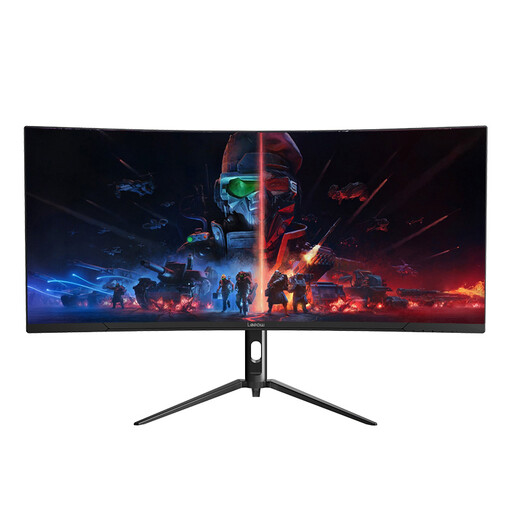
Lepow HC-SJ34MZ5 34-inch ultrawide curved monitor
Consider this route if you want one wide screen for documents and applications rather than two separate panels. The product name specifies a 34-inch curved ultrawide display with 3440 × 1440 resolution and a 165 Hz refresh rate. Check whether your laptop can output the intended resolution through the chosen connection, and measure the desk space needed to position the screen.
View on Joybuy
Common questions
Will a USB-C dock let any laptop run two external monitors?
No. A dock provides connections, but the laptop must support the planned number of external displays at the intended resolutions and refresh rates. HP says its Thunderbolt G4 Dock’s display support depends on notebook video capability, while Apple Support says a hub or daisy chain does not increase a MacBook Pro’s maximum supported display count.
How do I check whether my laptop’s USB-C port supports a monitor?
Consult the specifications for the exact laptop model and port for DisplayPort over USB-C, DisplayPort Alt Mode or the connection standard required by the monitor or dock. Dell Support notes that a DisplayPort logo may identify a suitable USB-C port, but directs users to product documentation to confirm support.
Should I choose a 34-inch ultrawide or two monitors for document work?
Choose by how you want to arrange the work: an ultrawide gives you one continuous area for wide spreadsheets or side-by-side applications, while two monitors provide physically separate panels for tasks such as a call beside a document. LG’s 34BA75QE-B is a 34-inch 21:9 example, not a measure of every ultrawide. Check desk fit, monitor inputs and your laptop’s display support for either layout.
Can I put any monitor on a desk arm?
No. Match the monitor’s mounting pattern and relevant weight to the arm’s supported range, then check screen-size limits and the desk attachment. VESA defines mounting interfaces, but an interface alone does not establish that the whole arrangement fits; Ergotron’s LX Pro, for example, also has model-specific weight, clamp and underside-clearance requirements.


