What should you prioritise?
External monitor
Choose when: you need a separate display to keep work visible alongside your laptop screen.
Trade-off: the screen and its stand take up desk space; size alone does not tell you how much detail is available.
USB-C or Thunderbolt dock
Choose when: you regularly reconnect your laptop and need the display outputs, peripherals or charging specified for that dock.
Trade-off: check the laptop’s host-port requirements and supported display count; some DisplayLink setups also require software and permissions.
Display adapter or cable
Choose when: your laptop can output video and the monitor has a different input from the cable or connection available.
Trade-off: an adapter does not add screen area or provide charging unless those capabilities are separately supported.
Monitor arm or stand
Choose when: your existing or planned screen needs a different position, or its base takes up useful desk space.
Trade-off: check the screen’s mounting pattern and weight, along with the arm’s adjustment range and desk attachment.
For a laptop-based home-work setup, compare these four priorities with the equipment and desk space you already have.
| Concern |
What to check when buying |
Who this matters to |
| Readable workspace |
Compare screen size and native resolution, then consider your intended window layout and scaling. |
If I keep a spreadsheet beside messages and reference pages, I need enough readable workspace without a screen that overwhelms the desk. Around 33% of consumers put readable workspace first. |
| Laptop connection and charging |
Check the exact laptop’s video output, supported display count, required charging power and compatible cable. |
When I unplug my laptop often, I want a desk connection that matches its video, charging and display support. Around 27% of consumers prioritise laptop connection and charging. |
| Desk fit and screen position |
Measure available space and viewing distance; check stand movement or mounting compatibility. |
On a compact desk, I need the screen and stand to fit while still allowing a workable position. Around 20% of consumers put desk fit and screen position first. |
| Keeping the setup simple |
Inventory the laptop outputs, monitor inputs and included cables before choosing a display, dock or adapter. |
If my laptop already has a usable video output, I would rather add only the equipment needed than take on dock functions I will not use. Around 20% of consumers prioritise a simple, direct setup. |
Brands and product lines to consider
These examples describe specific product lines and models; their features and limitations should not be assumed to apply across an entire brand.
Dell
The UltraSharp U2723QE illustrates a 27-inch 4K USB-C hub monitor for a laptop-centred desk.
- Dell specifies USB-C DisplayPort Alternate Mode, power delivery up to 90 W, USB peripherals, LAN and height, pivot, swivel and tilt adjustment for this model.
- Check that the laptop’s video output and charging requirements match the monitor’s connection and power-delivery specifications.
BenQ
The GW2790 is an example of a 27-inch Full HD monitor with direct display connections.
- BenQ specifies 1920 × 1080 resolution, HDMI and DisplayPort inputs, a 100 × 100 mm mounting pattern and tilt adjustment for the GW2790.
- Check the exact model’s connection and charging details if you need USB-C video or laptop power delivery; BenQ’s eye-comfort descriptions are manufacturer claims, not evidence of a health outcome.
LG
The 27U631A-B illustrates a 27-inch QHD USB-C display where screen resolution and laptop charging need separate consideration.
- LG specifies a 2560 × 1440 display and USB-C connectivity for this model.
- LG specifies USB-C power delivery up to 15 W and says the USB-C cable is sold separately; check whether that power meets your laptop’s charging needs.
Lenovo
The ThinkVision T27h-30 illustrates a QHD monitor with integrated connections and an adjustable stand.
- For part number 63A3GAT1UK, Lenovo lists USB-C, Ethernet, a USB hub, DisplayPort output and stand movement.
- Check laptop compatibility and confirm the specifications of the exact variant offered before choosing it.
StarTech.com
The DK30CH2DPPDU illustrates a DisplayLink-based dock for a setup requiring additional display outputs, rather than a replacement for a monitor.
- StarTech specifies three video outputs and 60 W USB-C power delivery for this product.
- StarTech specifies driver installation for Windows and macOS; check the laptop, software requirements and workplace policy before choosing this approach.
Joybuy monitor choices
These Joybuy product choices are monitors for laptop-based desk setups; compare their stated screen details with your laptop’s connection needs and available desk space.
 Image unavailable
BenQ MA270UP 27-inch 4K UHD USB-C Monitor
A monitor option for adding a separate screen to a laptop-based desk setup.
The product name specifies a 27-inch 4K UHD screen with USB-C. Check the exact video and charging capabilities against your laptop before planning a one-cable connection.
View on Joybuy
 Image unavailable
MSI MD272UPSW 27-inch 4K UHD Smart Monitor with Google TV
A monitor option for a laptop desk where you also want to consider the product’s named smart-TV feature.
The product name identifies a 27-inch 4K UHD Smart Monitor with Google TV. Check its connection and power details against your laptop before choosing it for a desk setup.
View on Joybuy
 Image unavailable
ASUS ProArt PA278CV WQHD Monitor
A monitor option for adding a separate display to a laptop-based work setup.
The product name identifies a WQHD IPS monitor. Check its connection options and stand arrangement against your laptop and desk requirements.
View on Joybuy
 Image unavailable
ASUS ProArt PA24ACRV QHD Monitor
A monitor option for adding a separate screen to a laptop-based desk setup.
The product name identifies a QHD IPS monitor. Check the exact screen size, connections and stand details against your workspace needs.
View on Joybuy
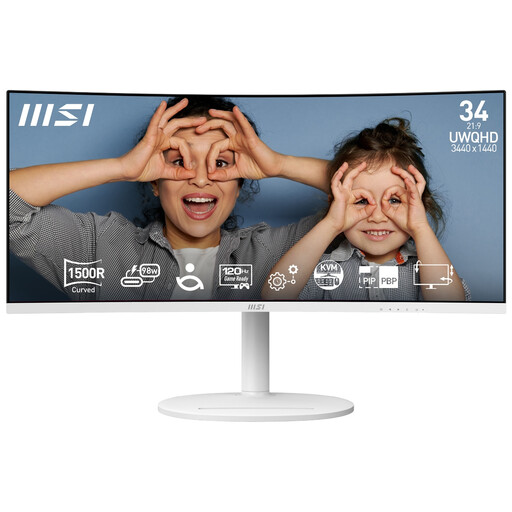 Image unavailable
Modern MD342CQPW 34-inch UWQHD 120Hz Curved Monitor, White
A larger-format monitor option for arranging multiple work windows side by side.
The product name specifies a 34-inch 3440 × 1440 curved display, 120 Hz and 1500R curvature. Check the available desk width and the laptop’s connection requirements before choosing this format.
View on Joybuy
Frequently asked questions
Will any USB-C socket on my laptop run a monitor or dock?
No. Dell Support notes that not every USB-C port supports video output. Check your exact laptop’s documented video capability and the monitor or dock’s host-connection requirements, and assess charging separately.
Can a USB-C monitor replace my laptop charger?
Only if the monitor’s specified power delivery meets your laptop’s requirements. For example, LG specifies up to 15 W for the 27U631A-B, so its USB-C connection alone does not establish that it can charge a particular laptop adequately.
How should I position a screen for home working?
The Health and Safety Executive advises placing the top of the screen around eye level and the display about an arm’s length away. Its guidance for prolonged laptop use also describes using a separate keyboard and mouse when raising the laptop screen, or using a separate display; check what position is workable at your desk.
What extra setup can a DisplayLink dock require on a Mac?
DisplayLink Support says its macOS Manager needs Screen Recording permission to access pixels for an extended or mirrored display. Check the dock’s software requirements and whether your workplace permits installation before choosing that setup.
Who pays if an assessment finds that home-working display equipment is needed?
For workers covered by the applicable display-screen-equipment rules, the Health and Safety Executive says that when an assessment indicates action is needed, such as providing equipment, workers cannot be charged. HSE guidance applies to Great Britain, while Northern Ireland has separate guidance from HSENI; this does not mean every home worker is automatically entitled to a particular monitor.
What if an online monitor purchase does not suit my setup?
For a qualifying UK distance sale, GOV.UK says you can tell the seller you wish to cancel within 14 days of receiving the item, then have a further 14 days to return it. Check the seller’s instructions and distinguish a change-of-mind return from rights relating to faulty goods.


