What should you check before buying?
Decide what each screen will show and where it will sit, then match the connection method to your exact laptop.
| Concern |
What to check when buying |
Who this matters to |
| Enough useful screen space |
Give each screen a regular task. Compare the monitor’s size and resolution with your desk and the layouts you need. |
When I need a spreadsheet or document visible beside calls and messages, I want useful space without a screen that overwhelms my desk. Consumers who prioritise simultaneous work make up around 29%. |
| Laptop, display and charging compatibility |
Check your exact laptop model’s display limit, video-capable port, dock or adapter method, monitor inputs and charging requirement. Apple Support and Plugable explain that host support and MST behaviour affect extended displays. |
If I need two independently extended screens or charging through one connection, I want the laptop and dock to work together before I order. Consumers who prioritise connection certainty make up around 29%. |
| Desk fit and portability |
Measure usable desk space and the stand footprint. For an arm, check the exact clamp range, monitor weight and mounting pattern. |
When I need to clear or share my desk, I want a screen that fits or can be put away without awkward positioning. Consumers who prioritise desk fit or portability make up around 24%. |
| Screen positioning |
Check the stand’s height and angle adjustment, or confirm that an arm suits both your desk and monitor. The Health and Safety Executive recommends considering the workstation as a whole. |
If I spend sustained periods at my desk, I want to position the screens comfortably and leave room for my input devices. Consumers who prioritise screen positioning make up around 18%. |
Joybuy products for fixed and portable setups
These Joybuy listings cover fixed monitors and portable laptop screens for adding workspace at home. Check the stated connections and laptop-size conditions against your own setup before choosing.
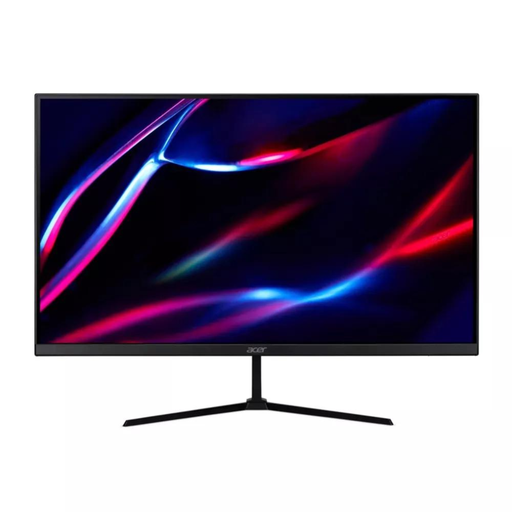 Image unavailable
27-inch QHD IPS Monitor, 180Hz
For a fixed desk setup where you want a larger screen alongside your laptop, subject to your desk space and laptop’s video output.
27-inch QHD IPS display; 180Hz; 350 nits; two HDMI inputs and DisplayPort. The listing also specifies HDR400, FreeSync Premium and HDMI and DisplayPort cables.
Joybuy
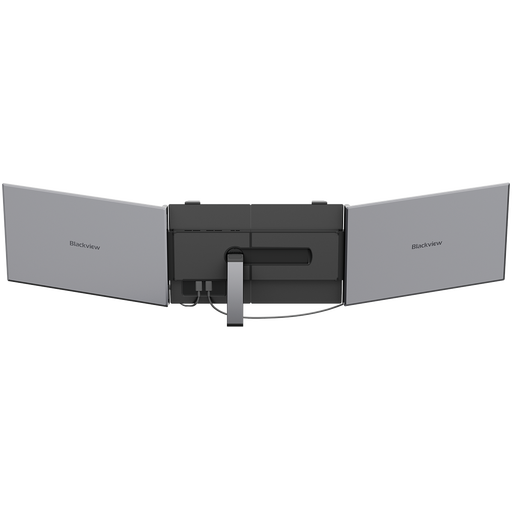 Image unavailable
Blackview DCM8 Portable Screen Extender
For a removable laptop-side screen; check that your laptop supports the required connection and power arrangement.
15.3-inch IPS display; 1920 × 1200; 60Hz; 1.2 kg; USB-C and 100 W reverse charging are stated in the listing.
Joybuy
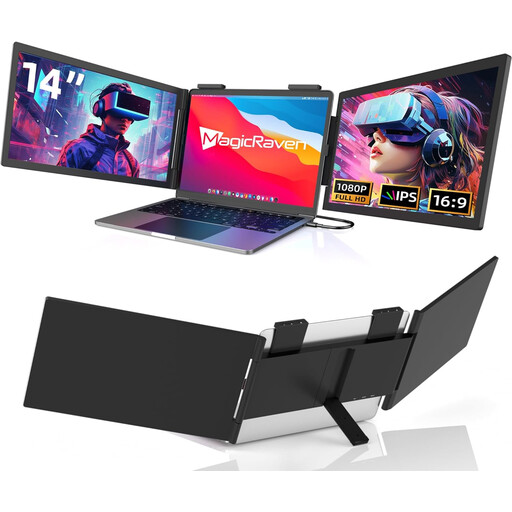 Image unavailable
14-inch Dual-Screen Portable Monitor
For adding portable screens to a laptop within the stated size range; check the connection requirements for your exact laptop.
The listing specifies compatibility with 14–16-inch laptops, FHD 1080p, 60Hz, USB-C and dual built-in speakers.
Joybuy
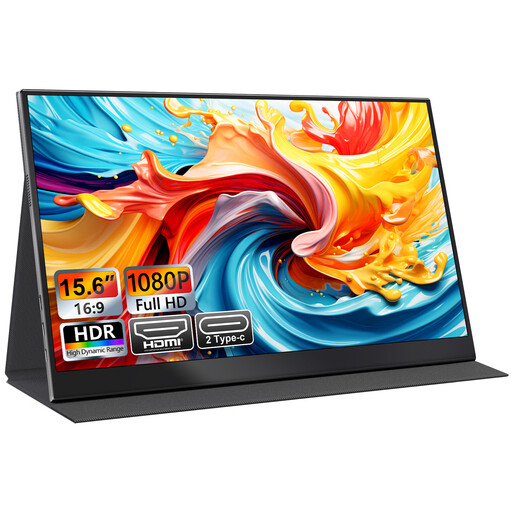 Image unavailable
UFYQL M156F04 15.6-inch Portable Monitor
For a portable second screen where USB-C or HDMI suits the laptop or computer you plan to connect.
15.6-inch FHD 1080p IPS display; USB-C and HDMI; smart-cover stand.
Joybuy
 Image unavailable
BenQ MA270UP 27-inch 4K UHD Monitor
For a fixed 27-inch display; check the laptop’s video output and the monitor’s connection requirements before choosing a cable or dock.
The product name specifies a 27-inch 4K UHD IPS display, USB-C and HDR.
Joybuy
Frequently asked questions
Will any USB-C dock turn one laptop display output into two separate external screens?
No; the laptop’s display support and the dock’s display method both matter. Plugable says MST extension requires a supporting host and macOS mirrors MST-connected displays. DisplayLink is a separate, software-based option that requires Screen Recording permission for its macOS application.
Can I use two external displays with the lid closed on an M3 MacBook Air?
Apple says this is supported under specified conditions, including a connected keyboard and pointing device, power and macOS Sonoma 14.3 or later. Apple also says reopening the lid while both external displays are connected causes the secondary external display to go dark or disconnect; check support for other Mac models separately.
How should I position a laptop and second screen for prolonged use?
The Health and Safety Executive recommends placing the screen about an arm’s length away, with its top around eye level, and using a separate keyboard and mouse when raising a laptop screen. Consider the whole workstation rather than assuming an extra display alone addresses positioning.
Must a UK employer pay for a home-working monitor?
Not automatically for every preferred upgrade. The Health and Safety Executive says display screen equipment regulations can apply to permanent, long-term or routine hybrid home workers who use display screen equipment daily for continuous periods of an hour or more. Where the applicable workstation assessment identifies equipment that must be provided, the worker cannot be charged for it.
What if an online monitor arrives faulty or does not suit my desk?
GOV.UK distinguishes faulty goods from a change of mind. Its guidance says online buyers generally have 14 days after receiving an item to notify the seller that they want to cancel, followed by another 14 days to return it, subject to applicable rules. Faulty goods also have statutory remedies; check the seller’s return instructions and distinguish them from any manufacturer warranty.


